HP Officejet g85 - Multifunction Printer Series HP Officejet G85 - (English) Quick Setup Poster for Windows.
Summary
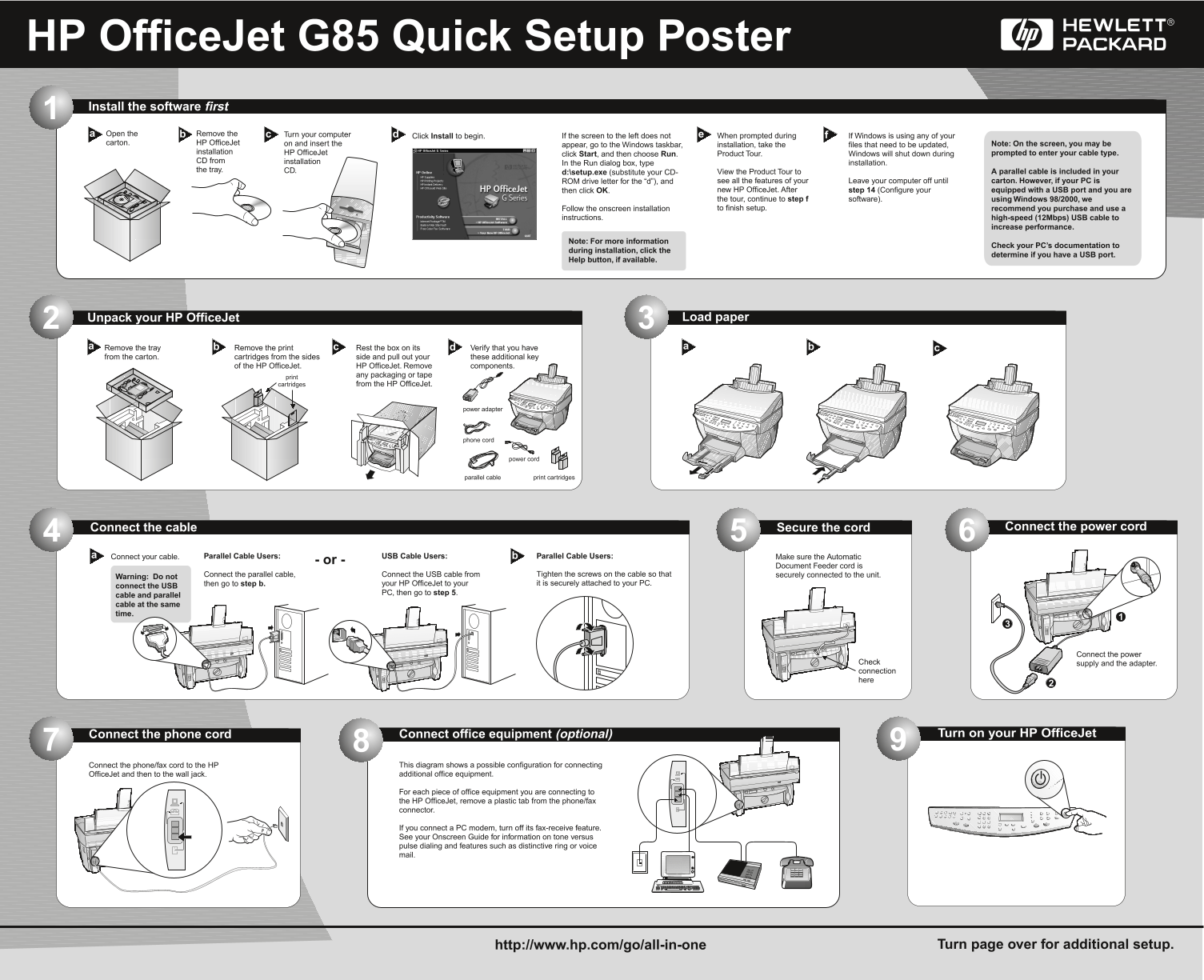
This comprehensive quick setup guide is designed for new owners of the HP OfficeJet G85/G Series all-in-one printer. It provides step-by-step instructions covering everything from unpacking and connecting the hardware (USB, power, phone) to installing color cartridges and loading paper. The manual guides users through complete software configuration, including system alignment, initial Windows setup, and advanced functionality like setting up faxing, ensuring your unit is fully operational for printing, scanning, copying, and faxing right out of the box.
Page 1 Text Content
HP Office Jet G85 Quick Setup Poster Install the software first Open the ba Remove the Turn your computer dc
Click to begin.Install If the screen to the left does not When prompted during If Windows is using any of your
carton. HP Office Jet on and insert the Note: On the screen, you may be
appear, go to the Windows taskbar, installation, take the files that need to be updated,
installation HP Office Jet prompted to enter your cable type.
click Start , and then choose Run Product Tour. Windows will shut down during
CD from installation
In the Run dialog box, type installation.
the tray. CD. A parallel cable is included in your
d:\setup.exe (substitute your CD- View the Product Tour to
ROM drive letter for the “d”), and see all the features of your Leave your computer off until carton. However, if your PC is
then click OK new HP Office Jet. After step 14 (Configure your equipped with a USB port and you are the tour, continue to step f software). using Windows 98/2000, we Follow the onscreen installation to finish setup. recommend you purchase and use a
instructions. high-speed (12Mbps) USB cable to
increase performance.
Note: For more information
Check your PC’s documentation to
during installation, click the
determine if you have a USB port.
Help button, if available.
Unpack your HP Office Jet Load paper3
Remove the tray Remove the print Rest the box on its db Verify that you have
from the carton. cartridges from the sides side and pull out your these additional key
of the HP Office Jet. HP Office Jet. Remove components.
any packaging or tape
cartridges from the HP Office Jet.
power adapter
phone cord
power cord
parallel cable print cartridges
Connect the cable Secure the cord Connect the power cord
Connect your cable.a Parallel Cable Users: USB Cable Users: Parallel Cable Users: Make sure the Automatic
- or -
Document Feeder cord is
Connect the parallel cable, Connect the USB cable from Tighten the screws on the cable so that securely connected to the unit.
Warning: Do not
then go to step b. your HP Office Jet to your it is securely attached to your PC.
connect the USB
PC, then go to step 5
cable and parallel cable at the same time.
Connect the power
Check supply and the adapter. connection here
Connect the phone cord Connect office equipment (optional) Turn on your HP Office Jet9
Connect the phone/fax cord to the HP This diagram shows a possible configuration for connecting Office Jet and then to the wall jack. additional office equipment.
For each piece of office equipment you are connecting to the HP Office Jet, remove a plastic tab from the phone/fax connector.
If you connect a PC modem, turn off its fax-receive feature. See your Onscreen Guide for information on tone versus pulse dialing and features such as distinctive ring or voice mail.
http://www.hp.com/go/all-in-one Turn page over for additional setup.
Page Summary Contents For HP Officejet g85 - Multifunction Printer Series HP Officejet G85 - (English) Quick Setup Poster for Windows.
Manual Details
| Brand | HP |
|---|---|
| Pages | 2 |
| File Size | 2.63 MB |
| Published | June 17, 2026 |
Enter the captcha to get the download link:

Frequently Asked Questions
What must I do before physically setting up the OfficeJet?
Install the software first by running setup.exe from the enclosed CD-ROM.
When inserting new ink cartridges, what cautions should I follow?
Do not touch or remove the gold-colored contacts; use caution when handling the print cartridges.
How do I set up faxing functionality on my new printer?
Use the Fax Setup Wizard found in the HP OfficeJet software installation menu. You must also enter required header information.
Are there specific recommendations for optimal performance during setup?
The manual recommends purchasing and using a high-speed (12Mbps) USB cable to increase performance.