HP Officejet Pro 3620 Series User Guide - Black & White Digital Multifunction Printer
Summary
This comprehensive user guide is designed for HP printer owners needing full support and operational knowledge. It provides detailed instructions on setting up the device, utilizing mobile printing apps, managing advanced features like faxing, and understanding ink usage. The manual also includes essential troubleshooting steps, regulatory compliance information, power specifications, and system setup guidance to ensure smooth operation for all users.
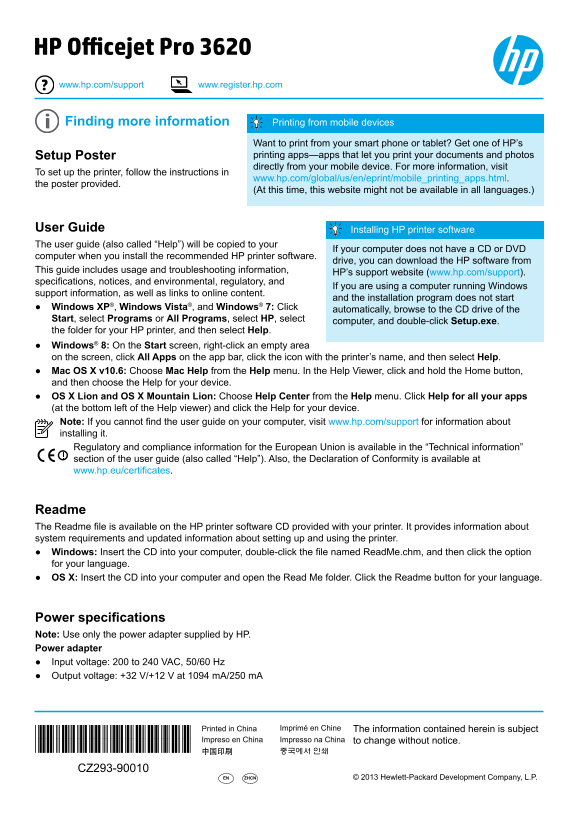
Page 1 Text Content
HP Officejet Pro 3620 www.hp.com/support www.register.hp.com
Finding more information Printing from mobile devices Want to print from your smart phone or tablet? Get one of HP’s Setup Poster printing apps—apps that let you print your documents and photos directly from your mobile device. For more information, visit
To set up the printer, follow the instructions in
www.hp.com/global/us/en/eprint/mobile_printing_apps.html.
the poster provided.
(At this time, this website might not be available in all languages.)
User Guide Installing HP printer software The user guide (also called “Help”) will be copied to your
If your computer does not have a CD or DVD
computer when you install the recommended HP printer software.
drive, you can download the HP software from
This guide includes usage and troubleshooting information,
HP’s support website (www.hp.com/support).
specifications, notices, and environmental, regulatory, and
If you are using a computer running Windows
support information, as well as links to online content.
and the installation program does not start
Windows XP®, Windows Vista®, and Windows® 7: Click
automatically, browse to the CD drive of the
Start, select Programs or All Programs, select HP, select
computer, and double-click Setup.exe.
the folder for your HP printer, and then select Help. Windows® 8: On the Start screen, right-click an empty area on the screen, click All Apps on the app bar, click the icon with the printer’s name, and then select Help. Mac OS X v10.6: Choose Mac Help from the Help menu. In the Help Viewer, click and hold the Home button, and then choose the Help for your device. OS X Lion and OS X Mountain Lion: Choose Help Center from the Help menu. Click Help for all your apps (at the bottom left of the Help viewer) and click the Help for your device. Note: If you cannot find the user guide on your computer, visit www.hp.com/support for information about installing it. Regulatory and compliance information for the European Union is available in the “Technical information” section of the user guide (also called “Help”). Also, the Declaration of Conformity is available at www.hp.eu/certificates.
Readme The Readme file is available on the HP printer software CD provided with your printer. It provides information about system requirements and updated information about setting up and using the printer. Windows: Insert the CD into your computer, double-click the file named Read Me.chm, and then click the option for your language. OS X: Insert the CD into your computer and open the Read Me folder. Click the Readme button for your language.
Power specifications Note: Use only the power adapter supplied by HP. Power adapter Input voltage: 200 to 240 VAC, 50/60 Hz Output voltage: +32 V/+12 V at 1094 m A/250 m A
Printed in China Imprimé en Chine The information contained herein is subject
*CZ293-90010*
Impreso en China Impresso na China to change without notice.
*CZ293-90010*
CZ293-90010
EN ZHCN © 2013 Hewlett-Packard Development Company, L.P.
Page Summary Contents For HP Officejet Pro 3620 Series User Guide - Black & White Digital Multifunction Printer
Manual Details
| Brand | HP |
|---|---|
| Pages | 16 |
| File Size | 3.75 MB |
| Published | June 03, 2026 |
Enter the captcha to get the download link:

Frequently Asked Questions
如何从手机或平板电脑打印?
使用HP打印应用程序(printing apps),可以在移动设备上轻松打印文件和照片。
安装该打印机所需的软件在哪里可以下载?
如果计算机没有CD或DVD驱动器,可以从hp.com/support 下载推荐的HP软件。
如何检查并清除传真日志?
在控制面板主屏幕按【设置】,选择“传真功能”>“传真报告”,然后选择“清除传真日志”。
打印机使用哪些类型的电源适配器?
只能使用HP提供的专用电源适配器。
电脑无法识别或找不到用户指南怎么办?
请访问 www.hp.com/support 了解安装部署的完整信息。