HP LaserJet M207-M212 Printer Series Install Poster
Summary
This detailed guide provides comprehensive setup instructions for the HP LaserJet M207-M212 printer series. It walks new users through the entire installation process, covering everything from physical setup—such as loading paper and adjusting guides—to advanced connectivity. Learn how to seamlessly connect your device to a wireless network using the dedicated HP Smart app. The manual also details optional features like WeChat cloud printing, ensuring you get your printer fully connected and ready for immediate use. Ideal for first-time owners needing clear, step-by-step guidance.
Page 1 Text Content
HP Laser Jet
安装指南 Setup Guide
M207-M212 series
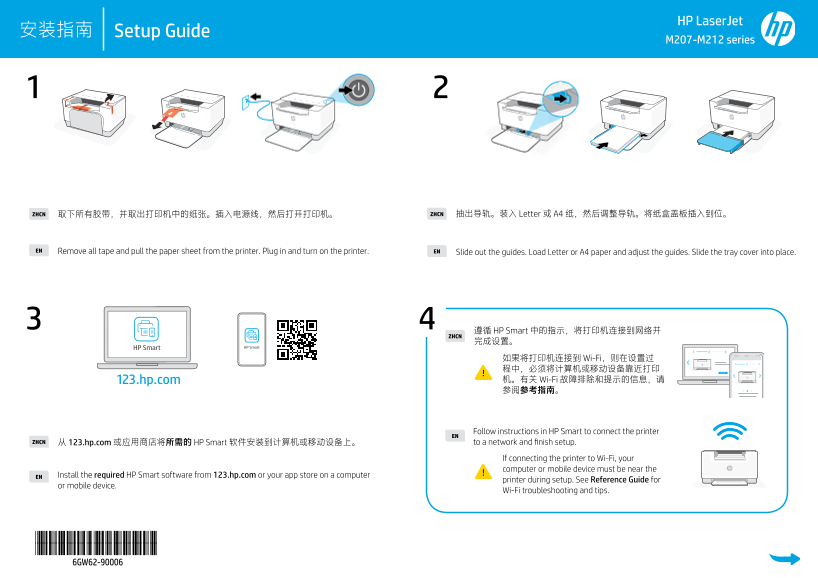
ZHCN 取下所有胶带,并取出打印机中的纸张。插入电源线,然后打开打印机。 ZHCN 抽出导轨。装入 Letter 或 A4 纸,然后调整导轨。将纸盒盖板插入到位。
EN Remove all tape and pull the paper sheet from the printer. Plug in and turn on the printer. EN
Slide out the guides. Load Letter or A4 paper and adjust the guides. Slide the tray cover into place.
遵循 HP Smart 中的指示,将打印机连接到网络并 ZHCN 完成设置。
如果将打印机连接到 Wi-Fi,则在设置过 程中,必须将计算机或移动设备靠近打印 123.hp.com 机。有关 Wi-Fi 故障排除和提示的信息,请 参阅参考指南。
Follow instructions in HP Smart to connect the printer EN 从 123.hp.com 或应用商店将所需的 HP Smart 软件安装到计算机或移动设备上。ZHCN to a network and finish setup.
If connecting the printer to Wi-Fi, your computer or mobile device must be near the
EN Install the required HP Smart software from 123.hp.com or your app store on a computer
printer during setup. See Reference Guide for
or mobile device.
Wi-Fi troubleshooting and tips.
*6GW62-90006* *6GW62-90006* 6GW62-90006
Page Summary Contents For HP LaserJet M207-M212 Printer Series Install Poster
Manual Details
| Brand | HP |
|---|---|
| Pages | 2 |
| File Size | 924.02 KB |
| Published | June 17, 2026 |
Enter the captcha to get the download link:

Frequently Asked Questions
How should I load paper into the printer after physical setup?
Slide out the guides, load Letter or A4 paper, adjust the guides, and then slide the tray cover into place.
Where can I find help if I am having Wi-Fi connection issues?
Visit 123.hp.com or the Reference Guide for troubleshooting tips; your device must be near the printer during setup.
What should I do if I do not receive the Welcome Page after setup?
Follow instructions from the provided website or scan the QR code there to guide you through reprinting the page.
How does the WeChat printing feature work?
Launch WeChat and scan the QR code on the automatically printed Welcome Page; then follow the on-screen mini-app instructions to complete pairing.