HP Deskjet 2010 Printer Series (Ink Advantage) - K010 Install Poster
Summary
Effortlessly set up your HP Deskjet Ink Advance K010 Series printer with comprehensive guidance designed for new users. This guide provides detailed setup instructions, essential troubleshooting tips, and complete product specifications. Access crucial information through the electronic Help center, which includes features overviews, legal notices (such as EU Regulatory Notices), and support details. Use this reliable resource to get your printing experience up and running quickly and confidently.
Page 1 Text Content
DESKJET INK ADVANTAGE EN DESKJET INK ADVANTAGE 2010 PRINTER K010 SERIES Information
2010 PRINTER K010 SERIES The electronic Help is automatically installed during printer software installation. Electronic Help includes instructions on For setup information, see the setup poster. All other product information can be found in the electronic Help and Readme. support information. The Readme file contains HP support contact information, operating system requirements, and the most product features and troubleshooting. It also provides product specifications, legal notices, environmental, regulatory, and download and install the printer software. recent updates to your product information. For computers without a CD/DVD drive, please go to www.hp.com/support to Help, click Appendix > Technical information > Regulatory notices > European Union Regulatory Notice or To find the European Union Regulatory Notice statement and compliance information, go to the on-screen Conformity for this product is available at the following web address: www.hp.eu/certificates. click Technical information > Regulatory notices > European Union Regulatory Notice. The Declaration of To install the electronic Help, insert the software CD in your computer and follow the on-screen instructions. Install electronic Help If you have installed the software as a web download, the electronic Help is already installed along with the software. Windows: Mac: After software installation, click Start > All Programs > Find electronic Help Mac OS X v10.5 and v10.6: From Finder Help, choose Find electronic Help HP > HP Deskjet Ink Adv 2010 K010 series > Help. button, and then choose the Help for your device. Mac Help. In the Help Viewer, click and hold the Home
Insert software CD. On software CD locate Find Readme Insert the software CD, and then double-click the Read Find Readme
select Read Me in your language. Read Me.chm. Click Read Me.chm to open and then Me folder located at the top-level of the software CD.
Get quicker service and support alerts by registering at http://www.register.hp.com. Register your HP Deskjet
Black Cartridge www.hp.com/support
Tri-color Cartridge
Start Here
Mulai Dari Sini ZHCN
Pr in te [C ou
nt ry
ew le tt- Pa ck ar Pr in te [C ou
ev el op en t C nt ry
om pa ny , L .P
XX X- XX
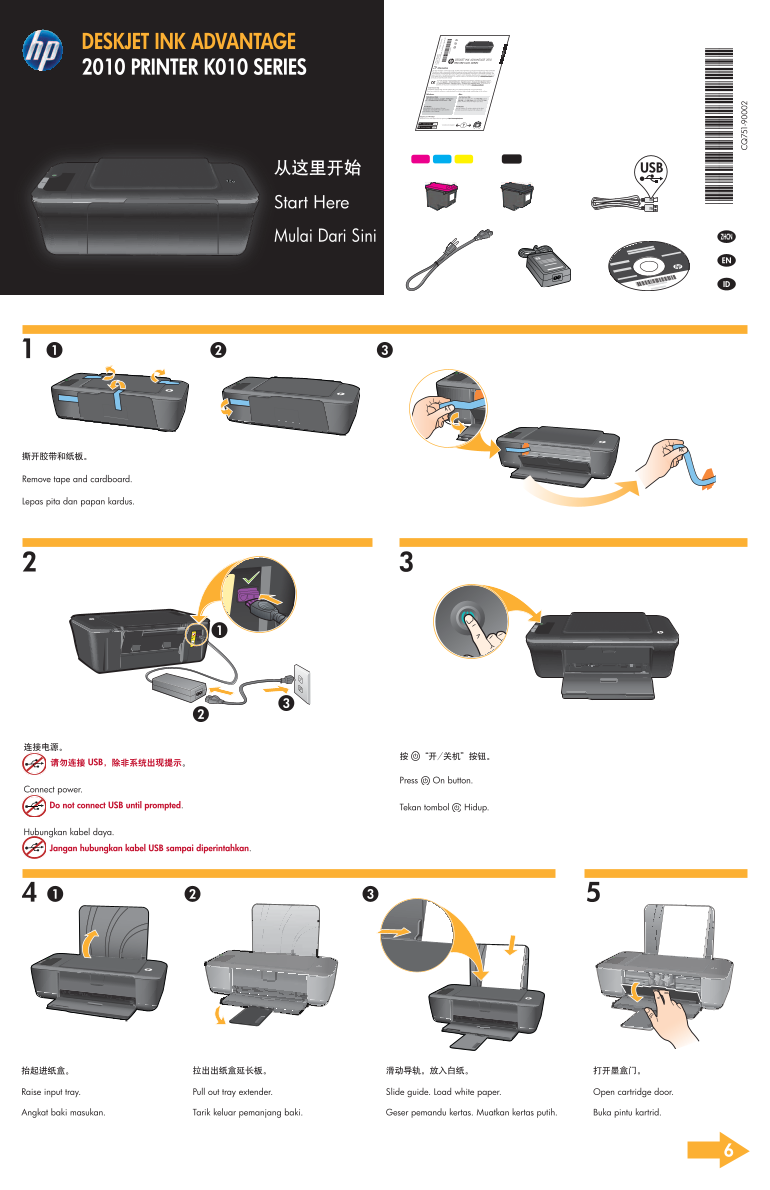
Remove tape and cardboard.
Lepas pita dan papan kardus. En gl is
请勿连接 USB,除非系统出现提示。
Press On button.
Connect power. Do not connect USB until prompted. Tekan tombol Hidup.
Hubungkan kabel daya. Jangan hubungkan kabel USB sampai diperintahkan.
Pull out tray extender. Slide guide. Load white paper. Open cartridge door.Raise input tray.
Tarik keluar pemanjang baki. Geser pemandu kertas. Muatkan kertas putih. Buka pintu kartrid.Angkat baki masukan.
Page Summary Contents For HP Deskjet 2010 Printer Series (Ink Advantage) - K010 Install Poster
Manual Details
| Brand | HP |
|---|---|
| Pages | 2 |
| File Size | 3.76 MB |
| Published | May 29, 2026 |
Enter the captcha to get the download link:

Frequently Asked Questions
Do I need to connect the USB cable immediately?
No. Do not connect the USB until prompted on screen.
What should I do if my computer lacks a CD/DVD drive?
Visit www.hp.com/support to download and install the printer software.
Where can I find troubleshooting information?
Consult the electronic Help, which includes product features and troubleshooting guides.
How do I check compliance status for EU regulations?
Click on-screen Help: Technical information > Regulatory notices > European Union Regulatory Notice.