# A B C D E F G H I J K L M N O P Q R S T U V W X Y Z

Gigabyte Motherboard B660 AORUS MASTER (rev.1.x) Unique Features Introduction User Manual - English

Summary

Essential reading for PC builders and advanced users of GIGABYTE B660 series motherboards. This guide provides comprehensive, step-by-step instructions on maintaining maximum system stability through professional BIOS updates using Q-Flash Plus, @BIOS, and Q-Flash utilities. Learn how to safely upgrade your board while maximizing performance. Additionally, master system optimization features like the System Information Viewer, allowing you to monitor crucial hardware metrics in real time—including fan speeds, temperatures, and voltages—and fine-tune settings for peak computing efficiency.
📄 Preview PAGE OF 16

Page 1 Text Content

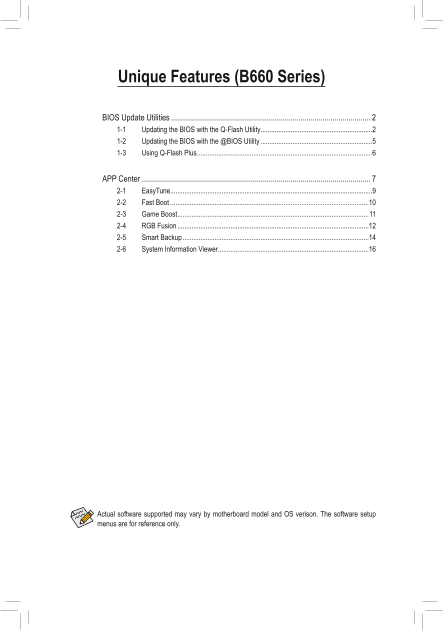
Unique Features (B660 Series)

BIOS Update Utilities .................................................................................................... 1-1 Updating the BIOS with the Q-Flash Utility ...............................................................2 1-2 Updating the BIOS with the @BIOS Utility ...............................................................5 1-3 Using Q-Flash Plus ...................................................................................................6

APP Center ................................................................................................................... 2-1 Easy Tune..................................................................................................................9 2-2 Fast Boot ................................................................................................................10 2-3 Game Boost ............................................................................................................11 2-4 RGB Fusion ............................................................................................................12 2-5 Smart Backup .........................................................................................................14 2-6 System Information Viewer .....................................................................................16

Actual software supported may vary by motherboard model and OS verison. The software setup menus are for reference only.

Page Summary Contents For Gigabyte Motherboard B660 AORUS MASTER (rev.1.x) Unique Features Introduction User Manual - English

Page 1 Unique Features (B660 Series) BIOS Update Utilities .................................................................................................... 1-1 Updating the BIOS with the Q-Flash Utility ...
Page 2 BIOS Update Utilities GIGABYTE motherboards provide two unique BIOS update tools, Q-Flash™ and @BIOS™. GIGABYTE Q-Flash and @BIOS are easy-to-use and allow you to update the BIOS without the need to e...
Page 3 Click Q-Flash (F8) or select the Q-Flash item on the System Info menu to access Q-Flash. B. Updating the BIOS In the main menu of Q-Flash, use the keyboard or mouse to select an item to execute. When ...
Page 4 Step 2: The screen will show that the BIOS file is being read from your USB flash drive. Please select Fast or Intact to begin the BIOS update. The screen will then display the update process. To ensu...
Page 5 1-2 Updating the BIOS with the @BIOS Utility A. Before You Begin 1. In Windows, close all applications and TSR (Terminate and Stay Resident) programs. This helps prevent unexpected failures when perfo...
Page 6 1-3 Using Q-Flash Plus A. Before You Begin 1. From GIGABYTE's website, download the latest compressed BIOS update file that matches your motherboard model. 2. Uncompress the downloaded BIOS file, save...
Page 7 APP Center GIGABYTE App Center gives you easy access to a wealth of GIGABYTE apps that help you get the most from your GIGABYTE motherboard (Note). Using a simple, unified user interface, GIGABYTE App...
Page 8 Running the APP Center In Desktop mode, click the App Center icon in the notification area to launch the App Center utility (Figure 1). On the main menu, you can select an app to run or click Live Upd...
Page 9 2-1 Easy Tune GIGABYTE's Easy Tune is a simple and easy-to-use interface that allows users to fine-tune their system settings or do overclock/overvoltage in Windows environment. The Easy Tune Interfac...
Page 10 2-2 Fast Boot Through the simple GIGABYTE Fast Boot interface, you can enable or change the Fast Boot or Next Boot After AC Power Loss setting right in the operating system. The Fast Boot Interface Us...
Page 11 2-3 Game Boost This app allows you to flexibly manage your applications to optimize your gaming performance by freeing up system resources and memory usage. The Game Boost Interface Using Game Boost S...
Page 12 2-4 RGB Fusion This application allows you to enable or specify the lighting mode of the select device (Note 1) while in the Windows environment. The RGB Fusion Interface Using RGB Fusion The icon on ...
Page 13 Options for controlling the LEDs on the motherboard and digital LED strip. Click the motherboard icon for further settings. (Note) Select your desired area and select the LED color/ lighting behaviour...
Page 14 2-5 Smart Backup Smart Backup allows you to back up a partition as an image file every hour. You can use these images to restore your system or files when needed. The Smart Backup main menu: Button De...
Page 15 Recovering your system with Smart Backup: Steps: 1. Click the System Recovery button on the main menu. 2. Select the location where your backup is saved. 3. Use the time slider to select a time point....
Page 16 2-6 System Information Viewer GIGABYTE System Information Viewer allows you to monitor and adjust the fan speed in the operating system. You can also display the hardware monitor information on the de...

Manual Details

Brand GIGABYTE
Pages 16
File Size 2.88 MB
Published May 21, 2026
91 views

Enter the captcha to get the download link:

captcha

Frequently Asked Questions

What utility should I use if my system BIOS needs updating while running Windows?

You can use @BIOS, which allows you to download and update the system BIOS directly within the Windows environment.

How do I update the BIOS when the computer is completely powered off (S5 shutdown state)?

Use Q-Flash Plus. Save the latest BIOS on a USB drive, plug it into the dedicated port, and press the Q-Flash Plus button to flash automatically.

What monitoring tools are available for hardware status inside the PC?

System Information Viewer allows you to display CPU, motherboard information, voltage, temperature, fan speed, and noise levels on the desktop.

Before performing a BIOS flashing update, what critical precaution should I take regarding my data?

Always make a copy of your data before attempting the restore. All your files and programs will be deleted during this potentially risky process.