Dell Vostro 3500 Touchscreen Gestures User's Guide
Summary
Touchscreen Gestures guide explains how to use multi-touch gestures on Dell touchscreen computers. It covers zoom (pinch to zoom in/out), dwell (press and hold for right-click), flick (quick swipe for navigation), rotate (two-finger rotation), and scroll functions including pan, vertical scroll, and horizontal scroll. This document is designed for end-users of Dell touchscreen-enabled laptops and tablets who want to learn gesture-based navigation and interaction with their devices.
Page 1 Text Content
65939A00.fm Page 1 Wednesday, November 17, 2010 9:59 AM
Touchscreen Gestures The touchscreen of your computer allows you to perform actions like zoom and scroll using gestures. These gestures are defined in the operating system and used in touchscreen enabled applications. NOTE: Some of the gestures are application-specific and may not work outside the application.
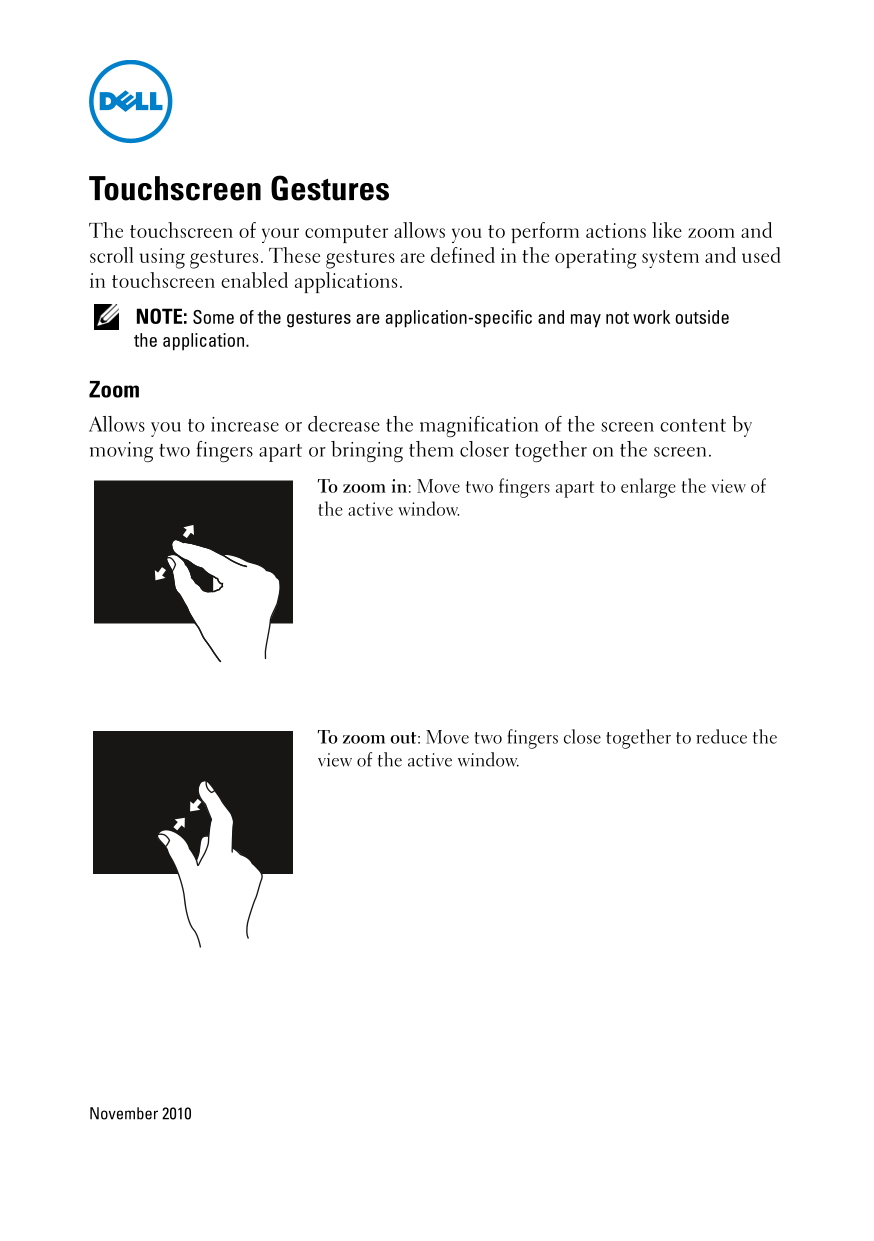
Zoom Allows you to increase or decrease the magnification of the screen content by moving two fingers apart or bringing them closer together on the screen.
To zoom in: Move two fingers apart to enlarge the view of the active window.
To zoom out: Move two fingers close together to reduce the view of the active window.
November 2010
Page Summary Contents For Dell Vostro 3500 Touchscreen Gestures User's Guide
Manual Details
| Brand | Dell |
|---|---|
| Pages | 4 |
| File Size | 161.50 KB |
| Published | June 27, 2026 |
Enter the captcha to get the download link:

Frequently Asked Questions
How do I zoom in or out on the touchscreen?
To zoom in, move two fingers apart; to zoom out, bring them closer together while using your finger(s).
What is 'Dwell' gesture used for?
Dwell simulates a right-click by pressing and holding a finger on the touchscreen, which opens a context-sensitive menu.
How can I scroll through content horizontally or vertically?
Vertical scrolling uses one finger moving up or down; horizontal scrolling requires moving one finger left or right.
What is 'Pan' in touch gestures?
To pan-scroll an object when it's not fully visible, move two fingers in the desired direction.