Dell Vostro 15 7570 Quick User Guide
Summary
This Quick Start Guide for the Dell Vostro 15 7570 notebook (Regulatory Model P71F, Type P71F001) provides multilingual setup instructions covering power adapter connection, Windows 10 and Ubuntu operating system configuration, Microsoft account sign-in, and network connectivity. It includes guidance on locating Dell applications, using SupportAssist for system health monitoring, creating Windows 10 recovery media, and accessing product support via dell.com/support. Keyboard shortcut keys and hardware features are documented. Designed for small business and professional users.
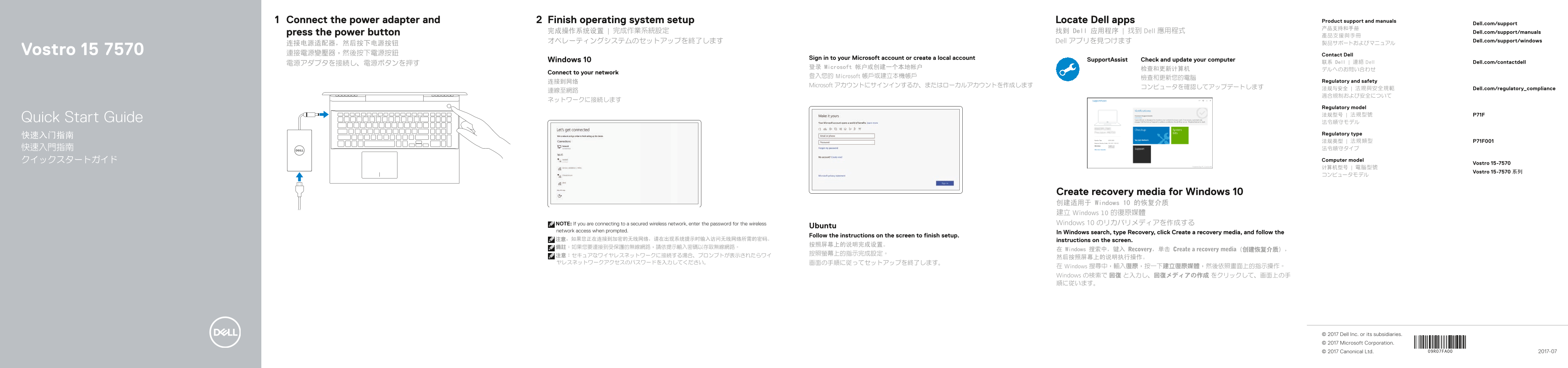
Page 1 Text Content
Connect the power adapter and Finish operating system setup Locate Dell apps Product support and manuals
Dell.com/support
press the power button 完成操作系统设置 | 完成作業系統設定 找到 Dell 应用程序 | 找到 Dell 應用程式 Dell.com/support/manuals
オペレーティングシステムのセットアップを終了します Dell アプリを見つけます Dell.com/support/windows
Vostro 15 7570 連接電源變壓器,然後按下電源按鈕 Contact Dell
Sign in to your Microsoft account or create a local account
Windows 10 Support Assist Check and update your computer
電源アダプタを接続し、電源ボタンを押す 联系 Dell | 連絡 Dell Dell.com/contactdell
登录 Microsoft 帐户或创建一个本地帐户
Connect to your network
登入您的 Microsoft 帳戶或建立本機帳戶
连接到网络 Regulatory and safety
Microsoft アカウントにサインインするか、またはローカルアカウントを作成します
コンピュータを確認してアップデートします 法规与安全 | 法規與安全規範 Dell.com/regulatory_compliance
Regulatory model 法规型号 | 法規型號 P71F
Quick Start Guide 法令順守モデル
Regulatory type
法规类型 | 法規類型 P71F001 快速入門指南 法令順守タイプ クイックスタートガイド Computer model
Vostro 15-7570
Vostro 15-7570 系列
Create recovery media for Windows 10 创建适用于 Windows 10 的恢复介质 建立 Windows 10 的復原媒體 NOTE: If you are connecting to a secured wireless network, enter the password for the wireless Windows 10 のリカバリメディアを作成する
Ubuntu
network access when prompted.
In Windows search, type Recovery, click Create a recovery media, and follow the
Follow the instructions on the screen to finish setup.
注意:如果您正在连接到加密的无线网络,请在出现系统提示时输入访问无线网络所需的密码。 instructions on the screen.
在 Windows 搜索中,键入 Recovery,单击 Create a recovery media(创建恢复介质),
在 Windows 搜尋中,輸入復原,按一下建立復原媒體,然後依照畫面上的指示操作。 Windows の検索で 回復 と入力し、回復メディアの作成 をクリックして、画面上の手 順に従います。
© 2017 Dell Inc. or its subsidiaries. © 2017 Microsoft Corporation.
© 2017 Canonical Ltd. 2017-07
Page Summary Contents For Dell Vostro 15 7570 Quick User Guide
Manual Details
| Brand | Dell |
|---|---|
| Pages | 2 |
| File Size | 469.59 KB |
| Published | July 02, 2026 |
Enter the captcha to get the download link:

Frequently Asked Questions
How do I set up a Dell docking station?
Ensure you download the Dell Power Manager (DPM 3.0) from Dell.com/support before connecting it.
What are the ports available on this model?
It includes HDMI, VGA, three USB 3.1 Gen 1 ports, a Thunderbolt3 Type-C port, and an SD card reader.
How do I connect to a secured wireless network?
When prompted during setup, input the specific password required for accessing the protected wireless network.
What is the purpose of the "Noble Wedge" lock slot?
It provides a physical locking mechanism (Nobel Wedge) for added security.