Dell Vostro 14 - 3468 Quick User Guide - Windows 10
Summary
This Quick Start Guide for the Dell Vostro 14 3000 Series notebook (Regulatory Model P76G, Type P76G002, Model Vostro 14-3468) provides multilingual setup instructions covering power adapter connection, Windows 10 and Ubuntu operating system configuration, network connectivity, and Microsoft account sign-in. It includes guidance on creating Windows recovery media, enabling support and protection features, using SupportAssist for system health monitoring, and Taiwan RoHS compliance documentation. Designed for small business professionals requiring a portable 14-inch business notebook.
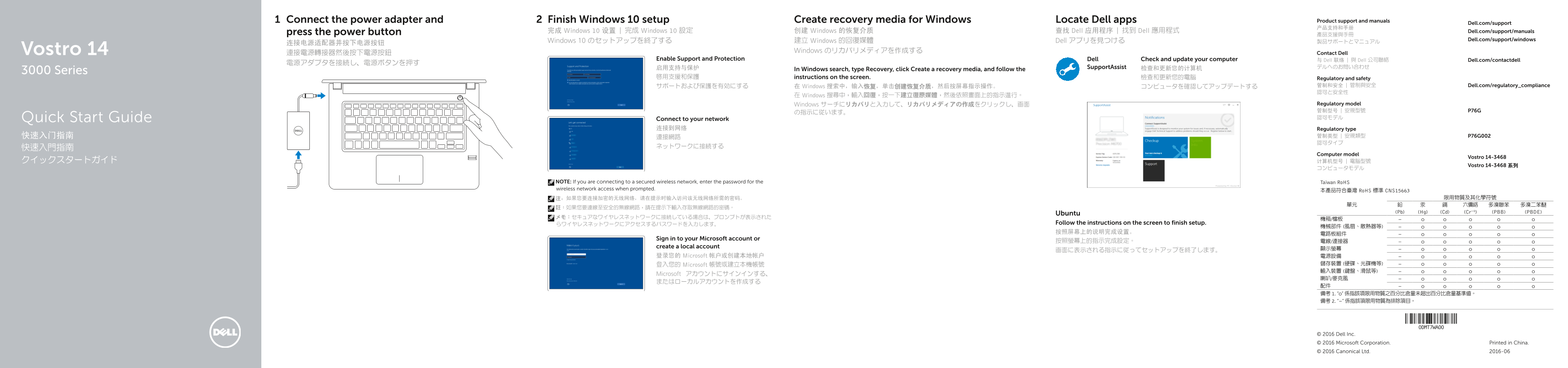
Page 1 Text Content
Connect the power adapter and Finish Windows 10 setup Create recovery media for Windows Locate Dell apps Product support and manuals
Dell.com/support
press the power button 完成 Windows 10 设置 | 完成 Windows 10 設定 创建 Windows 的恢复介质 查找 Dell 应用程序 | 找到 Dell 應用程式 Dell.com/support/manuals
Windows 10 のセットアップを終了する 建立 Windows 的回復媒體 Dell アプリを見つける Dell.com/support/windows
Vostro 14 Windows のリカバリメディアを作成する
連接電源轉接器然後按下電源按鈕 Contact Dell
Enable Support and Protection Dell Check and update your computer 与 Dell 联络 | 與 Dell 公司聯絡 Dell.com/contactdell
启用支持与保护 Support Assist 检查和更新您的计算机 デルへのお問い合わせ
3000 Series In Windows search, type Recovery, click Create a recovery media, and follow the
啟用支援和保護 instructions on the screen. 檢查和更新您的電腦 Regulatory and safety
サポートおよび保護を有効にする 在 Windows 搜索中,输入恢复,单击创建恢复介质,然后按屏幕指示操作。 コンピュータを確認してアップデートする 管制和安全 | 管制與安全 Dell.com/regulatory_compliance 認可と安全性
在 Windows 搜尋中,輸入回復,按一下建立復原媒體,然後依照畫面上的指示進行。
Windows サーチにリカバリと入力して、リカバリメディアの作成をクリックし、画面 Regulatory model 管制型号 | 安規型號 P76G
Quick Start Guide Connect to your network 認可モデル
连接到网络 Regulatory type
Computer model
Vostro 14-3468
Vostro 14-3468 系列
NOTE: If you are connecting to a secured wireless network, enter the password for the Taiwan Ro HS wireless network access when prompted.
本產品符合臺灣 Ro HS 標準 CNS15663
(Pb) (Hg) (Cd) (Cr+6) (PBB) (PBDE)
Ubuntu
らワイヤレスネットワークにアクセスするパスワードを入力します。 Follow the instructions on the screen to finish setup.
Sign in to your Microsoft account or
create a local account
登录您的 Microsoft 帐户或创建本地帐户 電源設備
登入您的 Microsoft 帳號或建立本機帳號 儲存裝置 (硬碟、光碟機等) 輸入裝置 (鍵盤、滑鼠等)
Microsoft アカウントにサインインする、
© 2016 Dell Inc. © 2016 Microsoft Corporation. Printed in China. © 2016 Canonical Ltd. 2016-06
Page Summary Contents For Dell Vostro 14 - 3468 Quick User Guide - Windows 10
Manual Details
| Brand | Dell |
|---|---|
| Pages | 2 |
| File Size | 874.69 KB |
| Published | July 02, 2026 |
Enter the captcha to get the download link:

Frequently Asked Questions
How do I finish the Windows 10 setup process?
Follow the instructions on the screen, choosing either to sign in to your Microsoft account or create a local account.
What steps are needed if I connect to a secured wireless network?
You must enter the specific password for accessing that secure wireless network when prompted during connection.
How can I adjust the display brightness using physical controls?
Use the shortcut keys designed for 'Decrease brightness' or 'Increase brightness'.
Which regulatory standards does this device comply with?
This product complies with Taiwan RoHS Standard CNS15663 regarding restricted substances and their chemical symbols.
What information should I check if I need technical support?
You can find product details via the 'Service tag label' or the computer model (e.g., Vostro 14-3468).