Dell Studio 1535 Installation Guide User Manual
Summary
A Dell laptop setup guide providing step-by-step instructions for initial configuration including AC adapter connection, network setup, and wireless activation. Covers hardware components like battery, air vents, Wi-Fi Catcher, HDMI, and USB ports. Intended for end-users setting up a new Dell laptop for the first time.
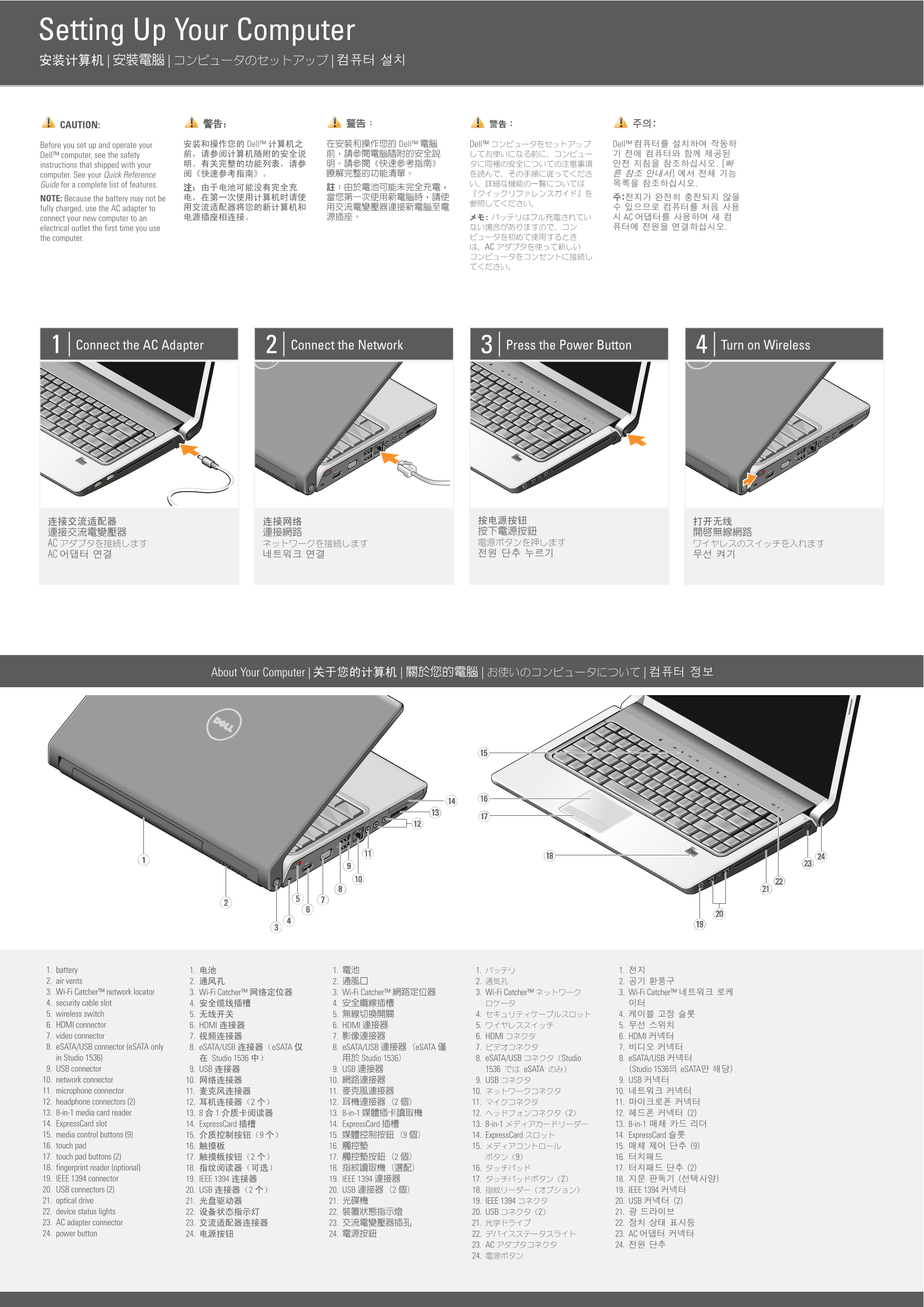
Page 1 Text Content
Setting Up Your Computer | | |
CAUTION:
Before you set up and operate your Dell™ Dell™ Dell™ Dell™
Dell™ computer, see the safety instructions that shipped with your computer. See your Quick Reference Guide for a complete list of features. NOTE: Because the battery may not be fully charged, use the AC adapter to
connect your new computer to an AC
electrical outlet the first time you use the computer.
Connect the AC Adapter Connect the Network Press the Power Button Turn on Wireless
| | | About Your Computer |
1. battery 1. 1. 1. 1. 2. air vents 2. 2. 2. 2. 3. Wi-Fi Catcher™ network locator 3. Wi-Fi Catcher™ 3. Wi-Fi Catcher™ 3. Wi-Fi Catcher™ 3. Wi-Fi Catcher™ 4. security cable slot 4. 4. 5. wireless switch 5. 5. 4. 4. 6. HDMI connector 6. HDMI 6. HDMI 5. 5. 7. video connector 7. 7. 6. HDMI 6. HDMI 8. e SATA/USB connector (e SATA only 8. e SATA/USB e SATA 8. e SATA/USB e SATA 7. 7. in Studio 1536) Studio 1536 Studio 1536 8. e SATA/USB Studio 8. e SATA/USB 9. USB connector 9. USB 9. USB e SATA Studio 1536 e SATA 10. network connector 10. 10. 9. USB 9. USB 11. microphone connector 11. 11. 10. 10. 12. headphone connectors (2) 12. 2 12. 2 11. 11. 13. 8-in-1 media card reader 13. 8 1 13. 8-in-1 12. 2 12. 2 14. Express Card slot 14. Express Card 14. Express Card 13. 8-in-1 13. 8-in-1 15. media control buttons (9) 15. 9 15. 9 14. Express Card 14. Express Card 16. touch pad 16. 16. 15. 15. 9 17. touch pad buttons (2) 17. 2 17. 2 16. 18. fingerprint reader (optional) 18. 18. 16. 17. 2 19. IEEE 1394 connector 19. IEEE 1394 19. IEEE 1394 17. 2 18. 20. USB connectors (2) 20. USB 2 20. USB 2 18. 19. IEEE 1394 21. optical drive 21. 21. 19. IEEE 1394 20. USB 2 22. device status lights 22. 22. 20. USB 2 21. 23. AC adapter connector 23. 23. 21. 22. 24. power button 24. 24. 22. 23. AC
23. AC 24. 24.
Page Summary Contents For Dell Studio 1535 Installation Guide User Manual
Manual Details
| Brand | Dell |
|---|---|
| Pages | 2 |
| File Size | 957.78 KB |
| Published | June 27, 2026 |
Enter the captcha to get the download link:

Frequently Asked Questions
What is the recommended method for setting up the laptop?
If you do not have a printed copy of the Quick Reference Guide, visit support.dell.com to find setup and usage information.
What components are necessary for optimal operation?
The manual suggests connecting it to an electrical outlet using the AC adapter the first time it is used.
Which types of network connections can be supported?
It supports various connections including Internet service, DSL, cable or DSL modem, wireless router, and a desktop computer with a network adapter.
What ports are available on the unit?
The unit features numerous ports such as HDMI (x2), eSATA/USB (x3), USB connectors (x2), network connector (x1), and more.