Dell 2209WA Monitor Setup Guide
Summary
Quick Setup Guide for the Dell 2209WA 22-inch flat panel monitor from September 2008. Multi-language document covering box contents verification, cover removal and base attachment, monitor connection via VGA or DVI cable (DVI recommended for best performance), USB cable connection to computer, power and signal cable management, and tilt adjustment for optimal viewing angle in professional desktop environments.
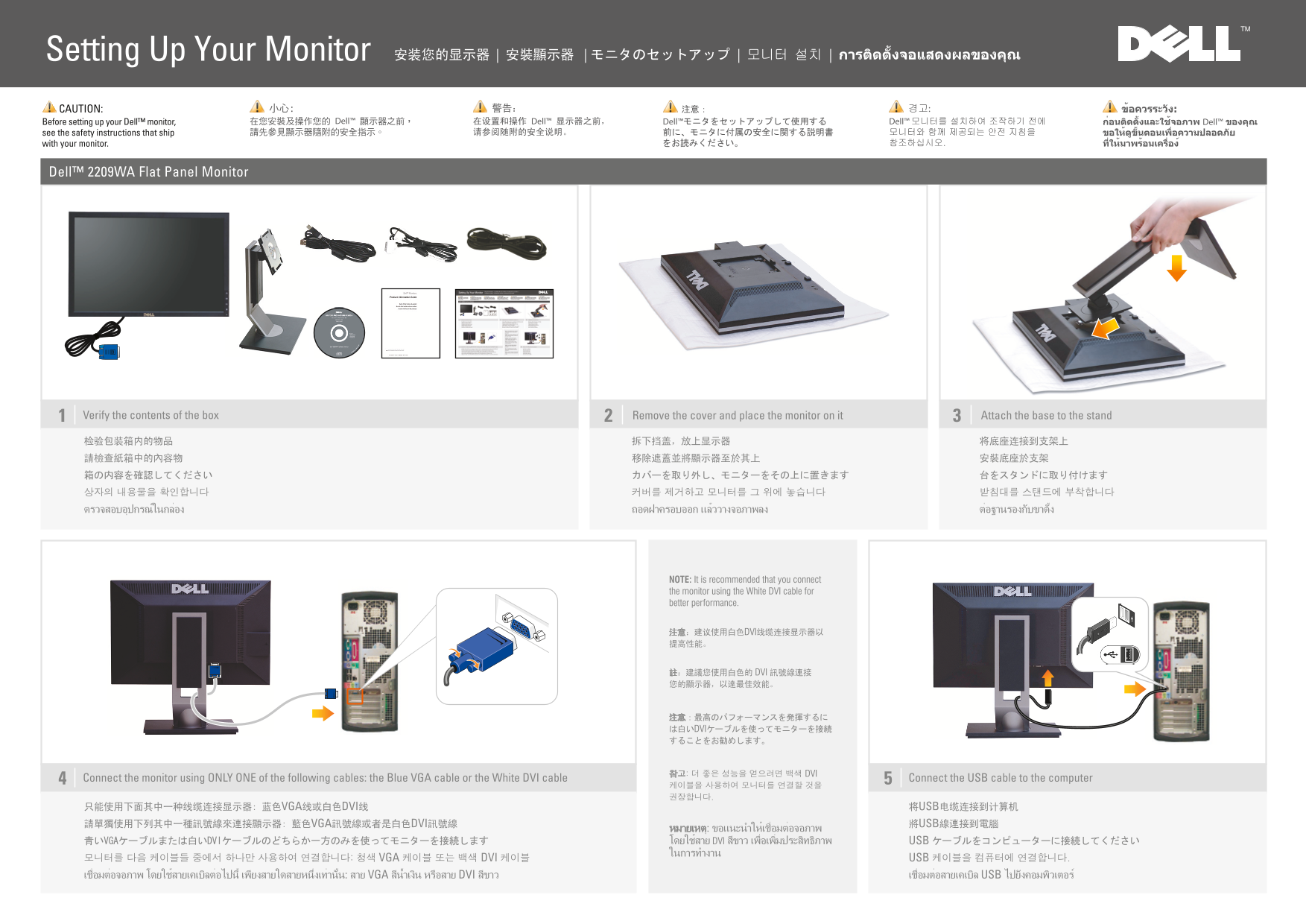
Page 1 Text Content
DELL-INL-2209WA-QSG (EF-A)-080930.pdf 2008/9/30 下午 02:11:10
CAUTION: Before setting up your Dell™ monitor, see the safety instructions that ship with your monitor.
Dell™ 2209WA Flat Panel Monitor
Verify the contents of the box Remove the cover and place the monitor on it Attach the base to the stand
MY 箱の内容を確認してください カバーを取り外し、モニターをその上に置きます 台をスタンドに取り付けます
NOTE: It is recommended that you connect the monitor using the White DVI cable for better performance.
注意:建议使用白色DVI线缆连接显示器以 提高性能。
註:建議您使用白色的 DVI 訊號線連接 您的顯示器,以達最佳效能。
注意:最高のパフォーマンスを発揮するに は白いDVIケーブルを使ってモニターを接続 することをお勧めします。
참고: 더 좋은 성능을 얻으려면 백색 DVI
Connect the monitor using ONLY ONE of the following cables: the Blue VGA cable or the White DVI cable4 Connect the USB cable to the computer5
只能使用下面其中一种线缆连接显示器: 蓝色VGA线或白色DVI线 将USB电缆连接到计算机 請單獨使用下列其中一種訊號線來連接顯示器: 藍色VGA訊號線或者是白色DVI訊號線 將USB線連接到電腦
หมายเหตุ: ขอแนะนำให้เช่ือมต่อจอภาพ 青いVGAケーブルまたは白いDVIケーブルのどちらか一方のみを使ってモニターを接続します โดยใช้สาย DVI สีขาว เพ่ือเพ่ิมประสิทธิภาพ USB ケーブルをコンピューターに接続してください ในการทำงาน
모니터를 다음 케이블들 중에서 하나만 사용하여 연결합니다: 청색 VGA 케이블 또는 백색 DVI 케이블 USB 케이블을 컴퓨터에 연결합니다. เช่ือมต่อจอภาพ โดยใช้สายเคเบิลต่อไปน้ี เพียงสายใดสายหน่ึงเท่าน้ัน: สาย VGA สีน้ำเงิน หรือสาย DVI สีขาว เช่ือมต่อสายเคเบิล USB ไปยังคอมพิวเตอร์
(A) 080829: First version. (第3,5項待翻釋) 080924: revised the back paper. 080930: translation ok.
Page Summary Contents For Dell 2209WA Monitor Setup Guide
Manual Details
| Brand | Dell |
|---|---|
| Pages | 2 |
| File Size | 2.45 MB |
| Published | July 03, 2026 |
Enter the captcha to get the download link:

Frequently Asked Questions
How do I adjust picture settings on the monitor?
Focus on 'Brightness & Contrast' controls, as well as the Automatic Adjust feature, accessible via the menu.
Where can I find advanced usage instructions after setup?
For more information, refer to the User's Guide on the Drivers and Documentation media that ships with your monitor.