LG T310 Product Specifications DIGICEL (NEW ZEALAND) User Guide
Summary
Master this LG-T310 mobile phone with our comprehensive guide. This manual is essential reading for new users, providing detailed instructions on everything from initial SIM card installation and battery setup to advanced calling features. Learn how to efficiently manage contacts, utilize the Answer Mode, dial numbers manually, and master key functions like power control and Bluetooth connectivity. It includes important tips on maximizing performance, safe usage guidelines while driving, and accessing emergency service numbers, ensuring you get the most out of your device.
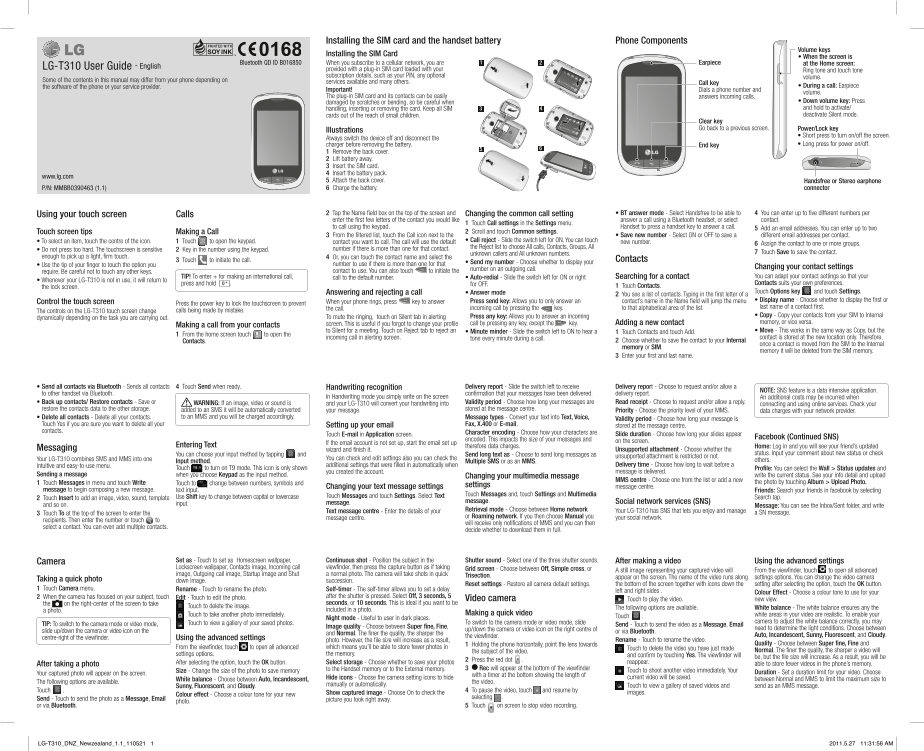
Page 1 Text Content
Installing the SIM card and the handset battery Phone Components
Volume keys
Installing the SIM Card
• When the screen is
Bluetooth QD ID B016850 When you subscribe to a cellular network, you are Earpiece at the Home screen:
LG-T310 User Guide - English provided with a plug-in SIM card loaded with your
Ring tone and touch tone
subscription details, such as your PIN, any optional volume.
Some of the contents in this manual may differ from your phone depending on services available and many others.
Call key
the software of the phone or your service provider. • During a call: Earpiece
Important! Dials a phone number and
volume.
The plug-in SIM card and its contacts can be easily answers incoming calls.
damaged by scratches or bending, so be careful when • Down volume key: Press handling, inserting or removing the card. Keep all SIM and hold to activate/ cards out of the reach of small children. deactivate Silent mode.
Clear key Go back to a previous screen. Power/Lock key
Illustrations
• Short press to turn on/off the screen.
Always switch the device off and disconnect the
charger before removing the battery. End key • Long press for power on/off.
1 Remove the back cover. 2 Lift battery away. 3 Insert the SIM card. 4 Insert the battery pack.
www.lg.com
5 Attach the back cover. Handsfree or Stereo earphone
P/N: MMBB0390463 (1.1) 6 Charge the battery. connector
Using your touch screen Calls 2 Tap the Name field box on the top of the screen and Changing the common call setting • BT answer mode - Select Handsfree to be able to 4 You can enter up to five different numbers per
enter the first few letters of the contact you would like answer a call using a Bluetooth headset, or select contact.
1 Touch Call settings in the Settings menu.
to call using the keypad. Handset to press a handset key to answer a call. 5 Add an email addresses. You can enter up to two
Touch screen tips Making a Call 2 Scroll and touch Common settings.
3 From the filtered list, touch the Call icon next to the • Save new number - Select ON or OFF to save a different email addresses per contact.
• To select an item, touch the centre of the icon. 1 Touch to open the keypad. contact you want to call. The call will use the default • Call reject - Slide the switch left for ON. You can touch new number.
6 Assign the contact to one or more groups.
number if there is more than one for that contact. the Reject list to choose All calls, Contacts, Groups, All
• Do not press too hard. The touchscreen is sensitive 2 Key in the number using the keypad.
unknown callers and All unknown numbers. 7 Touch Save to save the contact.
enough to pick up a light, firm touch. 4 Or, you can touch the contact name and select the
3 Touch to initiate the call. Contacts
number to use if there is more than one for that • Send my number - Choose whether to display your
• Use the tip of your finger to touch the option you
number on an outgoing call. Changing your contact settings
require. Be careful not to touch any other keys. contact to use. You can also touch to initiate the
TIP! To enter + for making an international call, call to the default number. • Auto-redial - Slide the switch left for ON or right Searching for a contact You can adapt your contact settings so that your
• Whenever your LG-T310 is not in use, it will return to
press and hold 0 + for OFF. Contacts suits your own preferences.
the lock screen. 1 Touch Contacts.
Answering and rejecting a call • Answer mode Touch Options key and touch Settings.
2 You see a list of contacts. Typing in the first letter of a
When your phone rings, press key to answer Press send key: Allows you to only answer an contact’s name in the Name field will jump the menu • Display name - Choose whether to display the first or
Control the touch screen Press the power key to lock the touchscreen to prevent
the call. incoming call by pressing the key. to that alphabetical area of the list. last name of a contact first.
The controls on the LG-T310 touch screen change calls being made by mistake.
To mute the ringing, touch on Silent tab in alerting Press any key: Allows you to answer an incoming • Copy - Copy your contacts from your SIM to Internal
dynamically depending on the task you are carrying out.
screen. This is useful if you forgot to change your profile call by pressing any key, except the key. Adding a new contact memory, or vice versa.
Making a call from your contacts
to Silent for a meeting. Touch on Reject tab to reject an • Minute minder - Slide the switch left to ON to hear a 1 Touch Contacts and touch Add. • Move - This works in the same way as Copy, but the
1 From the home screen touch to open the
incoming call in alerting screen. tone every minute during a call. contact is stored at the new location only. Therefore,
Contacts. 2 Choose whether to save the contact to your Internal
once a contact is moved from the SIM to the Internal
memory or SIM.
memory it will be deleted from the SIM memory.
3 Enter your first and last name.
• Send all contacts via Bluetooth - Sends all contacts 4 Touch Send when ready. Handwriting recognition Delivery report - Slide the switch left to receive Delivery report - Choose to request and/or allow a
NOTE: SNS feature is a data intensive application.
to other handset via Bluetooth. confirmation that your messages have been delivered. delivery report.
In Handwriting mode you simply write on the screen An additional costs may be incurred when
• Back up contacts/ Restore contacts - Save or WARNING: If an image, video or sound is and your LG-T310 will convert your handwriting into Validity period - Choose how long your messages are Read receipt - Choose to request and/or allow a reply.
connecting and using online services. Check your
restore the contacts data to the other storage. added to an SMS it will be automatically converted your message. stored at the message centre. Priority - Choose the priority level of your MMS.
data charges with your network provider.
• Delete all contacts - Delete all your contacts. to an MMS and you will be charged accordingly. Message types - Convert your text into Text, Voice,
Validity period - Choose how long your message is
Touch Yes if you are sure you want to delete all your Setting up your email Fax, X.400 or E-mail. stored at the message centre. contacts. Character encoding - Choose how your characters are
Touch E-mail in Application screen. Slide duration - Choose how long your slides appear
Facebook (Continued SNS)
encoded. This impacts the size of your messages and on the screen.
If the email account is not set up, start the email set up
Entering Text therefore data charges. Home: Log in and you will see your friend’s updated
Messaging wizard and finish it. Unsupported attachment - Choose whether the
You can choose your input method by tapping and Send long text as - Choose to send long messages as status. Input your comment about new status or check
unsupported attachment is restricted or not.
Your LG-T310 combines SMS and MMS into one You can check and edit settings also you can check the others.
Input method. Multiple SMS or as an MMS.
intuitive and easy-to-use menu. additional settings that were filled in automatically when Delivery time - Choose how long to wait before a
Touch to turn on T9 mode. This icon is only shown Profile: You can select the Wall > Status updates and
you created the account. message is delivered.
Sending a message when you choose Keypad as the input method. write the current status. See your info detail and upload
Changing your multimedia message
MMS centre - Choose one from the list or add a new
1 Touch Messages in menu and touch Write Touch to change between numbers, symbols and the photo by touching Album > Upload Photo.
Changing your text message settings settings message centre.
message to begin composing a new message. text input. Friends: Search your friends in facebook by selecting
Touch Messages and touch Settings. Select Text Touch Messages and, touch Settings and Multimedia
2 Touch Insert to add an image, video, sound, template Use Shift key to change between capital or lowercase Search tap.
message. message. Social network services (SNS)
and so on. input.
Message: You can see the Inbox/Sent folder, and write
Text message centre - Enter the details of your Retrieval mode - Choose between Home network Your LG-T310 has SNS that lets you enjoy and manage
3 Touch To at the top of the screen to enter the a SN message.
message centre. or Roaming network. If you then choose Manual you your social network.
recipients. Then enter the number or touch to
will receive only notifications of MMS and you can then
select a contact. You can even add multiple contacts.
decide whether to download them in full.
Camera Set as - Touch to set as Homescreen wallpaper, Continuous shot - Position the subject in the Shutter sound - Select one of the three shutter sounds. After making a video Using the advanced settings Lockscreen wallpaper, Contacts image, Incoming call viewfinder, then press the capture button as if taking Grid screen - Choose between Off, Simple cross, or
A still image representing your captured video will From the viewfinder, touch to open all advanced
image, Outgoing call image, Startup image and Shut a normal photo. The camera will take shots in quick Trisection.
appear on the screen. The name of the video runs along settings options. You can change the video camera
Taking a quick photo down image. succession.
Reset settings - Restore all camera default settings. the bottom of the screen together with icons down the setting after selecting the option, touch the OK button.
1 Touch Camera menu. Rename - Touch to rename the photo. Self-timer - The self-timer allows you to set a delay
left and right sides . Colour Effect - Choose a colour tone to use for your
2 When the camera has focused on your subject, touch Edit - Touch to edit the photo. after the shutter is pressed. Select Off, 3 seconds, 5
Video camera Touch to play the video. new view.
the on the right-center of the screen to take seconds, or 10 seconds. This is ideal if you want to be
Touch to delete the image. The following options are available. White balance - The white balance ensures any the
a photo. included in a photo.
Touch to take another photo immediately. Making a quick video white areas in your video are realistic. To enable your
Night mode - Useful to user in dark places. Touch .
Touch to view a gallery of your saved photos. To switch to the camera mode or video mode, slide camera to adjust the white balance correctly, you may
TIP: To switch to the camera mode or video mode, Send - Touch to send the video as a Message, Email
Image quality - Choose between Super fine, Fine, need to determine the light conditions. Choose between
slide up/down the camera or video icon on the up/down the camera or video icon on the right centre of
and Normal. The finer the quality, the sharper the or via Bluetooth.
the viewfinder. Auto, Incandescent, Sunny, Fluorescent, and Cloudy.
centre-right of the viewfinder. Using the advanced settings
photo. However, the file size will increase as a result, Rename - Touch to rename the video.
1 Holding the phone horizontally, point the lens towards Quality - Choose between Super fine, Fine and
From the viewfinder, touch to open all advanced which means you’ll be able to store fewer photos in Touch to delete the video you have just made
the subject of the video. Normal. The finer the quality, the sharper a video will
settings options. the memory. and confirm by touching Yes. The viewfinder will
be, but the file size will increase. As a result, you will be
2 Press the red dot .
After selecting the option, touch the OK button. Select storage - Choose whether to save your photos reappear. able to store fewer videos in the phone’s memory.
After taking a photo
to the Handset memory or to the External memory. 3 Rec will appear at the bottom of the viewfinder
Size - Change the size of the photo to save memory Touch to shoot another video immediately. Your Duration - Set a duration limit for your video. Choose
Your captured photo will appear on the screen. with a timer at the bottom showing the length of
Hide icons - Choose the camera setting icons to hide current video will be saved. between Normal and MMS to limit the maximum size to
White balance - Choose between Auto, Incandescent,
The following options are available. the video.
Sunny, Fluorescent, and Cloudy. manually or automatically. Touch to view a gallery of saved videos and send as an MMS message.
Touch . 4 To pause the video, touch and resume by
Show captured image - Choose On to check the images.
Colour effect - Choose a colour tone for your new
Send - Touch to send the photo as a Message, Email selecting .
photo. picture you took right away.
or via Bluetooth. 5 Touch on screen to stop video recording.
LG-T310_DNZ_Newzealand_1.1_110521 1 2011.5.27 11:31:56 AM
Page Summary Contents For LG T310 Product Specifications DIGICEL (NEW ZEALAND) User Guide
Manual Details
| Brand | LG |
|---|---|
| Pages | 2 |
| File Size | 1.46 MB |
| Published | June 02, 2026 |
Enter the captcha to get the download link:

Frequently Asked Questions
How do I physically replace the battery?
Remove the back cover, lift the old battery, insert the new battery pack, and attach the back cover. Always disconnect the charger before removing the battery.
What are the recommended ambient temperature ranges for the phone?
The operating range is -10°C to +55°C (discharging) or -10°C to +45°C (charging).
How do I change my contact settings, like Caller ID display?
Touch Calls in Settings, then select the Common settings. You can choose whether to display the first name or last name of a contact.
What should I do if an incoming call is distracting while I'm working?
You can mute the ringing by touching the Silent tab on the alerting screen. To answer, press any key except the End key.