Page 1
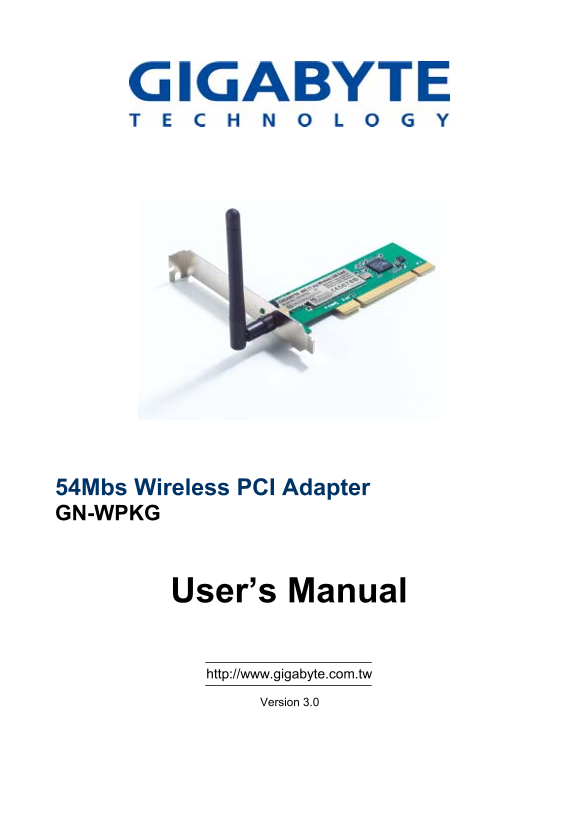
54Mbs Wireless PCI Adapter GN-WPKG User’s Manual http://www.gigabyte.com.tw Version 3.0
Page 2
Federal Communication Commission Interference Statement: This equipment has been tested and found to comply with the limits for a Class B digital device, pursuant to Part 15 of the FCC Rules. These li...
Page 3
Contents CHAPTER 1 PRODUCT OVERVIEW...........................................1 1.1 INTRODUCTION TO THE WPKG WIRELESS PCI ADAPTER.............................................. 1.2 FEATURES 1.3 PHYSICA...
Page 4
Chapter 1 Product Overview 1.1 Introduction to the GN-WPKG Wireless PCI Adapter The Gigabyte WPKG Wireless PCI Adapter installs quickly into your motherboard’s PCI slot, connecting wirelessly to your ...
Page 5
Package Contents • GN-WPKG PCI Adapter • Low profile external antenna • Setup CD • Quick Start Guide In case of any missing or damaged accessories, please contact your local distributor or authorized ...
Page 6
Chapter 2 Installation This chapter covers the installation of the WPKG Adapter for your desktop PC. The following sections will assist you with proper installation of the PCI Adapter, and also with i...
Page 7
2-2. Installing the Driver & Utility After restarting your computer the Windows Found New Hardware wizard will open. When it does, please click Cancel to close it. GIGABYTE drivers and utilities o...
Page 8
Step 4: Install Shield will install the WPKG drivers. Click Next to proceed. Step 5: Setup will detect your version of Windows. Click Next.
Page 9
Step 6: Since your card is already inserted, Click OK. Step 7: Click Finish to complete installation.
Page 10
Chapter 3 Using the Wireless Utility The WPKG Wireless Utility is a powerful application that helps you to configure the network card and monitor the statistics of the communication link. This applica...
Page 11
Figure 3-2. Current profile Description of items in Figure 3-2 is as follows: Profile Name: A profile can be saved for various wireless settings in different environments, i.e. home, office, and the c...
Page 12
Figure 3-3. Configuration Description of items in Figure 3-3 is as follows: Profile Name: Users can save different profiles names for different configurations. SSID: Select the AP detected by the syst...
Page 13
Figure 3-4 – Configuration Screen TX Power: Select percentage of transmitted power. (Default: Auto) RTS Threshold: This is a mechanism implemented to prevent the “Hidden Node” problem, “Hidden Note” i...
Page 14
Figure 3-5. Authentication and Security Authentication: Before a station connects to a SSID, the authentication type used by the SSID must be known. Authentication types include OPEN SYSTEM, WAP, WAP-...
Page 15
Hex key. WPA-PSK encryption: WPA-PSK (Preshared Key) uses TKIP or AES based on your choice. You create a password (or Passphrase as its often called) and the system will use the Passphrase to create a...
Page 16
Identity: The Account’s User ID. Password: Passwords for users accounts can be used when LEAP and MD5-Challenge are selected as authentication types. Use Client Certificate: This certificate is necess...
Page 17
3-1-2-2. 802.1x Settings - CA Server Tab CA Server is used when TLS, TTLS or PEAP is in use. When Use certificate chain is checked, the Client can verify if such server is reliable and then transmit C...
Page 18
3-1-3. Advanced Screen The Advanced screen includes fields of various parameters to review or change drivers. Just click OK to apply any changes in parameters in the tab. A reboot is not needed for ch...
Page 19
collision when WLAN equipments require transmission. TX Rate: This option adjusts settings of TX Rate according to the setting of “Infrastructure Wireless Mode”. (Default: Auto) 3.2. Link Status Tab T...
Page 20
3.3. Site Survey Tab The Site Survey tab shows you the list of reachable access points and/or peer-to-peer Stations. Just double click on the SSID that you want to connect or click the Connect button....
Page 21
3.4. Statistics Tab The Statistics tab shows you the number of packets sent and received by the Adapter (see Figure 3-11) Figure 3-11. Statistics Description of items in Figure 3-11 is as follows: Fra...
Page 22
3.5. About Tab The About tab displays information about current drivers and physical MAC address (see Figure 3-13). Figure 3-13. About Tab Gb Config Version (Date) – The version number (and date) of t...
Page 23
Appendix A Troubleshooting This troubleshooting guide provides answers to some common problems which you may encounter while installing or using GIGABYTE Wireless Adapters. Contact the GIGABYTE Wirele...
Page 24
Appendix B Specifications 1. System Host Interface PCI Operating Voltages 5V ± 5% 2. RF Performance 802.11g (backward compatible to 802.11b) Frequency Bands 2412 ~ 2484 MHz (subject to local regulatio...
Page 25
Appendix C Regulatory Information CE Mark Warning: This is a Class B product. In a domestic environment, this product may cause radio interference, in which case the user may be required to take adequ...
Page 26
Appendix D Warranty Limited Warranty Statement (1-Year Warranty) Thank you for purchasing the GIGABYTE Product. This limited warranty statement will provide you one year warranty starting from the pur...