Getting Started with VMware Fusion User Guide
Summary
VMware Fusion enables Intel-based Mac users to run Windows and various Linux distributions as isolated virtual machines. This powerful software allows you to utilize your favorite PC applications side-by-side with Mac OS X without requiring a reboot, enhancing security and flexibility. The manual serves as a comprehensive guide for new users, covering initial setup, key features like seamless application integration (Unity), creating operating systems, and essential best practices. It is designed for any Mac user needing reliable, cross-platform compatibility.
Page 1 Text Content
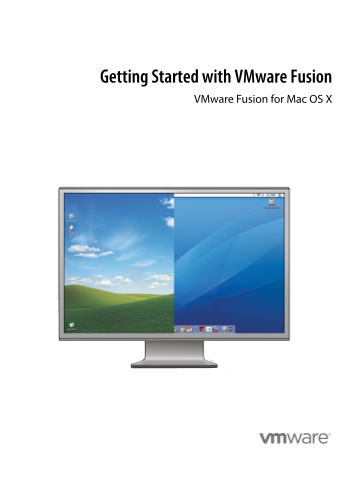
Getting Started with VMware Fusion
VMware Fusion for Mac OS X
Page Summary Contents For Getting Started with VMware Fusion User Guide
Page 1
Getting Started with VMware Fusion VMware Fusion for Mac OS X
Page 2
Getting Started with VMware Fusion Revision: 20071025 Item: VMF-ENG-Q407-295 You can find the most up-to-date technical documentation on our Web site at http://www.vmware.com/products/fusion/support.h...
Page 3
Getting Started y Getting Started with VMware Fusion Introduction VMware Fusion™ allows you to run your favorite PC applications on your Intel-based Mac. Designed from the ground up for the Mac user, ...
Page 4
VMWARE FUSION Getting Started What You Can Do with VMware Fusion With VMware Fusion, Intel-based Mac users can: Run your favorite Windows and Linux applications on an Intel-based Mac–With VMware Fusio...
Page 5
Getting Started y Features of VMware Fusion VMware Fusion provides the following features: With the powerful Unity feature, VMware Fusion transforms your Windows applications to work like Mac applicat...
Page 6
VMWARE FUSION Getting Started VMware Fusion supports high-speed USB 2.0 for a huge range of devices. Even devices that do not have drivers for Mac OS X will work in a virtual machine. Network with you...
Page 7
Getting Started y System Requirements for VMware Fusion The minimum system requirements for installing and using VMware Fusion are: Any Mac with an Intel 1.5GHz or faster processor. 512MB of RAM, 1GB ...
Page 8
VMWARE FUSION Getting Started Supported 32-Bit Guest Operating Systems VMware Fusion supports the following 32-bit guest operating systems: Windows Vista Business, Enterprise, Ultimate Editions Window...
Page 9
Getting Started y Free BSD 6.1, 5.5 Turbolinux Enterprise Server 8 Turbolinux Desktop 10 Supported 64-Bit Guest Operating Systems VMware Fusion supports the following 64-bit guest operating systems: W...
Page 10
VMWARE FUSION Getting Started Installing or Upgrading VMware Fusion If you are upgrading VMware Fusion, you do not need to uninstall the version installed on your computer. VMware Fusion upgrades the ...
Page 11
Getting Started y You can continue without entering a serial number, but you cannot power on a virtual machine until you have entered a valid serial number. You can enter your serial number at any tim...
Page 12
VMWARE FUSION Getting Started You can continue without entering a serial number, but you cannot power on a virtual machine until you have entered a valid serial number. You can enter your serial numbe...
Page 13
Getting Started y Server: Windows Longhorn (experimentally supported only), Windows Server 2003, Windows 2000 Server If you are not using one of these Windows operating systems in your virtual machine...
Page 14
VMWARE FUSION Getting Started Split disk into 2GB files – Select this option if your virtual machine will be used in a hard drive with a file system that does not support files larger than 2GB. Use an...
Page 15
Getting Started y Click Finish. VMware Fusion installs Windows. This can take up to 45 minutes. After installing Windows, VMware Fusion installs VMware Tools, and powers on the virtual machine. Creati...
Page 16
VMWARE FUSION Getting Started To create a virtual machine from the Boot Camp partition From the Virtual Machine Library window, select Boot Camp partition, which is automatically detected, and click R...
Page 17
Getting Started y Using Mac Keyboards in a Virtual Machine PC and Mac keyboards differ, so you will need to press certain key combinations to enable certain PC commands on a Mac keyboard. See Table 1....
Page 18
VMWARE FUSION Getting Started Fixing Sound Problems in Virtual Machines Running Vista 32-Bit Edition When you install Microsoft Vista 32-bit edition in a VMware Fusion virtual machine, there is no sou...
Page 19
Getting Started y Virtual Machines and System Images Compatible with VMware Fusion In addition to virtual machines that you create in VMware Fusion, you can also use virtual machines created in the fo...
Page 20
VMWARE FUSION Getting Started Deleting a Virtual Machine If you want to delete a virtual machine, you delete its files in the Finder. To delete a virtual machine Power off all running virtual machines...
Page 21
Getting Started y To uninstall VMware Fusion Power off all running virtual machines, and quit VMware Fusion. In the Finder, open the folder Macintosh HD/Library/Application Support/VMware Fusion, and ...
Page 22
VMWARE FUSION Getting Started © 2007 VMware, Inc. All rights reserved. Protected by one or more of U.S. Patent Nos. 6,397,242, 6,496,847, 6,704,925, 6,711,672, 6,725,289, 6,735,601, 6,785,886, 6,789,1...
Manual Details
| Brand | Fusion |
|---|---|
| Pages | 22 |
| File Size | 2.80 MB |
| Published | May 21, 2026 |
159 views
Enter the captcha to get the download link:
