# A B C D E F G H I J K L M N O P Q R S T U V W X Y Z

Dell se197fp User Guide

Summary

The Dell SE197FP Flat Panel Monitor User Guide covers monitor setup, operation, and maintenance. Includes monitor specifications, panel features, OSD menu navigation, connecting the monitor, adjustable stand usage, cable organization, and troubleshooting. Also covers optional Dell Soundbar installation, safety instructions, and FCC compliance. Intended for end users and IT support staff installing and configuring the monitor.
📄 Preview PAGE OF 29

Page 1 Text Content

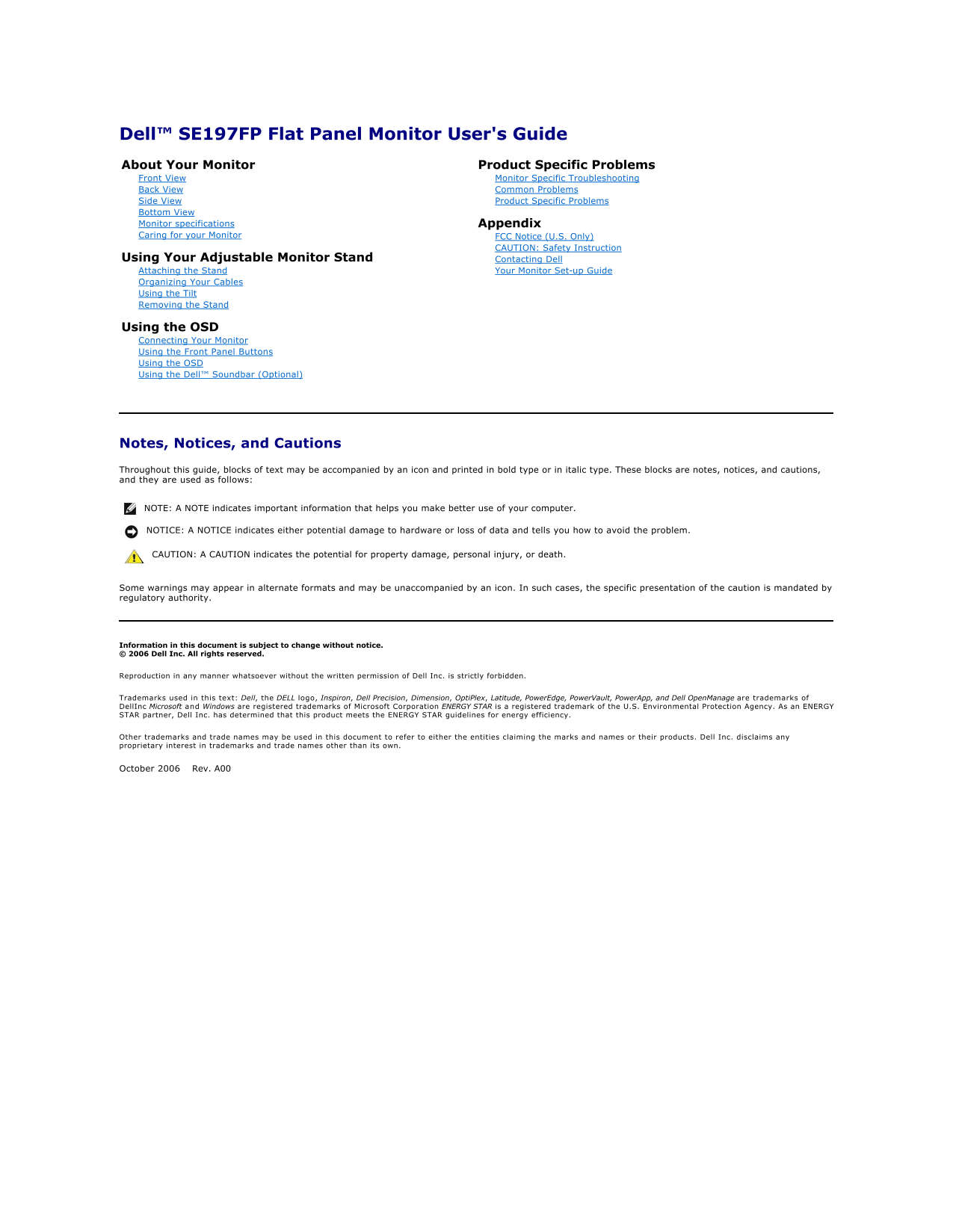
Dell™ SE197FP Flat Panel Monitor User's Guide  About Your Monitor Product Specific Problems Front View Monitor Specific Troubleshooting Back View Common Problems Side View Product Specific Problems Bottom View Monitor specifications Appendix Caring for your Monitor FCC Notice (U.S. Only)

CAUTION: Safety Instruction

Using Your Adjustable Monitor Stand Contacting Dell Attaching the Stand Your Monitor Set-up Guide Organizing Your Cables Using the Tilt Removing the Stand Using the OSD Connecting Your Monitor Using the Front Panel Buttons Using the OSD Using the Dell™ Soundbar (Optional)

Notes, Notices, and Cautions Throughout this guide, blocks of text may be accompanied by an icon and printed in bold type or in italic type. These blocks are notes, notices, and cautions, and they are used as follows: NOTE: A NOTE indicates important information that helps you make better use of your computer. NOTICE: A NOTICE indicates either potential damage to hardware or loss of data and tells you how to avoid the problem. CAUTION: A CAUTION indicates the potential for property damage, personal injury, or death. Some warnings may appear in alternate formats and may be unaccompanied by an icon. In such cases, the specific presentation of the caution is mandated by regulatory authority.

Information in this document is subject to change without notice. © 2006 Dell Inc. All rights reserved. Reproduction in any manner whatsoever without the written permission of Dell Inc. is strictly forbidden. Trademarks used in this text: Dell, the DELL logo, Inspiron, Dell Precision, Dimension, Opti Plex, Latitude, Power Edge, Power Vault, Power App, and Dell Open Manage are trademarks of Dell Inc Microsoft and Windows are registered trademarks of Microsoft Corporation ENERGY STAR is a registered trademark of the U.S. Environmental Protection Agency. As an ENERGY STAR partner, Dell Inc. has determined that this product meets the ENERGY STAR guidelines for energy efficiency. Other trademarks and trade names may be used in this document to refer to either the entities claiming the marks and names or their products. Dell Inc. disclaims any proprietary interest in trademarks and trade names other than its own. October 2006    Rev. A00

Page Summary Contents For Dell se197fp User Guide

Page 1 Dell™ SE197FP Flat Panel Monitor User's Guide  About Your Monitor Product Specific Problems Front View Monitor Specific Troubleshooting Back View Common Problems Side View Product Specific Problems Bo...
Page 2 Back to Contents Page About Your Monitor Dell™ SE197FP Flat Panel Monitor User's Guide  Front View Back View Side View Bottom View Monitor Specifications Caring for your Monitor Front View Menu select...
Page 3 Security lock slot - Attach a lock to secure your monitor. Dell Soundbar mounting brackets - Attach the optional Dell Soundbar. Barcode serial number label - Refer to this label if you need to contact...
Page 4 Right side Left side Bottom View AC power cord connector VGA connector
Page 5 Monitor Specifications General Model number SE197FP Flat Panel Screen type Active matrix - TFT LCD Screen dimensions 19 inches (19-inch diagonal viewable image size) Preset display area: Horizontal 37...
Page 6 Dimensions (with stand): Height 401.3 mm (15.8 inches) Width 412.7 mm (16.2 inches) Depth <144.4 mm (5.7 inches) Weight Monitor (Stand and Head) 5.6kg (12.3 lb) Monitor Flat panel only (VESA Mode) ...
Page 7 The following table shows pin assignments in the VGA connector: Pin Number 15-pin Side of the Connected Signal Cable Video-Red Video-Green Video-Blue GND Self-test GND-R GND-G GND-B Computer 5V/3.3V G...
Page 8 Back to Contents Page Appendix Dell™ SE197FP Flat Panel Monitor User's Guide FCC Notice (U.S. Only) CAUTION: Safety Instruction Contacting Dell Your Monitor Set-up Guide FCC Notice (U.S. Only) FCC Cla...
Page 9 contact an authorized dealer immediately. You can clean the monitor with a damp cloth when necessary, being sure to unplug the monitor first. Place the monitor on a solid surface and treat it carefull...
Page 10  Switchboard  0820 240 530 00  Bahamas  Website: www.dell.com.bs  E-mail: [email protected]  General Support  toll-free: 1-866-874-3038  Website: www.dell.com/bb  E-mail: [email protected]...
Page 11  Large Corporate Accounts North  toll-free: 800 858 2999  Large Corporate Accounts North Government and Education  toll-free: 800 858 2955  Large Corporate Accounts East  toll-free: 800 858 2020  Larg...
Page 12  Country Code: 49  Technical Support for all other Dell computers  069 9792-7200  Home/Small Business Customer Care  0180-5-224400  City Code: 69  Global Segment Customer Care  069 9792-7320  Preferre...
Page 13  Technical Support  02 577 826 90  Customer Care  02 577 825 55  Fax  02 575 035 30  Switchboard  02 577 821  E-mail: [email protected]  Jamaica  General Support (dial from within Jamaica only) ...
Page 14  Main  or 01-800-888-3355  Montserrat  E-mail: [email protected]  General Support  toll-free: 1-866-278-6822  Netherlands Antilles  E-mail: [email protected]  General Support  001-800-882-...
Page 15  Transaction Sales  toll-free: 1 800 394 7412  Corporate Sales  toll-free: 1 800 394 7419  Slovakia (Prague)  Website: support.euro.dell.com     E-mail: [email protected]     International Access Co...
Page 16  E-mail: [email protected]  International Access Code: 00  Customer Care website: support.euro.dell.com/uk/en/ECare/Form/Home.asp  Country Code: 44  Sales  City Code: 1344  Home and Small B...
Page 17 Back to Contents Page
Page 18 Back to Contents Page Using the OSD Dell™ SE197FP Flat Panel Monitor User's Guide Connecting Your Monitor Using the Front Panel Buttons Using the OSD Using the Dell™ Soundbar (Optional) Connecting You...
Page 19 Brightness/Contrast Hot Key Use these buttons to adjust (decrease/increase ranges) items in the OSD. NOTE: You can activate automatic scroll feature by pressing and holding either + or - button. - and...
Page 20 A Function icons B Main Menu C Menu icon D Sub-Menu name E Resolution 2. Press the - and + buttons to move between the function icons. As you move from one icon to another, the function name is highli...
Page 21 Phase If satisfactory results are not obtained using the Phase adjustment, use the Pixel Clock'adjustment and then use 'Phase' again. NOTE: This function may change the width of the display image. Use...
Page 22 NOTE: When the OSD is locked, pressing the 'Menu' button will take the user directly to the 'OSD settings' menu, with 'OSD Lock' preselected on entry. Select 'No'(-) to unlock and allow user access to...
Page 23 'Exit' leaves this submenu without resetting any values.  'All Settings' returns your monitor settings to those that were set at the time of manufacture. This includes 'Color', 'Position', 'Clock freq...
Page 24 1. Headphone connectors 2. Power indicator 3. Power/Volume control Soundbar Attachment to the Monitor 1. Working from the rear of the monitor, attach the Soundbar aligning the two slots with the two t...
Page 25 Back to Contents Page Product Specific Problems Dell™ SE197FP Flat Panel Monitor User's Guide    Monitor Specific Troubleshooting  Common Problems  Product Specific Problems CAUTION: Before you begin ...
Page 26 Adjust Phase and Clock controls through OSD Perform monitor reset Check environmental factors Relocate and test in another room Missing Pixels LCD screen has spots Cycle power on-off These are pixels ...
Page 27 No Input Signal No picture, the LED light is green. When Check the signal source Make sure the when user press "+", "-" or "Menu" key, the Computer is not in power saving...
Page 28 Back to Contents Page Using Your Monitor Stand Dell T SE197FP Flat Panel Monitor User's Guide Attaching the Stand Organizing Your Cables Using the Tilt Removing the Stand Attaching the Stand NOTE: Sta...
Page 29 Tilt With the built-in pedestal, you can tilt the monitor for the most comfortable viewing angle. Removing the Stand After placing the monitor panel on a soft cloth or cushion, press and hold the LCD ...

Manual Details

Brand Dell
Pages 29
File Size 1.01 MB
Published June 29, 2026
8 views

Enter the captcha to get the download link:

captcha

Frequently Asked Questions

What are the optimal settings for 1280x1024 resolution?

The recommended high-resolution setting is 1280 x 1024 at 60 Hz, which uses a pixel clock of 64.0 MHz.

Why do I see 'No input signal?' message?

Check that the computer is active (not in power saving mode), and ensure the signal cable is securely plugged in. Try rebooting your source device.

How do I lock or unlock the OSD menu controls?

When locked, press the 'menu' button for over 15 seconds to allow adjustments of the OSD menu.