Dell Precision 3510 Quick User Guide (Windows 7 8.1)
Summary
Dell Precision 3510 mobile workstation Quick Start Guide with multilingual setup covering power adapter, Windows 7/8.1 OS setup, Dell Backup and Recovery, Dell Data Protection Protected Workspace for advanced malware defense, SupportAssist, security updates, and network connection for model P48F.
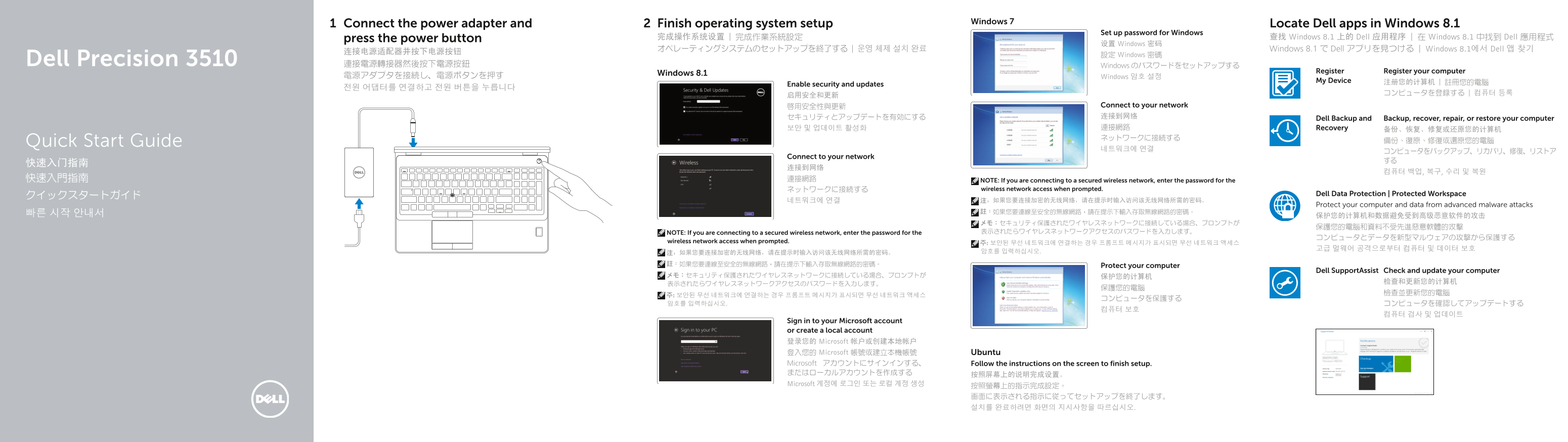
Page 1 Text Content
Windows 7
Connect the power adapter and Finish operating system setup Locate Dell apps in Windows 8.1
Set up password for Windows
press the power button 完成操作系统设置 | 完成作業系統設定 查找 Windows 8.1 上的 Dell 应用程序 | 在 Windows 8.1 中找到 Dell 應用程式
设置 Windows 密码
オペレーティングシステムのセットアップを終了する | 운영 체제 설치 완료 Windows 8.1 で Dell アプリを見つける | Windows 8.1에서 Dell 앱 찾기
設定 Windows 密碼
Dell Precision 3510 連接電源轉接器然後按下電源按鈕 Windows のパスワードをセットアップする
Register Register your computer
Windows 8.1
電源アダプタを接続し、電源ボタンを押す Windows 암호 설정
My Device 注册您的计算机 | 註冊您的電腦
Enable security and updates
啟用安全性與更新 Connect to your network セキュリティとアップデートを有効にする 连接到网络
Dell Backup and Backup, recover, repair, or restore your computer
보안 및 업데이트 활성화 連接網路 Recovery
Quick Start Guide 備份、復原、修復或還原您的電腦
Connect to your network
快速入門指南 連接網路 NOTE: If you are connecting to a secured wireless network, enter the password for the
ネットワークに接続する wireless network access when prompted.
Dell Data Protection | Protected Workspace
Protect your computer and data from advanced malware attacks
NOTE: If you are connecting to a secured wireless network, enter the password for the 表示されたらワイヤレスネットワークアクセスのパスワードを入力します。
wireless network access when prompted. 주: 보안된 무선 네트워크에 연결하는 경우 프롬프트 메시지가 표시되면 무선 네트워크 액세스
註:如果您要連線至安全的無線網路,請在提示下輸入存取無線網路的密碼。 Protect your computer
Dell Support Assist Check and update your computer
Sign in to your Microsoft account or create a local account 登录您的 Microsoft 帐户或创建本地帐户 登入您的 Microsoft 帳號或建立本機帳號 Ubuntu Microsoft アカウントにサインインする、 Follow the instructions on the screen to finish setup. またはローカルアカウントを作成する 按照屏幕上的说明完成设置。 Microsoft 계정에 로그인 또는 로컬 계정 생성 按照螢幕上的指示完成設定。
Page Summary Contents For Dell Precision 3510 Quick User Guide (Windows 7 8.1)
Manual Details
| Brand | Dell |
|---|---|
| Pages | 2 |
| File Size | 1.45 MB |
| Published | July 03, 2026 |
Enter the captcha to get the download link:

Frequently Asked Questions
How do I connect the power adapter?
Connect the power adapter and then press the power button.
What security features are available on this model?
It includes optional fingerprint reader, smart card readers, and a security cable slot for enhanced protection.
Does the laptop have modern connectivity options?
Yes, it features HDMI 1.4, USB 3.0 (some with PowerShare), SD Memory card reader, and Thunderbolt 3 connector (optional).
What is the recommended next step after setup/registration?
The manual advises connecting to a secured wireless network and entering the required access password when prompted.