Dell PowerConnect W-3200 ArubaOS 6.0 Quick Start Guide
Summary
Quick start guide for Dell PowerConnect ArubaOS 6.0 wireless network deployment. Covers controller setup wizard, license installation, WLAN configuration, AP connectivity verification, and mesh provisioning. Target users are network administrators deploying Dell PowerConnect wireless infrastructure.
Page 1 Text Content
Dell Power Connect Aruba OS 6.0 Quick Start Guide
This document describes the initial setup of a user-centric network that consists of Dell Power Connect controllers and Dell Power Connect Access Points (APs). The installation consists of the following steps:
1. Use the Setup Wizard to configure the controller, install software licenses, and configure an internal and a guest WLAN—“Run the Startup Wizard” on page 1 2. Connect the controller to the wired network—“Connect the Controller to the Wired Network” on page 3 3. Verify that your APs can locate and connect to your controllers—“Verify APs are Connected to your Controller” on page 3 4. If you are configuring mesh, define the mesh cluster profile, mesh radio profile, and provision the APs as a mesh portal or mesh point when deploying APs in a mesh networking environment—“Provisioning APs for Mesh” on page 4
Note: You must provision and configure the mesh portals on your network before you add any mesh points.
5. Connect your APs to the network—“Installing your APs” on page 5
Run the Startup Wizard The Web UI Startup Wizard allows you to configure access to the controller, install software licenses, and configure wireless local area networks (WLANs) for internal or guest users. The Startup Wizard is available the first time you connect to and log into the controller or whenever the controller is reset to its factory default configuration. After you complete the wizard, the controller reboots using the new configuration information you entered.
Note: Do not connect the controller to your network when running the Setup Wizard. The factory-default controller boots up with a default IP address and both DHCP server and spanning tree functions are enabled. Once you have completed the Setup Wizard and rebooted the controller, you can use either the CLI or Web UI for further configuration before connecting the controller to your network.
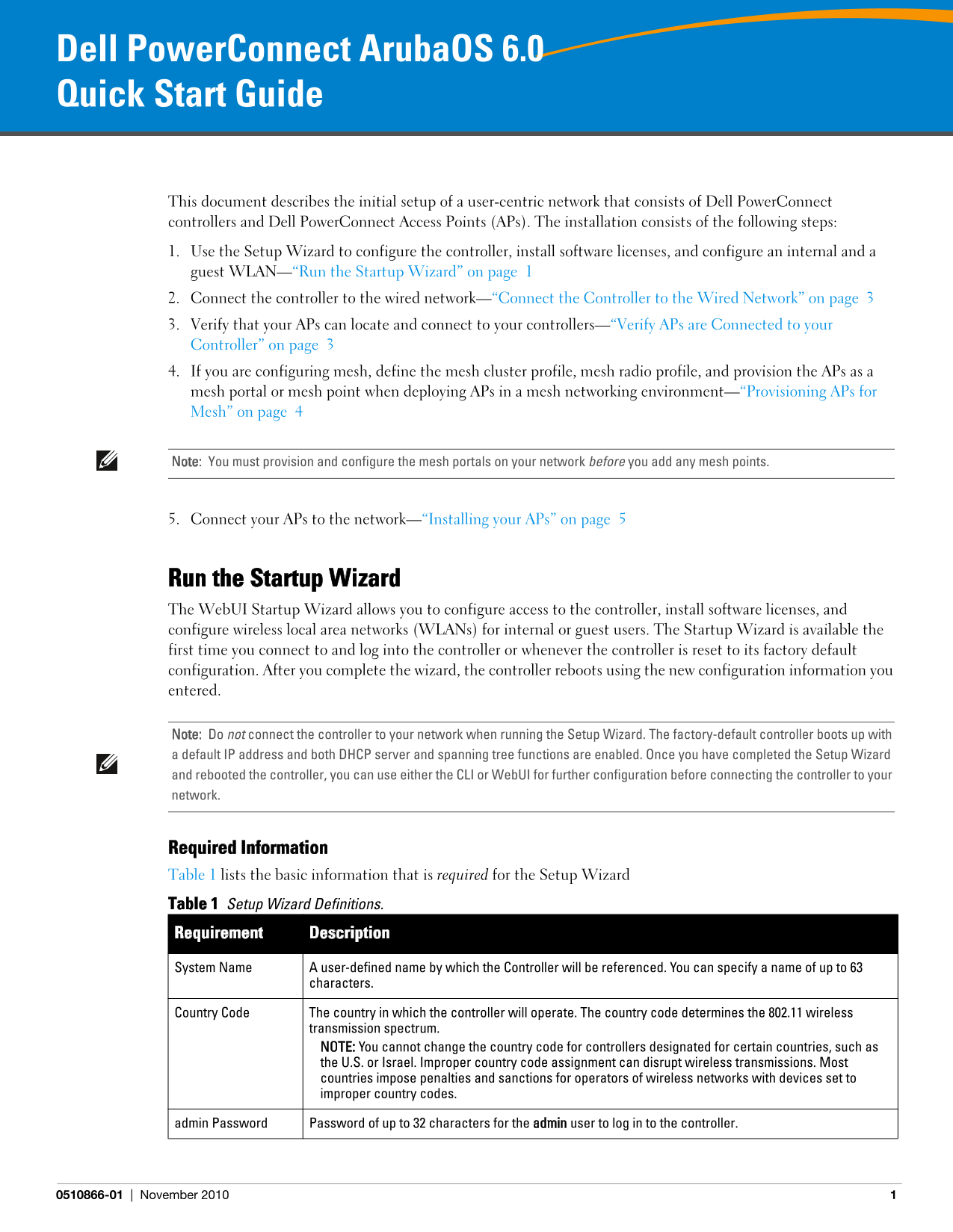
Required Information Table 1 lists the basic information that is required for the Setup Wizard Table 1 Setup Wizard Definitions. Requirement Description
System Name A user-defined name by which the Controller will be referenced. You can specify a name of up to 63
characters.
Country Code The country in which the controller will operate. The country code determines the 802.11 wireless
transmission spectrum. NOTE: You cannot change the country code for controllers designated for certain countries, such as the U.S. or Israel. Improper country code assignment can disrupt wireless transmissions. Most countries impose penalties and sanctions for operators of wireless networks with devices set to improper country codes.
admin Password Password of up to 32 characters for the admin user to log in to the controller.
0510866-01 November 2010
Page Summary Contents For Dell PowerConnect W-3200 ArubaOS 6.0 Quick Start Guide
Manual Details
| Brand | Dell |
|---|---|
| Pages | 6 |
| File Size | 327.68 KB |
| Published | June 26, 2026 |
Enter the captcha to get the download link:

Frequently Asked Questions
What is required when setting up a mesh networking environment?
You must provision and configure the mesh portals on your network before you add any mesh points.
When should I run the Setup Wizard after commissioning the controller?
You can run it when you first log into or connect to the controller, or if the controller is reset to factory default.
What IP address and connection method should I use to run the Setup Wizard?
Connect a PC via line port and access the default IP address of 172.16.0.254.
Does connecting the controller during initial setup interfere with the process?
No; you must not connect the controller to your network while running the Setup Wizard.