Dell Inspiron 15 5558 Laptop Quick User Guide - Windows 10
Summary
This Quick Start Guide for the Dell Inspiron 15 5000 Series notebook (Models P51F001-P51F005, covering Inspiron 15-5551 and 15-5552) provides multilingual setup instructions in English, Simplified Chinese, Traditional Chinese, Korean, and Vietnamese. It covers power adapter connection, Windows setup, Dell update configuration, network connectivity, computer registration, and Windows recovery media creation. Includes Dell Help and Support resources. Designed for home and student users seeking a mid-range laptop.
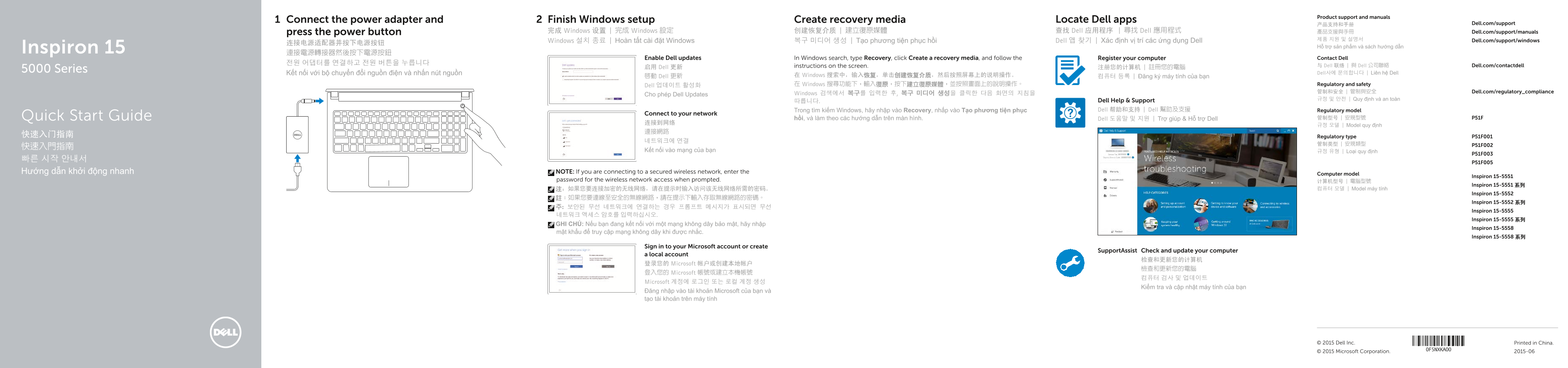
Page 1 Text Content
Product support and manuals
Connect the power adapter and Finish Windows setup Create recovery media Locate Dell apps
产品支持和手册 Dell.com/support
press the power button 完成 Windows 设置 | 完成 Windows 設定 创建恢复介质 | 建立復原媒體 查找 Dell 应用程序 | 尋找 Dell 應用程式 產品支援與手冊 Dell.com/support/manuals
Dell 앱 찾기 | Xác định vị trí các ứng dụng Dell 제품 지원 및 설명서 Dell.com/support/windows
Windows 설치 종료 | Hoàn tất cài đặt Windows 복구 미디어 생성 | Tạo phương tiện phục hồi
Hỗ trợ sản phẩm và sách hướng dẫn
Inspiron 15 連接電源轉接器然後按下電源按鈕
Enable Dell updates In Windows search, type Recovery, click Create a recovery media, and follow the Register your computer Contact Dell
instructions on the screen. 与 Dell 联络 | 與 Dell 公司聯絡 Dell.com/contactdell
启用 Dell 更新 注册您的计算机 | 註冊您的電腦
5000 Series
Kết nối với bộ chuyển đổi nguồn điện và nhấn nút nguồn Dell사에 문의합니다 | Liên hệ Dell
啟動 Dell 更新 在 Windows 搜索中,输入恢复,单击创建恢复介质,然后按照屏幕上的说明操作。 컴퓨터 등록 | Đăng ký máy tính của bạn
Dell 업데이트 활성화 在 Windows 搜尋功能下,輸入復原,按下建立復原媒體,並按照畫面上的說明操作。 Regulatory and safety 管制和安全 | 管制與安全 Dell.com/regulatory_compliance
Cho phép Dell Updates Windows 검색에서 복구를 입력한 후, 복구 미디어 생성을 클릭한 다음 화면의 지침을
Dell Help & Support 규정 및 안전 | Quy định và an toàn
Trong tìm kiếm Windows, hãy nhập vào Recovery, nhấp vào Tạo phương tiện phục Dell 帮助和支持 | Dell 幫助及支援 Regulatory model
Connect to your network
hồi, và làm theo các hướng dẫn trên màn hình. Dell 도움말 및 지원 | Trợ giúp & Hỗ trợ Dell Quick Start Guide 管制型号 | 安規型號 P51F
규정 모델 | Model quy định
快速入门指南 Regulatory type P51F001
Kết nối vào mạng của bạn 규정 유형 | Loại quy định
Hướng dẫn khởi động nhanh NOTE: If you are connecting to a secured wireless network, enter the
Computer model
Inspiron 15-5551
password for the wireless network access when prompted. 计算机型号 | 電腦型號
Inspiron 15-5551 系列
注:如果您要连接加密的无线网络,请在提示时输入访问该无线网络所需的密码。 컴퓨터 모델 | Model máy tính
Inspiron 15-5552
Inspiron 15-5552 系列
Inspiron 15-5555
Inspiron 15-5555 系列
GHI CHÚ: Nếu bạn đang kết nối với một mạng không dây bảo mật, hãy nhập
Inspiron 15-5558
mật khẩu để truy cập mạng không dây khi được nhắc.
Inspiron 15-5558 系列
Sign in to your Microsoft account or create
Support Assist Check and update your computer
a local account
登录您的 Microsoft 帐户或创建本地帐户
登入您的 Microsoft 帳號或建立本機帳號
Microsoft 계정에 로그인 또는 로컬 계정 생성
Kiểm tra và cập nhật máy tính của bạn
Đăng nhập vào tài khoản Microsoft của bạn và tạo tài khoản trên máy tính
© 2015 Dell Inc. Printed in China. © 2015 Microsoft Corporation. 2015-06
Page Summary Contents For Dell Inspiron 15 5558 Laptop Quick User Guide - Windows 10
Manual Details
| Brand | Dell |
|---|---|
| Pages | 2 |
| File Size | 494.26 KB |
| Published | July 01, 2026 |
Enter the captcha to get the download link:

Frequently Asked Questions
How do I begin setting up the Inspiron 15-555x?
Connect the power adapter to the laptop, then press the power button.
What password do I need for a secure wireless network?
If connecting to a secured wireless network, you must enter the network access password when prompted.
How can I create recovery media if something goes wrong?
In Windows search, type 'Recovery,' click 'Create a recovery media,' and follow the on-screen instructions.
Does this laptop support connecting to an external display?
Yes, the laptop includes options to switch to and connect with external displays.