Page 1
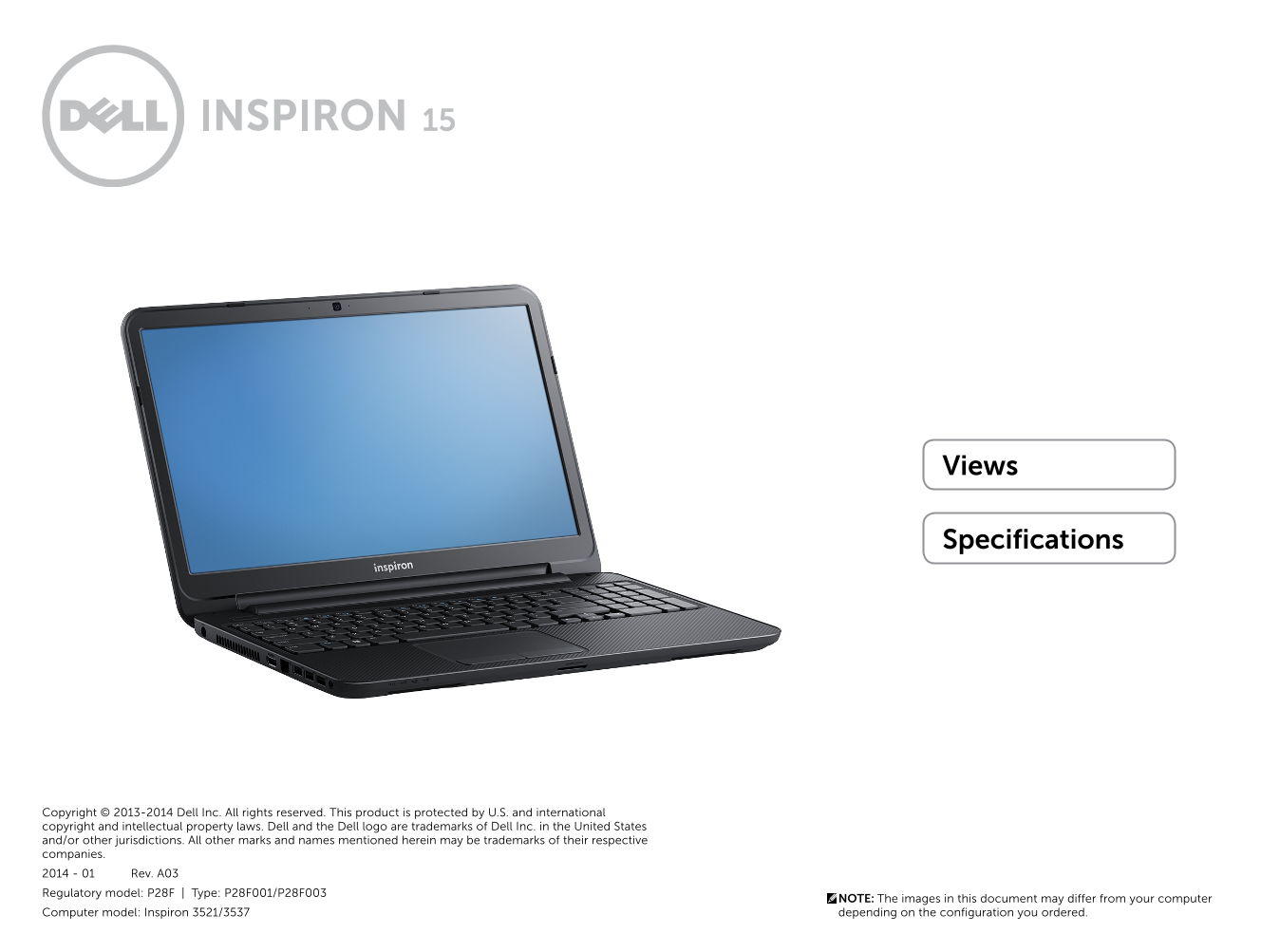
Dell - Internal Use - Confidential Views Specifications Copyright © 2013-2014 Dell Inc. All rights reserved. This product is protected by U.S. and international copyright and intellectual property law...
Page 2
Views Specifications Power-status light Battery-status light Indicates the power state of the computer. Indicates the battery state of the computer. Solid yellow light — Battery charge is low. White l...
Page 3
Views Specifications Power-adapter port USB 3.0 ports (2) Connect a power adapter to provide power to your Connect peripherals such as storage devices, printers, computer and charge the battery. and s...
Page 4
Views Specifications USB 2.0 port (supports Windows debugging) Optical drive Connect peripherals such as storage devices, printers, Reads from and writes to CDs and DVDs. and so on. Provides data tran...
Page 5
Views Specifications Power button Left-click button Press to turn on the computer if it is turned off or in Press to left click. Sleep state. Touchpad Press to put the computer in Sleep state if it is...
Page 6
Views Specifications Display Digital microphone Camera-status light Provides high-quality digital sound input for audio Turns on when the camera is in use. recording, voice calls, and so on. Camera Al...
Page 7
Specifications Views Dimensions and Weight Non-touch Touch Height (front to back): With 4-cell battery 0.98 in to 1.09 in 1.07 in to 1.19 in (24.85 mm to 27.60 mm) (27.25 mm to 30.15 mm) With 6-cell b...
Page 8
Specifications Views System Information Inspiron 3521 Inspiron 3537 Computer model Inspiron 3521 Inspiron 3537 Processor Intel Celeron Dual Core Intel Celeron Dual Core (2nd generation) (4th generatio...
Page 9
Specifications Views Memory Connectors Two internally-accessible SODIMM connectors Type: Inspiron 3521 Dual-channel DDR3 Inspiron 3537 Dual-channel DDR3L Speed Up to 1600 MHz Configurations supported ...
Page 10
Specifications Views Ports and Connectors External: Network One RJ45 port USB Two USB 3.0 ports One USB 2.0 port One USB 2.0 port with Windows debugging HDMI One HDMI port Audio One headphone and micr...
Page 11
Specifications Views Communications Ethernet 10/100 Mbps Ethernet controller integrated on system board Wireless Wi-Fi 802.11 b/g/n Bluetooth 4.0 Dimensions and System Ports and Memory Communications ...
Page 12
Specifications Views Video Inspiron 3521 Inspiron 3537 Controller: Integrated Intel HD Graphics 4000 Intel HD Graphics 5100/4200/4400 series Discrete AMD Radeon HD 7670M AMD Radeon HD 8670M AMD Radeon...
Page 13
Specifications Views Audio Controller ALC3223 Speakers Two Speaker output: Average 2 watt Peak 2 watt Microphone Single digital microphone in the camera assembly Volume controls Program menus and keyb...
Page 14
Specifications Views Storage Interface SATA 1.5 Gbps SATA 3.0 Gbps SATA 6.0 Gbps Hard drive One 2.5-inch drive (supports Intel Smart Response Technology) Optical drives One 9.5 mm SATA drive Drives su...
Page 15
Specifications Views Media-card reader Type One 8-in-1 slot Cards supported Secure Digital (SD) memory card SD High-Capacity (SDHC) card Secure-Digital Extended Capacity (SDXC) card with Ultra High Sp...
Page 16
Specifications Views Display Type 15.6-inch HD 15.6-inch HD with touch Resolution (maximum) 1366 x 768 Dimensions: Height 8.83 in (224.30 mm) Width 14.17 in (360 mm) Diagonal 15.60 in (396.24 mm) Refr...
Page 17
Specifications Views Keyboard Type Chiclet keyboard Shortcut keys Some keys on your keyboard have two symbols on them. These keys can be used to type alternate characters or to perform secondary funct...
Page 18
Specifications Views Camera Resolution: Still image 0.92 megapixel Video 1280 x 720 (HD) at 30 fps (maximum) Diagonal viewing angle 74 degrees Dimensions and System Ports and Memory Communications Vid...
Page 19
Specifications Views Touchpad Resolution: Horizontal 1560 dpi Vertical 2553 dpi Dimensions: Width 2.13 in (54 mm) Height 3.86 in (98 mm) Dimensions and System Ports and Memory Communications Video Aud...
Page 20
Specifications Views Battery Type 4-cell “smart” lithium ion (40 WHr) — non-touch only 6-cell “smart” lithium ion (65 WHr) Dimensions: 4-cell 6-cell Height: Touch N/A 1.08 in (27.40 mm) Non touch 0.79...
Page 21
Specifications Views Power Adapter Type 65 W Input voltage 100 VAC–240 VAC Input frequency 50 Hz–60 Hz Input current 1.50A/1.60A/1.70A/2.50A Output current 3.34 A/4.62 A Rated output voltage 19.50 VDC...
Page 22
Specifications Views Computer Environment Airborne contaminant level G1 as defined by ISA-S71.04-1985 Operating Storage Temperature range 0 °C to 40 °C (32 °F to 104 °F) –40 °C to 70 °C (–40 °F to 158...