Dell E2214Hv Monitor (China Only) Display Manager User's Guide
Summary
This user guide covers Dell Display Manager, a Windows application for managing Dell monitors. The software enables manual image adjustment, automatic preset mode assignment, energy management, window organization, and image rotation on supported Dell displays. It features Quick Settings dialog for brightness and contrast control, Auto Mode for application-specific presets, and advanced configuration options. Target users are professionals and power users who require advanced display management and productivity features with their Dell monitors.
Page 1 Text Content
Dell TM Display Manager User's Guide
Overview Dell Display Manager is a Windows application used to manage a monitor or a group of monitors. It allows manual adjustment of the displayed image, assignment of automatic settings, energy management, window organization, image rotation and other features on select Dell models. Once installed, Dell Display Manager will run each time the system starts and will place its icon in the notification tray. Information about monitors connected to the system is always available when hovering over the notification tray icon.
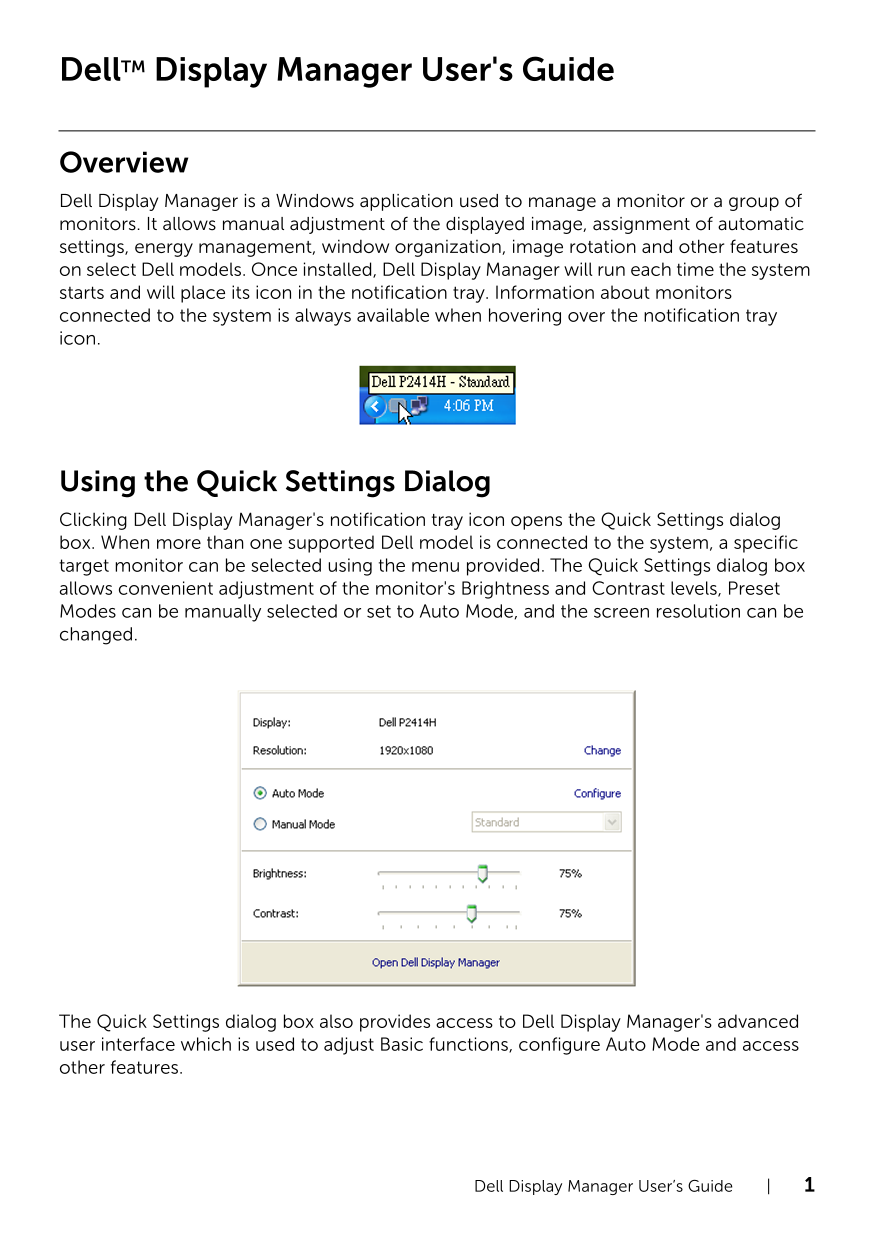
Using the Quick Settings Dialog Clicking Dell Display Manager's notification tray icon opens the Quick Settings dialog box. When more than one supported Dell model is connected to the system, a specific target monitor can be selected using the menu provided. The Quick Settings dialog box allows convenient adjustment of the monitor's Brightness and Contrast levels, Preset Modes can be manually selected or set to Auto Mode, and the screen resolution can be changed.
The Quick Settings dialog box also provides access to Dell Display Manager's advanced user interface which is used to adjust Basic functions, configure Auto Mode and access other features.
Dell Display Manager User ’s Guide | 1
Page Summary Contents For Dell E2214Hv Monitor (China Only) Display Manager User's Guide
Manual Details
| Brand | Dell |
|---|---|
| Pages | 4 |
| File Size | 124.34 KB |
| Published | June 26, 2026 |
Enter the captcha to get the download link:

Frequently Asked Questions
How do I access basic settings on the displays?
Click the notification tray icon and use the Quick Settings dialog box for quick adjustments.
How can I automate setting changes for applications?
Use the Auto Mode tab to associate a specific Preset Mode with an application so it applies automatically when the program is activated.
Which features are limited in the assignment list?
The system does not support assigning preset modes to batch files, scripts, zip archives, or other non-executable file types.
Can I save custom window layouts?
Yes, on supported models, after arranging your windows in the Easy Arrange tab, click Save to apply the custom layout.