Casio XD-A User's Manual
Summary
Discover the features of your CASIO XD-A Series Electronic Dictionary, a comprehensive linguistic tool for global learners. This manual provides detailed instructions on utilizing all functionalities, from searching by alphabetic characters and kanji to complex phrase entries, accented characters, and map searches. Designed for users requiring accurate translations and definitions in multiple scripts (including Hangul, Russian, and simplified Chinese), the guide covers key indicators, screen layout settings, and basic operation—ensuring a smooth experience whether you are researching academic terms or simple words.
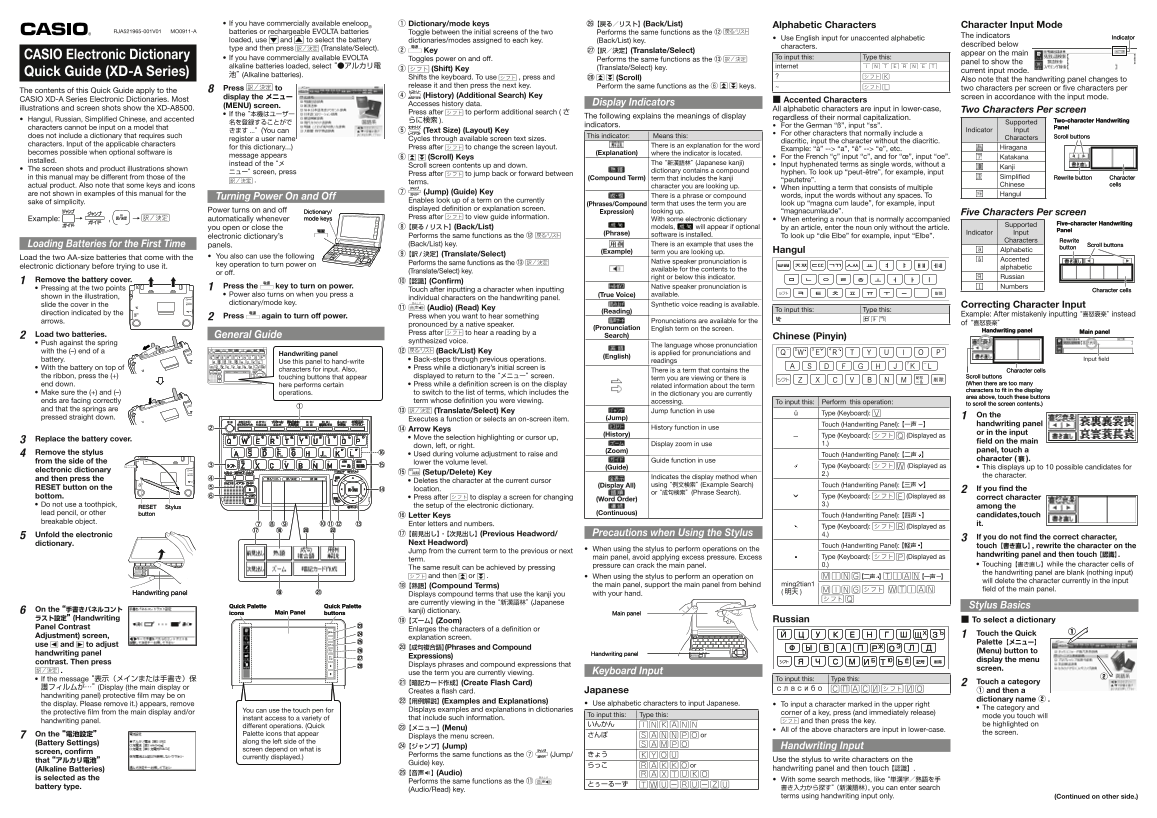
Page 1 Text Content
If you have commercially available eneloop ① Dictionary/mode keys ㉖ 【戻る/リスト】 (Back/List) Alphabetic Characters Character Input Mode
RJA521965-001V01 MO0911-A batteries or rechargeable EVOLTA batteries Toggle between the initial screens of the two Performs the same functions as the ⑫
The indicators Indicator
loaded, use and to select the battery Use English input for unaccented alphabetic
dictionaries/modes assigned to each key. (Back/List) key.
described below
type and then press (Translate/Select). characters.
② Key ㉗ 【訳/決定】 (Translate/Select)
appear on the main
CASIO Electronic Dictionary If you have commercially available EVOLTA Toggles power on and off. To input this: Type this:
Performs the same functions as the ⑬
panel to show the
alkaline batteries loaded, select “●アルカリ電 (Translate/Select) key. internet
③ (Shift) Key current input mode.
Quick Guide (XD-A Series) 池” (Alkaline batteries).
Shifts the keyboard. To use , press and ㉘ (Scroll)
Also note that the handwriting panel changes to
release it and then press the next key. Perform the same functions as the ⑥ keys.
8 Press to two characters per screen or fi ve characters per
The contents of this Quick Guide apply to the
display the メニュー ④ (History) (Additional Search) Key screen in accordance with the input mode.
CASIO XD-A Series Electronic Dictionaries. Most Accented Characters
Accesses history data. Display Indicators
(MENU) screen.
illustrations and screen shots show the XD-A8500. All alphabetic characters are input in lower-case, Two Characters Per screen
If the “本機はユーザー Press after to perform additional search (さ
The following explains the meanings of display regardless of their normal capitalization.
Hangul, Russian, Simplifi ed Chinese, and accented らに検索 Two-character Handwriting
名を登録することがで Supported
indicators. For the German “ß”, input “ss”.
characters cannot be input on a model that Panel
きます ...”(You can ⑤ (Text Size) (Layout) Key Indicator Input
For other characters that normally include a
does not include a dictionary that requires such This indicator: Means this: Characters Scroll buttons
register a user name Cycles through available screen text sizes.
diacritic, input the character without the diacritic.
characters. Input of the applicable characters There is an explanation for the word
for this dictionary...) Press after to change the screen layout. Example: “à” --> “a”, “ê” --> “e”, etc. Hiragana
becomes possible when optional software is (Explanation) where the indicator is located.
message appears ⑥ (Scroll) Keys For the French “ç” input “c”, and for “œ”, input “oe”. Katakana
installed.
instead of the “メ The “新漢語林” (Japanese kanji) Input hyphenated terms as single words, without a
Scroll screen contents up and down. Kanji
The screen shots and product illustrations shown dictionary contains a compound
ニュー” screen, press Press after to jump back or forward between hyphen. To look up “peut-être”, for example, input
in this manual may be different from those of the (Compound Term) term that includes the kanji Simplifi ed Rewrite button Character
“peutetre”.
terms.
actual product. Also note that some keys and icons character you are looking up. Chinese cells
When inputting a term that consists of multiple
are not shown in examples of this manual for the ⑦ (Jump) (Guide) Key Hangul
Turning Power On and Off There is a phrase or compound words, input the words without any spaces. To
sake of simplicity. Enables look up of a term on the currently
(Phrases/Compound term that uses the term you are look up “magna cum laude”, for example, input
Power turns on and off displayed defi nition or explanation screen.
Dictionary/ Expression) looking up. “magnacumlaude”. Five Characters Per screen
mode keys Press after to view guide information.
Example: , → automatically whenever With some electronic dictionary When entering a noun that is normally accompanied
Supported Five-character Handwriting
you open or close the ⑧ 【戻る /リスト】 (Back/List) models, will appear if optional by an article, enter the noun only without the article.
Panel
(Phrase) Indicator Input
Performs the same functions as the ⑫ software is installed. To look up “die Elbe” for example, input “Elbe”.
electronic dictionary’s
Characters Rewrite
Loading Batteries for the First Time panels. (Back/List) key. There is an example that uses the Scroll buttons
button
(Example) Hangul Alphabetic
term you are looking up.
⑨ 【訳 /決定】 (Translate/Select)
Load the two AA-size batteries that come with the You also can use the following
Accented
Performs the same functions as the ⑬ Native speaker pronunciation is
key operation to turn power on
electronic dictionary before trying to use it. alphabetic
available for the contents to the
or off. (Translate/Select) key.
right or below this indicator. Russian
1 Remove the battery cover. ⑩ 【認識】 (Confi rm)
Pressing at the two points 1 Press the key to turn on power. Native speaker pronunciation is Numbers
Touch after inputting a character when inputting Character cells
Power also turns on when you press a (True Voice) available.
shown in the illustration, individual characters on the handwriting panel.
dictionary/mode key. 読み上げ
slide the cover in the Synthetic voice reading is available. Correcting Character Input
⑪ 音声 (Audio) (Read) Key To input this: Type this:
direction indicated by the (Reading)
Example: After mistakenly inputting “喜怒衰楽” instead
2 Press again to turn off power. Press when you want to hear something
arrows. Pronunciations are available for the
pronounced by a native speaker. of“喜怒哀楽”
(Pronunciation English term on the screen.
Handwriting panel Main panel
Press after to hear a reading by a
2 Load two batteries. General Guide Search) Chinese (Pinyin)
Push against the spring synthesized voice.
The language whose pronunciation
with the (–) end of a ⑫ (Back/List) Key is applied for pronunciations and
Handwriting panel
(English)
battery. Back-steps through previous operations. Input fi eld
Use this panel to hand-write readings
With the battery on top of characters for input. Also, Press while a dictionary’s initial screen is
There is a term that contains the Character cells
the ribbon, press the (+) touching buttons that appear displayed to return to the “メニュー” screen. Scroll buttons
term you are viewing or there is
end down. here performs certain Press while a defi nition screen is on the display (When there are too many
related information about the term
characters to fi t in the display
Make sure the (+) and (–) operations. to switch to the list of terms, which includes the in the dictionary you are currently
area above, touch these buttons
ends are facing correctly term whose defi nition you were viewing. accessing. To input this: Perform this operation:
to scroll the screen contents.)
and that the springs are ⑬ (Translate/Select) Key Jump function in use
Type (Keyboard): V
pressed straight down. (Jump) 1 On the
Executes a function or selects an on-screen item.
Touch (Handwriting Panel): 【一声 】 handwriting panel
⑭ Arrow Keys History function in use
(History) or in the input
Type (Keyboard): Q (Displayed as
Move the selection highlighting or cursor up,
3 Replace the battery cover. fi eld on the main
Display zoom in use 1.)
down, left, or right.
(Zoom) panel, touch a
4 Remove the stylus Used during volume adjustment to raise and Touch (Handwriting Panel): 【二声 】
Guide function in use character (衰
from the side of the lower the volume level.
(Guide) Type (Keyboard): W (Displayed as This displays up to 10 possible candidates for
electronic dictionary
⑮ (Setup/Delete) Key 2.)
Indicates the display method when the character.
and then press the Deletes the character at the current cursor
(Display All) using “例文検索” (Example Search) Touch (Handwriting Panel): 【三声 】
RESET button on the location.
or “成句検索”(Phrase Search). 2 If you fi nd the
bottom. Press after to display a screen for changing Type (Keyboard): E (Displayed as correct character
(Word Order)
Do not use a toothpick, the setup of the electronic dictionary. 3.)
Stylus RESET among the
lead pencil, or other button (Continuous)
⑯ Letter Keys Touch (Handwriting Panel): 【四声 】 candidates,touch
breakable object.
Enter letters and numbers. it.
Type (Keyboard): R (Displayed as
⑰ 【前見出し】・【次見出し】 (Previous Headword/ Precautions when Using the Stylus 4.)
5 Unfold the electronic 3 If you do not fi nd the correct character,
dictionary. Next Headword)
Touch (Handwriting Panel): 【軽声 】 touch【書き直し】, rewrite the character on the
When using the stylus to perform operations on the
Jump from the current term to the previous or next
handwriting panel and then touch 【認識】.
main panel, avoid applying excess pressure. Excess Type (Keyboard): P (Displayed as
term.
pressure can crack the main panel. 0.) Touching【書き直し】while the character cells of
The same result can be achieved by pressing
the handwriting panel are blank (nothing input)
and then or . When using the stylus to perform an operation on 【二声 】 T 【一声 】
will delete the character currently in the input
⑱ 【熟語】 (Compound Terms) the main panel, support the main panel from behind ming2tian1
fi eld of the main panel.
Handwriting panel with your hand. (明天
Displays compound terms that use the kanji you are currently viewing in the “新漢語林” (Japanese
Quick Palette Quick Palette Stylus Basics
6 On the “手書きパネルコント kanji) dictionary.
icons buttons Main Panel Main panel
ラスト設定” (Handwriting Russian To select a dictionary
⑲ 【ズーム】 (Zoom)
Panel Contrast
Enlarges the characters of a defi nition or
Adjustment) screen, explanation screen. 1 Touch the Quick Palette【メニュー】
use and to adjust
⑳ 【成句複合語】 (Phrases and Compound
(Menu) button to
handwriting panel Handwriting panel
Expressions)
display the menu
contrast. Then press
Displays phrases and compound expressions that
screen.
use the term you are currently viewing. Keyboard Input
If the message “表示(メインまたは手書き)保 To input this: Type this:
㉑ 【暗記カード作成】 (Create Flash Card) 2 Touch a category
護フィルムが…” (Display (the main display or сласибо
Creates a fl ash card. Japanese ① and then a
handwriting panel) protective fi lm may be on
㉒ 【用例解説】 (Examples and Explanations) dictionary name ②
the display. Please remove it.) appears, remove Use alphabetic characters to input Japanese. To input a character marked in the upper right
Displays examples and explanations in dictionaries The category and
the protective fi lm from the main display and/or You can use the touch pen for
corner of a key, press (and immediately release)
To input this: Type this: mode you touch will
instant access to a variety of that include such information.
handwriting panel. and then press the key.
different operations. (Quick いんかん be highlighted on
㉓ 【メニュー】 (Menu) All of the above characters are input in lower-case.
Palette icons that appear the screen.
7 On the “電池設定” Displays the menu screen. さんぽ or
(Battery Settings) along the left side of the
㉔ 【ジャンプ】 (Jump) Handwriting Input
screen depend on what is
screen, confi rm
Performs the same functions as the ⑦ (Jump/ きょう
currently displayed.)
that “アルカリ電池” Use the stylus to write characters on the
Guide) key.
らっこ or
(Alkaline Batteries) handwriting panel and then touch 【認識】.
㉕ 【音声 】 (Audio)
is selected as the 読み上げ
Performs the same functions as the ⑪ 音声 With some search methods, like “単漢字/熟語を手
battery type. 書き入力から探す” (新漢語林), you can enter search
(Audio/Read) key.
terms using handwriting input only. (Continued on other side.)
Page Summary Contents For Casio XD-A User's Manual
Manual Details
| Brand | Casio |
|---|---|
| Pages | 2 |
| File Size | 7.96 MB |
| Published | June 05, 2026 |
Enter the captcha to get the download link:
