Brother PT-1230PC User's Guide
Summary
The PT-1230PC is a professional P-touch labeler designed for creating customizable labels using connected software and supplies. This comprehensive manual provides crucial setup steps, detailed operational instructions, and vital knowledge regarding safe handling and maintenance of the labeling system. It serves as an essential guide for new users and owners who require proper safety precautions, troubleshooting tips (such as cleaning the print head or blade), and guidelines to ensure consistent, accurate label printing quality.
Page 1 Text Content
Printed in China
Engl ish
LW3141001
www.brother.com
USER’S GUIDE
USER’S GUIDE
INTRODUCTION SAFETY PRECAUTIONS
WARNING
Thank you for choosing the PT-1230PC. Your new P-touch labeler uses P-touch Editor Lite software, which is already installed on your labeler.
• Always use the specifi ed voltage and the suggested AC adapter (AD-24) for this machine to prevent any damage or failure.
There is no need to install any software or drivers onto your PC in order to make creative labels. This manual includes important precautionary • Unplug the power cord immediately and stop using the P-touch labeler during an electrical storm. There may be a remote risk of electric shock from lightning. information and simple instructions for operating your new P-touch labeler. Be sure to read the instructions before use and use the product in ac- • Do not use the AC adapter in places of high humidity such as bathrooms.
cordance with these instructions. Keep this manual handy for future reference. • Do not overload the power cord. • Do not place heavy objects on, or damage the power cord or plug. Do not forcibly bend or pull the power cord. When disconnecting the power cord from the power outlet, al- ways hold the plug. • To prevent fi re or electric shock, make sure that the plug is fully inserted to the power outlet. Do not use an outlet that is loose. Federal Communications Commission (FCC) Declaration of Conformity (For USA Only) • Do not get the machine/AC adapter/power plug wet, such as by handling them with wet hands or spilling beverages on to them. • Do not disassemble or modify P-touch labeler/AC adapter/batteries. • Do not use metallic articles, such as tweezers or a metallic pen, when exchanging the batteries. • Do not throw into fi re or heat up the battery.
Responsible Party: Brother International Corporation 100 Somerset Corporate Boulevard Bridgewater, NJ 08807-0911 USA
• Disconnect the AC adapter, remove batteries and stop using immediately if you notice any abnormal odor, heat, discoloration, deformation or anything unusual while in use, or
TEL: (908) 704-1700
in storage.
declares that the product: Product Name: P-touch Labeler PT-1230PC
CAUTION
Model Number: PT-1230PC
• To avoid injuries, do not touch the blade of the cutter unit or any metal parts near the print head. • Do not apply excessive pressure to the cutter lever.
This device complies with Part 15 of the FCC Rules. Operation is subject to the following two conditions: (1) this device may not cause harmful
• Remove the batteries and disconnect the AC adapter if you do not intend to use P-touch labeler for an extended period of time.
interference, and (2) this device must accept any interference received, including interference that may cause undesired operation.
• Do not use old and new batteries together or mix alkaline batteries with other type batteries, or set the positive and negative end in the wrong position. Otherwise, the batter- ies may leak or be damaged.
This equipment has been tested and found to comply with the limits for a Class B digital device, pursuant to Part 15 of the FCC Rules. These
• To prevent damage or breakage, do not drop or hit P-touch labeler/AC adapter.
limits are designed to provide reasonable protection against harmful interference in a residential installation. This equipment generates, uses and
• Use only the USB cable included with the P-touch labeler.
can radiate radio frequency energy and, if not installed and used in accordance with the instructions, may cause harmful interference to radio communications. However, there is no guarantee that interference will not occur in a particular installation. If this equipment does cause harmful
interference to radio or television reception, which can be determined by turning the equipment off and on, the user is encouraged to try to cor- General Precautions rect the interference by one or more of the following measures: • Depending on the location, material, and environmental conditions, the label may unpeel or become irremovable, the color of the label may change or be transferred to other objects. Before applying the label, check the environmental condition and the material.
- Reorient or relocate the receiving antenna. • Do not use the P-touch labeler in any way or for any purpose not described in this guide. Doing so may result in accidents or damage the machine.
- Increase the separation between the equipment and receiver. • Use only Brother TZ tapes with this machine. Do not use tapes that do not have the mark. • Do not clean P-touch labeler with alcohol or other organic solvents. Only use a soft, dry cloth.
- Connect the equipment into an outlet on a circuit different from that to which the receiver is connected.
• Do not touch the print head with your fi ngers anytime to prevent from a burn. Use a soft wipe (e.g. a cotton swab) when cleaning the print head.
- Consult the dealer or an experienced radio/TV technician for help.
• Do not put any foreign objects into the tape exit slot or AC adapter connector, etc.
- Changes or modifi cations not expressly approved by Brother Industries, Ltd. could void the user’s authority to operate the equipment.
• Do not place the P-touch labeler/battery in direct sunlight or rain, near heaters or other hot appliances, in any location exposed to extremely high or low temperatures (e.g. on
- The enclosed interface cable should be used in order to ensure compliance with the limits for a Class B digital device. the dashboard or in the back of your car), high humidity, or dusty locations.
• Do not try to print labels using an empty tape cassette in the P-touch labeler. Doing so will damage the print head. • Do not pull the tape being fed from the P-touch labeler, otherwise the tape cassette or P-touch labeler may be damaged.
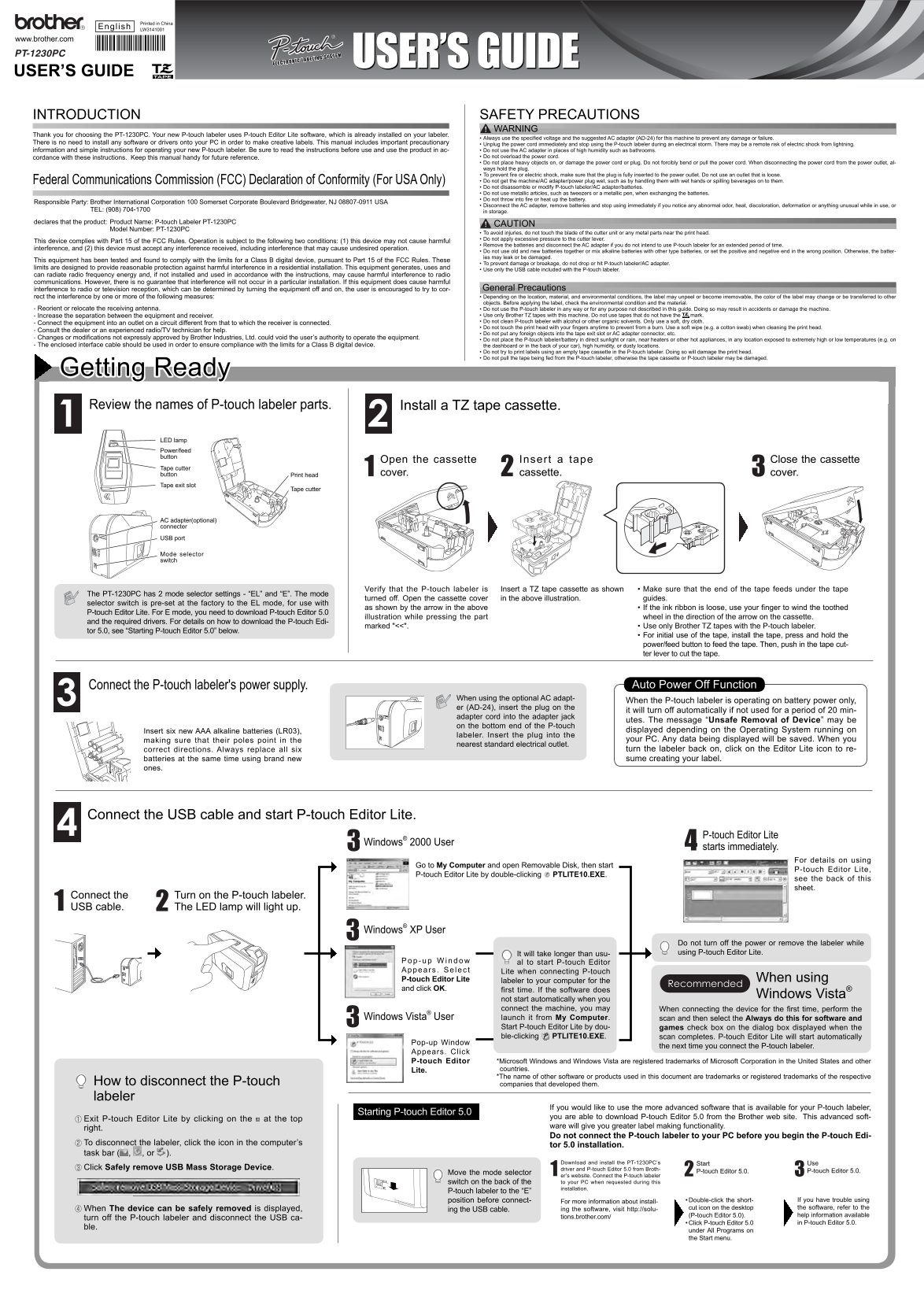
Getting Ready Review the names of P-touch labeler parts. Install a TZ tape cassette.
LED lamp Power/feed button
Open the cassette Insert a tape Close the cassette
Tape cutter
button Print head cover. cassette. cover.
Tape exit slot
Tape cutter
AC adapter(optional) connecter USB port
Mode selector switch
Verify that the P-touch labeler is Insert a TZ tape cassette as shown • Make sure that the end of the tape feeds under the tape
The PT-1230PC has 2 mode selector settings - “EL” and “E”. The mode
turned off. Open the cassette cover in the above illustration. guides.
selector switch is pre-set at the factory to the EL mode, for use with
as shown by the arrow in the above • If the ink ribbon is loose, use your fi nger to wind the toothed
P-touch Editor Lite. For E mode, you need to download P-touch Editor 5.0
illustration while pressing the part wheel in the direction of the arrow on the cassette.
and the required drivers. For details on how to download the P-touch Edi-
marked "<<". • Use only Brother TZ tapes with the P-touch labeler.
tor 5.0, see “Starting P-touch Editor 5.0” below.
• For initial use of the tape, install the tape, press and hold the power/feed button to feed the tape. Then, push in the tape cut- ter lever to cut the tape.
Connect the P-touch labeler's power supply. Auto Power Off Function
When using the optional AC adapt-
When the P-touch labeler is operating on battery power only,
er (AD-24), insert the plug on the
it will turn off automatically if not used for a period of 20 min-
adapter cord into the adapter jack
utes. The message “Unsafe Removal of Device” may be
on the bottom end of the P-touch
Insert six new AAA alkaline batteries (LR03), displayed depending on the Operating System running on
labeler. Insert the plug into the
making sure that their poles point in the your PC. Any data being displayed will be saved. When you
nearest standard electrical outlet.
correct directions. Always replace all six turn the labeler back on, click on the Editor Lite icon to re- batteries at the same time using brand new sume creating your label.
ones.
Connect the USB cable and start P-touch Editor Lite.
P-touch Editor Lite
Windows® 2000 User
starts immediately.
For details on using
Go to My Computer and open Removable Disk, then start
P-touch Editor Lite,
P-touch Editor Lite by double-clicking PTLITE10.EXE.
see the back of this sheet.
Connect the Turn on the P-touch labeler. USB cable. The LED lamp will light up.
Windows® XP User
Do not turn off the power or remove the labeler while It will take longer than usu- using P-touch Editor Lite.
al to start P-touch Editor
Appears Se lec Lite when connecting P-touch P-touch Editor Lite labeler to your computer for the When using and click OK. first time. If the software does
Windows Vista®
not start automatically when you connect the machine, you may When connecting the device for the fi rst time, perform the
Windows Vista® User launch it from My Computer. scan and then select the Always do this for software and
Start P-touch Editor Lite by dou- games check box on the dialog box displayed when the ble-clicking PTLITE10.EXE. scan completes. P-touch Editor Lite will start automatically
Pop-up Window
the next time you connect the P-touch labeler.
Appears. Click P-touch Editor *Microsoft Windows and Windows Vista are registered trademarks of Microsoft Corporation in the United States and other
Lite. countries. *The name of other software or products used in this document are trademarks or registered trademarks of the respective
How to disconnect the P-touch companies that developed them. labeler
If you would like to use the more advanced software that is available for your P-touch labeler,
Starting P-touch Editor 5.0
you are able to download P-touch Editor 5.0 from the Brother web site. This advanced soft-
Exit P-touch Editor Lite by clicking on the at the top
ware will give you greater label making functionality.
right.
Do not connect the P-touch labeler to your PC before you begin the P-touch Edi-
To disconnect the labeler, click the icon in the computer’s
tor 5.0 installation.
task bar ( , , or ).
Download and install the PT-1230PC’s Start Use
Click Safely remove USB Mass Storage Device. driver and P-touch Editor 5.0 from Broth-
P-touch Editor 5.0. P-touch Editor 5.0.
Move the mode selector
er’s website. Connect the P-touch labeler switch on the back of the to your PC when requested during this installation.
P-touch labeler to the “E”
position before connect- • Double-click the short- If you have trouble using
For more information about install-
When The device can be safely removed is displayed, cut icon on the desktop the software, refer to the
ing the USB cable. ing the software, visit http://solu-
(P-touch Editor 5.0). help information available
turn off the P-touch labeler and disconnect the USB ca- tions.brother.com/
• Click P-touch Editor 5.0 in P-touch Editor 5.0.
under All Programs on the Start menu.
Page Summary Contents For Brother PT-1230PC User's Guide
Manual Details
| Brand | Brother |
|---|---|
| Pages | 2 |
| File Size | 1.06 MB |
| Published | May 17, 2026 |
Enter the captcha to get the download link:

Frequently Asked Questions
What do I do if I experience streaks or poor quality characters on my labels?
This usually means the print head is dirty. Clean the print head using a cotton swab, ensuring you do not touch the print head with your bare hands.
What voltage supply should be used to operate the P-touch labeler?
Use only the specified AC adapter (AD-24) or six AAA alkaline batteries. Always use the recommended items to prevent damage.
How do I handle an issue with a blunt cutter blade?
If the cutter blade is blunt after repetitive use and cannot cut cleanly, replace the unit (stock no. TC-5) from an authorized Brother reseller.
Are there specific warnings regarding electrical safety?
Unplug the power cord immediately and stop using the labeler during any electrical storm due to the remote risk of electric shock from lightning.