ATEN CS-142 User Guide Manual
Summary
Consolidate your workspace and streamline complex multi-computer environments with this professional KVM Switch. This hot-pluggable unit allows you to control multiple connected PCs using a single monitor, keyboard, and mouse set. The comprehensive guide provides detailed instructions on fast installation, operation via push buttons or hot keys, port selection, and troubleshooting. It is ideal for businesses and users requiring efficient access to multiple operating systems without complex software setups, saving considerable time, space, and cost.
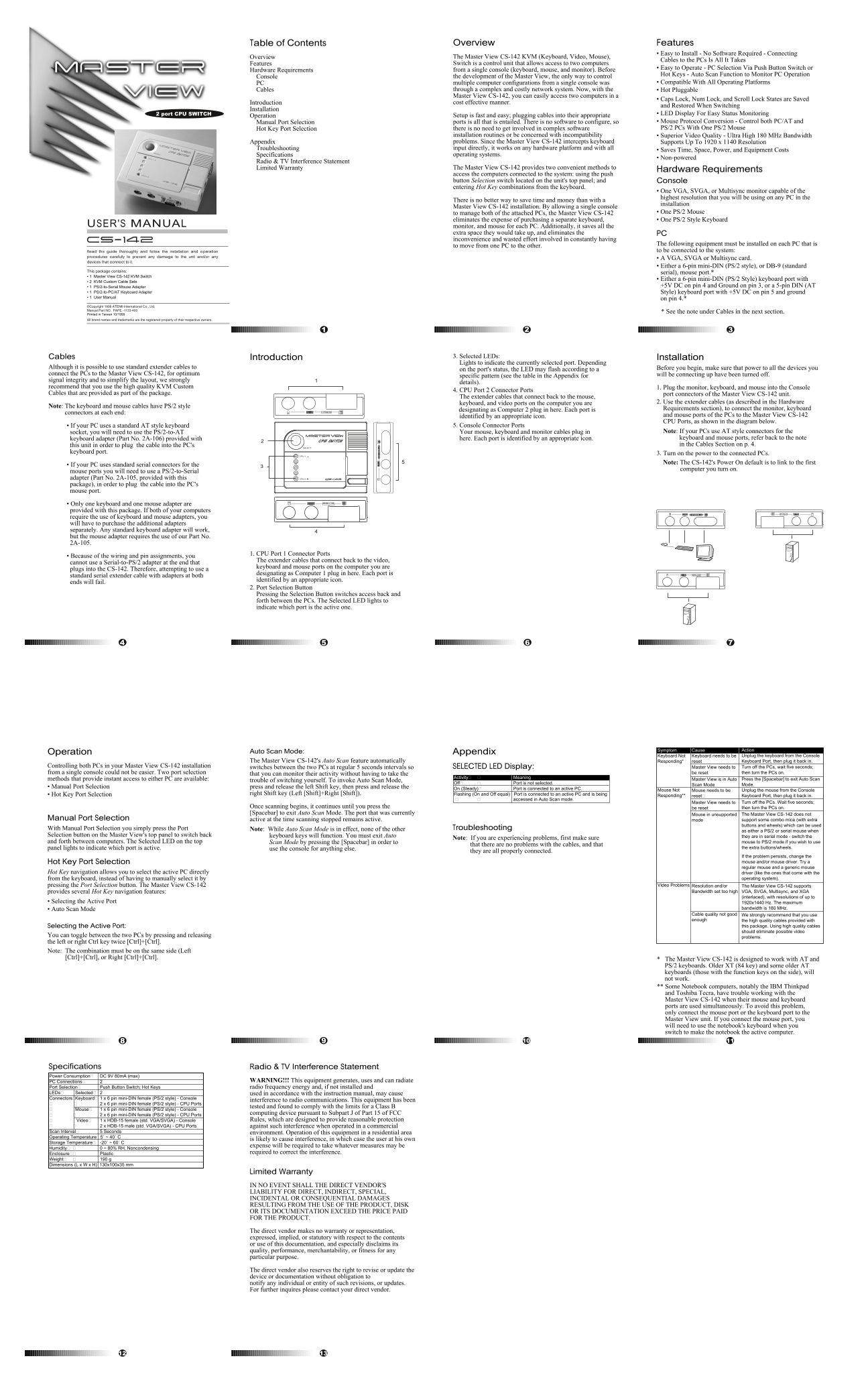
Page 1 Text Content
Table of Contents Overview Features
• Easy to Install - No Software Required - Connecting
Overview The Master View CS-142 KVM (Keyboard, Video, Mouse),
Cables to the PCs Is All It Takes
Features Switch is a control unit that allows access to two computers
• Easy to Operate - PC Selection Via Push Button Switch or
Hardware Requirements from a single console (keyboard, mouse, and monitor). Before
Hot Keys - Auto Scan Function to Monitor PC Operation
Console the development of the Master View, the only way to control
PC multiple computer configurations from a single console was • Compatible With All Operating Platforms
Cables through a complex and costly network system. Now, with the • Hot Pluggable Master View CS-142, you can easily access two computers in a
• Caps Lock, Num Lock, and Scroll Lock States are Saved
Introduction cost effective manner.
and Restored When Switching
Installation
2 port CPU SWITCH • LED Display For Easy Status Monitoring
Operation Setup is fast and easy; plugging cables into their appropriate
Manual Port Selection ports is all that is entailed. There is no software to configure, so • Mouse Protocol Conversion - Control both PC/AT and Hot Key Port Selection there is no need to get involved in complex software PS/2 PCs With One PS/2 Mouse
installation routines or be concerned with incompatibility • Superior Video Quality - Ultra High 180 MHz Bandwidth Appendix problems. Since the Master View CS-142 intercepts keyboard Supports Up To 1920 x 1140 Resolution Troubleshooting input directly, it works on any hardware platform and with all
• Saves Time, Space, Power, and Equipment Costs
Specifications operating systems.
• Non-powered
Radio & TV Interference Statement
Limited Warranty The Master View CS-142 provides two convenient methods to
Hardware Requirements
access the computers connected to the system: using the push button Selection switch located on the unit's top panel; and Console entering Hot Key combinations from the keyboard.
• One VGA, SVGA, or Multisync monitor capable of the highest resolution that you will be using on any PC in the
There is no better way to save time and money than with a
installation
Master View CS-142 installation. By allowing a single console
to manage both of the attached PCs, the Master View CS-142 • One PS/2 Mouse
eliminates the expense of purchasing a separate keyboard, • One PS/2 Style Keyboard
USER'S MANUAL monitor, and mouse for each PC. Additionally, it saves all the
extra space they would take up, and eliminates the PC inconvenience and wasted effort involved in constantly having
The following equipment must be installed on each PC that is
to move from one PC to the other.
Read this guide thoroughly and follow the installation and operation to be connected to the system:
procedures carefully to prevent any damage to the unit and/or any
• A VGA, SVGA or Multisync card.
devices that connect to it.
• Either a 6-pin mini-DIN (PS/2 style), or DB-9 (standard
This package contains:
serial), mouse port.*
• 1 Master View CS-142 KVM Switch
• Either a 6-pin mini-DIN (PS/2 Style) keyboard port with
• 2 KVM Custom Cable Sets
• 1 PS/2-to-Serial Mouse Adapter +5V DC on pin 4 and Ground on pin 3, or a 5-pin DIN (AT
• 1 PS/2-to-PC/AT Keyboard Adapter Style) keyboard port with +5V DC on pin 5 and ground • 1 User Manual
on pin 4.*
©Copyright 1999 ATEN® International Co., Ltd. Manual Part NO. PAPE -1133-400
* See the note under Cables in the next section.
Printed in Taiwan 10/1999 All brand names and trademarks are the registered property of their respective owners.
Cables Introduction 3. Selected LEDs: Installation Lights to indicate the currently selected port. Depending
Although it is possible to use standard extender cables to Before you begin, make sure that power to all the devices you
on the port's status, the LED may flash according to a
connect the PCs to the Master View CS-142, for optimum will be connecting up have been turned off.
specific pattern (see the table in the Appendix for
signal integrity and to simplify the layout, we strongly
details).
recommend that you use the high quality KVM Custom 1. Plug the monitor, keyboard, and mouse into the Console
4. CPU Port 2 Connector Ports
Cables that are provided as part of the package. port connectors of the Master View CS-142 unit.
The extender cables that connect back to the mouse,
keyboard, and video ports on the computer you are 2. Use the extender cables (as described in the Hardware
Note: The keyboard and mouse cables have PS/2 style
designating as Computer 2 plug in here. Each port is Requirements section), to connect the monitor, keyboard
connectors at each end:
identified by an appropriate icon. and mouse ports of the PCs to the Master View CS-142 CPU Ports, as shown in the diagram below.
• If your PC uses a standard AT style keyboard 5. Console Connector Ports
socket, you will need to use the PS/2-to-AT Your mouse, keyboard and monitor cables plug in Note: If your PCs use AT style connectors for the keyboard adapter (Part No. 2A-106) provided with here. Each port is identified by an appropriate icon. keyboard and mouse ports, refer back to the note this unit in order to plug the cable into the PC's in the Cables Section on p. 4.
keyboard port.
3. Turn on the power to the connected PCs. Note: The CS-142's Power On default is to link to the first
• If your PC uses standard serial connectors for the
computer you turn on.
mouse ports you will need to use a PS/2-to-Serial adapter (Part No. 2A-105, provided with this package), in order to plug the cable into the PC's mouse port.
• Only one keyboard and one mouse adapter are provided with this package. If both of your computers require the use of keyboard and mouse adapters, you will have to purchase the additional adapters separately. Any standard keyboard adapter will work, but the mouse adapter requires the use of our Part No. 2A-105.
1. CPU Port 1 Connector Ports
• Because of the wiring and pin assignments, you
The extender cables that connect back to the video,
cannot use a Serial-to-PS/2 adapter at the end that
keyboard and mouse ports on the computer you are
plugs into the CS-142. Therefore, attempting to use a
designating as Computer 1 plug in here. Each port is
standard serial extender cable with adapters at both
identified by an appropriate icon.
ends will fail.
2. Port Selection Button Pressing the Selection Button switches access back and forth between the PCs. The Selected LED lights to indicate which port is the active one.
Symptom Cause Action
Operation Auto Scan Mode: Appendix
Keyboard Not Keyboard needs to be Unplug the keyboard from the Console
The Master View CS-142's Auto Scan feature automatically Responding* reset Keyboard Port, then plug it back in.
Controlling both PCs in your Master View CS-142 installation switches between the two PCs at regular 5 seconds intervals so SELECTED LED Display: Master View needs to Turn off the PCs, wait five seconds;
from a single console could not be easier. Two port selection that you can monitor their activity without having to take the be reset then turn the PCs on.
Activity Meaning
methods that provide instant access to either PC are available: trouble of switching yourself. To invoke Auto Scan Mode, Master View is in Auto Press the [Spacebar] to exit Auto Scan
Off Port is not selected.
Scan Mode Mode.
• Manual Port Selection press and release the left Shift key, then press and release the
On (Steady) Port is connected to an active PC.
Mouse Not Mouse needs to be Unplug the mouse from the Console
• Hot Key Port Selection right Shift key (Left [Shift]+Right [Shift]). Flashing (On and Off equal) Port is connected to an active PC and is being
Responding** reset Keyboard Port, then plug it back in.
accessed in Auto Scan mode.
Master View needs to Turn off the PCs. Wait five seconds;
Once scanning begins, it continues until you press the be reset then turn the PCs on. [Spacebar] to exit Auto Scan Mode. The port that was currently Mouse in unsupported The Master View CS-142 does not
Manual Port Selection active at the time scanning stopped remains active. mode support some combo mice (with extra
buttons and wheels) which can be used
With Manual Port Selection you simply press the Port Note: While Auto Scan Mode is in effect, none of the other Troubleshooting
as either a PS/2 or serial mouse when
Selection button on the Master View's top panel to switch back keyboard keys will function. You must exit Auto they are in serial mode - switch the
Note: If you are experiencing problems, first make sure
and forth between computers. The Selected LED on the top Scan Mode by pressing the [Spacebar] in order to mouse to PS/2 mode if you wish to use
that there are no problems with the cables, and that
panel lights to indicate which port is active. use the console for anything else. the extra buttons/wheels.
they are all properly connected.
If the problem persists, change the Hot Key Port Selection mouse and/or mouse driver. Try a regular mouse and a generic mouse
Hot Key navigation allows you to select the active PC directly driver (like the ones that come with the
from the keyboard, instead of having to manually select it by operating system).
pressing the Port Selection button. The Master View CS-142 Video Problems Resolution and/or The Master View CS-142 supports
provides several Hot Key navigation features: Bandwidth set too high VGA, SVGA, Multisync, and XGA
(interlaced), with resolutions of up to
• Selecting the Active Port 1920x1440 Hz. The maximum
• Auto Scan Mode bandwidth is 180 MHz.
Cable quality not good We strongly recommend that you use enough the high quality cables provided with
Selecting the Active Port: this package. Using high quality cables should eliminate possible video
You can toggle between the two PCs by pressing and releasing
problems.
the left or right Ctrl key twice [Ctrl]+[Ctrl]. Note: The combination must be on the same side (Left [Ctrl]+[Ctrl], or Right [Ctrl]+[Ctrl].
* The Master View CS-142 is designed to work with AT and PS/2 keyboards. Older XT (84 key) and some older AT keyboards (those with the function keys on the side), will not work. ** Some Notebook computers, notably the IBM Thinkpad and Toshiba Tecra, have trouble working with the Master View CS-142 when their mouse and keyboard ports are used simultaneously. To avoid this problem, only connect the mouse port or the keyboard port to the Master View unit. If you connect the mouse port, you will need to use the notebook's keyboard when you switch to make the notebook the active computer.
Specifications Radio & TV Interference Statement Power Consumption DC 9V 80m A (max)
PC Connections WARNING!!! This equipment generates, uses and can radiate
Port Selection Push Button Switch; Hot Keys radio frequency energy and, if not installed and LEDs Selected used in accordance with the instruction manual, may cause Connectors Keyboard 1 x 6 pin mini-DIN female (PS/2 style) - Console
interference to radio communications. This equipment has been
2 x 6 pin mini-DIN female (PS/2 style) - CPU Ports
tested and found to comply with the limits for a Class B
Mouse 1 x 6 pin mini-DIN female (PS/2 style) - Console
computing device pursuant to Subpart J of Part 15 of FCC
2 x 6 pin mini-DIN female (PS/2 style) - CPU Ports
Video 1 x HDB-15 female (std. VGA/SVGA) - Console Rules, which are designed to provide reasonable protection
2 x HDB-15 male (std. VGA/SVGA) - CPU Ports against such interference when operated in a commercial
Scan Interval 5 Seconds environment. Operation of this equipment in a residential area Operating Temperature 5˚ ~ 40˚ C
is likely to cause interference, in which case the user at his own
Storage Temperature -20˚ ~ 60˚ C
expense will be required to take whatever measures may be
Humidity 0 ~ 80% RH, Noncondensing
Enclosure Plastic required to correct the interference.
Weight 190 g Dimensions (L x W x H) 130x100x35 mm
Limited Warranty IN NO EVENT SHALL THE DIRECT VENDOR'S LIABILITY FOR DIRECT, INDIRECT, SPECIAL, INCIDENTAL OR CONSEQUENTIAL DAMAGES RESULTING FROM THE USE OF THE PRODUCT, DISK OR ITS DOCUMENTATION EXCEED THE PRICE PAID FOR THE PRODUCT. The direct vendor makes no warranty or representation, expressed, implied, or statutory with respect to the contents or use of this documentation, and especially disclaims its quality, performance, merchantability, or fitness for any particular purpose. The direct vendor also reserves the right to revise or update the device or documentation without obligation to notify any individual or entity of such revisions, or updates. For further inquires please contact your direct vendor.
Page Summary Contents For ATEN CS-142 User Guide Manual
Manual Details
| Brand | ATEN |
|---|---|
| Pages | 1 |
| File Size | 185.14 KB |
| Published | May 15, 2026 |
Enter the captcha to get the download link:

Frequently Asked Questions
What operating systems does the Master View support?
It is compatible with all operating platforms and multiple computer configurations.
How can I access the two connected PCs?
You can use a push button selection switch or hot key combinations from the console.
Are there software requirements for setup?
No, it is easy to configure as there is no software needed. It only requires plugging cables in.
What connectivity standards are supported?
It supports VGA, SVGA, or Multisync video signals and PS/2 mouse/keyboard connections.