Page 1
Product Manual
Page 2
Table of Contents Table of Contents About Your G-DRIVE ev ATC Introduction ................................................................................................................................
Page 3
Table of Contents About Your G-DRIVE® ev ATC • Introduction ...................................................... p.4 • What’s in the Box .......................................... p.5 • System Requi...
Page 4
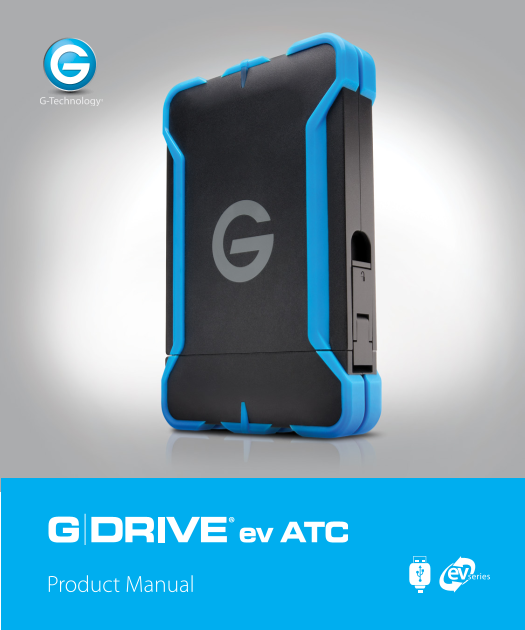
About Your G-DRIVE ev ATC Introduction Thank you for purchasing the G-DRIVE® ev ATC from G-Technology. Made from a lightweight, shock-resistant compound, this all-terrain drive solution with tethered ...
Page 5
About Your G-DRIVE ev ATC About Your G-DRIVE ev ATC What’s in the Box The following items are included in the box: • G-DRIVE® ev ATC hard drive solution with tethered USB cable - G-DRIVE® ev ATC hard ...
Page 6
About Your G-DRIVE ev ATC Overview of the Drive Your G-DRIVE ev ATC is designed for providing easy access to your precious content stored on the drive and providing everyday protection. The G-DRIVE ev...
Page 7
About Your G-DRIVE ev ATC About Your G-DRIVE ev ATC To access the removable hard drive, also called G-DRIVE ev Ra W, simply open the latch located on the right side of the ev All-Terrain case. Gently ...
Page 8
About Your G-DRIVE ev ATC The G-DRIVE ev Ra W can operate as a standalone USB hard drive or as a module for use inside G-DOCK ev or G-DRIVE ev ATC hard drive solution. The drive features an illuminate...
Page 9
About Your G-DRIVE ev ATC About Your G-DRIVE ev ATC Easy Installation for Mac G-DRIVE ev ATC easily attaches to your computer via the USB port. Simply use the tethered USB cable to connect the drive t...
Page 10
Using Your Drive on Mac • Use with Time Machine ............................. p.11 • Initialize Drive for Mac .............................. p.13 • Restore the Drive Icon ................................
Page 11
Using Your Drive on Mac® Use with Time Machine® G-DRIVE ev ATC works seamlessly with Time Machine, the easy-to-use application that ships with your Mac and provides automatic backup for your files. Th...
Page 12
Using Your Drive on Mac® 3. In the dialog box that appears, select your G-DRIVE ev ATC, then Click the Use for Backup button. 4. Make sure the Time Machine switch is set to ON. You can set its options...
Page 13
Using Your Drive on Mac® Using Your Drive on Mac® Initialize Drive for Mac G-DRIVE ev ATC has been factory-formatted, or ‘initialized’, for use with Mac OS. Should you wish to reinitialize the drive—a...
Page 14
Using Your Drive on Mac® 4. Choose the Format option that you prefer. • Mac OS Extended (Journaled): Use this format if you intend to use the drive for Time Machine or to create a separate bootable in...
Page 15
Using Your Drive on Mac® Using Your Drive on Mac® WARNING: THIS NEXT STEP WILL ERASE ALL DATA ON YOUR DRIVE. 6. Click on the Erase button to continue. A progress bar in the lower right corner of the w...
Page 16
Using Your Drive on Mac® Restore the Drive Icon If the drive icon for your G-DRIVE ev ATC was erased during the reinitialization process (see previous section), you can restore the icon with the follo...
Page 17
Using Your Drive on Mac® Using Your Drive on Mac® 4. Select the G-DRIVE ev ATC icon on your desktop and press Command+I. This opens its Get Info window. (below left) 5. Select the default icon in the ...
Page 18
Using Your Drive on Mac® Reformat with Partitions ‘Partitioning’ a hard drive is the process of dividing a hard drive into separate, discrete sections called ‘volumes’. Each volume works like a separa...
Page 19
Using Your Drive on Mac® Using Your Drive on Mac® 2. Select the Fire Wire or USB icon – not the G-Technology drive icon – by clicking it in the left-side column. 3. Click on the Partition button in th...
Page 20
Using Your Drive on Mac® 5. Click on the first partition in the Volume Scheme area. Your partition will be highlighted by a blue bounding box. • In the Name field, type a name for the partition. • Fro...
Page 21
Using Your Drive on Mac® Using Your Drive on Mac® 8. Click on the Partition button to continue. A progress bar in the lower right corner of the window will show you the progress of the disk’s reformat...
Page 22
Using Your Drive on Windows® Using Your Drive on Windows® • Windows Use ................................................. p.23 • Cross Platform Use ...................................... p.24
Page 23
Using Your Drive on Windows® Using Your Drive on Windows® Windows Use G-DRIVE ev ATC is set up at the factory for use with Mac OS 10.7+ systems. A simple initialization will prepare your drive for use...
Page 24
Using Your Drive on Windows® Cross Platform Use You can set up G-DRIVE ev ATC for use on both Windows and Mac® systems by formatting the drive as ‘FAT32’. To do this, use the Disk Utility application ...
Page 25
Using Your Drive on Windows® Using Your Drive on Windows® 4. Select MS-DOS File System from the Format pop-up menu. This will format the drive to FAT32. NOTE: You may need to rename the drive because ...
Page 26
Using Your Drive on Windows® WARNING: THIS NEXT STEP WILL ERASE ALL DATA ON YOUR DRIVE. 6. Click the Erase button. A progress bar in the lower right corner of the window will show the progress of the ...
Page 27
Using Your Drive on Windows® Safety & General Use • Safety Precautions ......................................... p.28 • Backup Your Data .......................................... p.29
Page 28
Safety & General Use Safety Precautions The warranty on G-Technology storage solution may be void as a result of the failure to respect the precautions listed here. If you detect a problem with yo...
Page 29
Safety & General Use Safety & General Use Backup Your Data The disk drive contained in your G-DRIVE ev ATC device is a delicate electronic instrument and is susceptible to damage due to excess...
Page 30
Support & Warranty Support & Warranty • Technical Support ....................................... p.31 • Limited Warranty ......................................... p.32 • Copyright ..............
Page 31
Support & Warranty Support & Warranty Technical Support Thank you for purchasing G-DRIVE ev ATC. If you have any comments or questions about this manual or the product, please let us know! At ...
Page 32
Support & Warranty Limited Warranty HGST, a Western Digital Company (“HGST”) Including G-Technology for External Hard Disk Drives. What does this limited warranty cover? This Limited Warranty appl...
Page 33
Support & Warranty Support & Warranty What must you do? If you are having trouble with a product, before seeking limited warranty service, first follow the troubleshooting procedures that HGST...
Page 34
Support & Warranty CAPACITY DEFINITION AND DISCLAIMER For G-Technology products 1TB or greater: “One gigabyte (GB) is equal to one billion bytes and one terabyte (TB) equals 1,000 GB (one trillion...
Page 35
Support & Warranty