Page 1
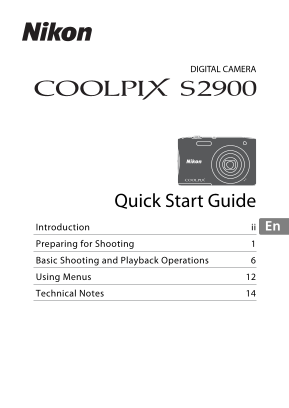
DIGITAL CAMERA Quick Start Guide ii En Introduction Preparing for Shooting Basic Shooting and Playback Operations Using Menus Technical Notes
Page 2
Introduction Read This First To get the most from this Nikon product, be sure to read “For Your Safety” (Avii–ix), and all other instructions thoroughly and keep them where they will be read by all wh...
Page 3
Confirming the Package Contents In the event that any items are missing, please contact the store where you purchased the camera. COOLPIX S2900 Camera Strap Rechargeable Li-ion Digital Camera Battery ...
Page 4
Information and Precautions Life-Long Learning As part of Nikon’s “Life-Long Learning” commitment to ongoing product support and education, continually updated information is available online at the f...
Page 5
About the Manuals No part of the manuals included with this product may be reproduced, transmitted, transcribed, stored in a retrieval system, or translated into any language in any form, by any means...
Page 6
Disposing of Data Storage Devices Please note that deleting images or formatting data storage devices such as memory cards or built-in camera memory does not completely erase the original image data. ...
Page 7
For Your Safety To prevent damage to your Nikon product or injury to yourself or to others, read the following safety precautions in their entirety before using this equipment. Keep these safety instr...
Page 8
Do not remain in contact with the camera, Charging AC Adapter, or AC adapter for extended periods while the devices are on or in use Parts of the devices become hot. Leaving the devices in direct cont...
Page 9
Do not damage, modify, forcibly tug or bend the USB cable, place it under heavy objects, or expose it to heat or flames. Should the insulation be damaged and the wires become exposed, take it to a Nik...
Page 10
Notices Notices for Customers in Europe CAUTIONS RISK OF EXPLOSION IF BATTERY IS REPLACED BY AN INCORRECT TYPE. DISPOSE OF USED BATTERIES ACCORDING TO THE INSTRUCTIONS. This symbol indicates that elec...
Page 11
Preparing for Shooting Insert the Battery and Memory Card Battery latch Memory card slot With the battery’s positive and negative terminals oriented correctly, move the orange battery latch (3), and f...
Page 12
Charge the Battery With the battery installed, connect the camera to an electrical outlet. Charging AC Adapter Charge lamp Electrical outlet USB cable (included) If a plug adapter* is included with yo...
Page 13
Notes About the USB Cable Make sure that the plugs are properly oriented. Do not insert or remove the plugs at an angle when connecting or disconnecting them. Turning the Camera On While Charging The ...
Page 14
Turn the Camera On and Set the Display Language, Date, and Time When the camera is turned on for the first time, the language-selection screen and the date and time setting screen for the camera clock...
Page 15
Set the date and time, and press Date and time the k button. Use JK to select a field and then use HI to set the date and time. Select the minute field and press the k button to confirm the setting. W...
Page 16
Basic Shooting and Playback Operations Shooting with Scene Auto Selector Mode Hold the camera steady. Keep fingers and other objects away from the lens, flash, AF assist-illuminator, microphone, and s...
Page 17
Press the shutter-release button halfway. When the subject is in focus, the focus area or focus indicator is displayed in green. When you are using digital zoom, the camera focuses in the center of th...
Page 18
Play Back Images Press the c (playback) button to enter playback mode. If you press and hold down the c button while the camera is turned off, the camera turns on in playback mode. Use the multi selec...
Page 19
Delete Images Press the l (delete) button to delete the image currently displayed in the monitor. Use the multi selector HI to select the desired deletion Delete method and press the k button. Current...
Page 20
Changing the Shooting Mode The shooting modes described below are available. x Scene auto selector The camera automatically recognizes the shooting scene when you frame a picture, making it easier to ...
Page 21
Using the Flash, Self-timer, Etc. When the shooting screen is displayed, you can press the multi selector H (m) (n) I (p) K (o) to set the functions described below. m Flash mode You can select a flas...
Page 22
Using Menus You can set the menus listed below by pressing the d (menu) button. A Shooting menu Available by pressing the d button when the shooting screen is displayed. Allows you to change image siz...
Page 23
Select a menu icon Set up Time zone and date and press the k Monitor settings button. Date stamp The menu options Electronic VR become selectable. AF assist Digital zoom Select a menu option Time zone...
Page 24
Technical Notes Caring for the Product Observe the precautions described below in addition to the warnings in “For Your Safety” (Avii–ix) when using or storing the device. The Camera Do Not Apply Stro...
Page 25
Notes About the Monitor Monitors and electronic viewfinders are constructed with extremely high precision; at least 99.99% of pixels are effective, with no more than 0.01% being missing or defective. ...
Page 26
Carrying Spare Batteries Whenever possible, carry fully charged spare batteries when taking pictures on important occasions. Using the Battery When Cold On cold days, the capacity of batteries tends t...
Page 27
Cleaning and Storage Cleaning Do not use alcohol, thinner, or other volatile chemicals. Avoid touching glass parts with your fingers. Remove dust or lint with a blower (typically a small device with a...
Page 28
Troubleshooting If the camera fails to function as expected, check the list of common problems below before consulting your retailer or Nikon-authorized service representative. Also, refer to the Refe...
Page 29
Approved Memory Cards The following Secure Digital (SD) memory cards have been tested and approved for use in this camera. Memory cards with an SD Speed Class rating of 6 or faster are recommended for...
Page 30
AVC Patent Portfolio License This product is licensed under the AVC Patent Portfolio License for the personal and non-commercial use of a consumer to (i) encode video in compliance with the AVC standa...
Page 31
21Technical Notes
Page 32
Technical Notes
Page 33
23Technical Notes
Page 34
Warranty Terms - Nikon Europe Service Warranty Dear Nikon Customer, We thank you for your purchasing this Nikon product. Should your Nikon product require warranty service, please contact the dealer f...
Page 35
any damage resulting from modifications or adjustments which may be made to the product, without the prior written consent of Nikon, in order to comply with local or national technical standards in fo...
Page 36
No reproduction in any form of this manual, in whole or in part (except for brief quotation in critical articles or reviews), may be made without written authorization from NIKON CORPORATION. YP4K01(1...