Lenovo ThinkPad R61 CFF Teacher Training Manual
Summary
The comprehensive guide for the Lenovo ThinkPad R61 laptop is designed specifically for educators and school district users. This manual provides an in-depth walkthrough of the device's full anatomy, covering every port—including USB, Ethernet, S-Video, and modem—and connectivity features. Beyond operation, it offers essential instructions on optimal maintenance, including detailed procedures for cleaning the screen, keyboard, and internal components to ensure long-lasting performance.
Page 1 Text Content
School District of Lancaster
CFF Teacher Training Manual Lenovo Think Pad R61 Laptop Computer Adapted from the Queensland Department of Education, Training and the Arts
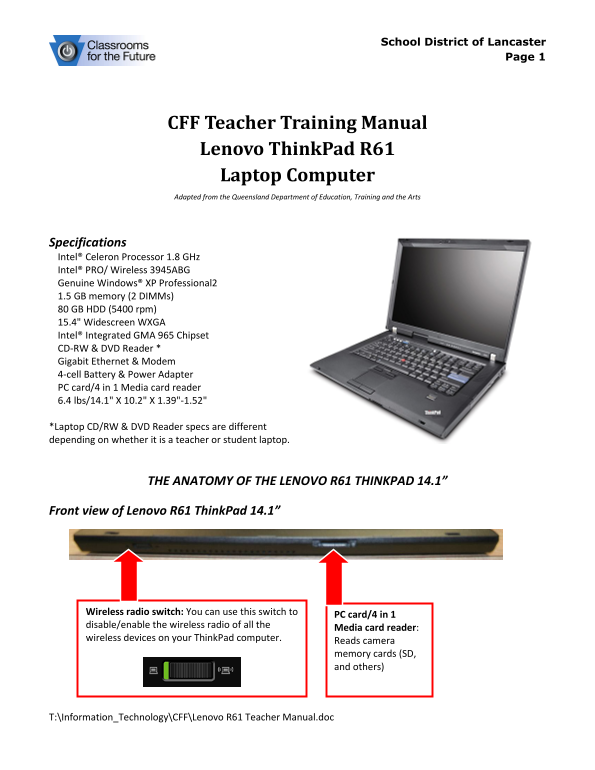
Specifications Intel® Celeron Processor 1.8 GHz Intel® PRO/ Wireless 3945ABG Genuine Windows® XP Professional2 1.5 GB memory (2 DIMMs) 80 GB HDD (5400 rpm) 15.4" Widescreen WXGA Intel® Integrated GMA 965 Chipset CD-RW & DVD Reader * Gigabit Ethernet & Modem 4-cell Battery & Power Adapter PC card/4 in 1 Media card reader 6.4 lbs/14.1" X 10.2" X 1.39"-1.52"
*Laptop CD/RW & DVD Reader specs are different depending on whether it is a teacher or student laptop.
THE ANATOMY OF THE LENOVO R61 THINKPAD 14.1”
Front view of Lenovo R61 Think Pad 14.1”
Wireless radio switch: You can use this switch to
PC card/4 in 1
disable/enable the wireless radio of all the
Media card reader:
wireless devices on your Think Pad computer.
Reads camera memory cards (SD, and others)
T:\Information_Technology\CFF\Lenovo R61 Teacher Manual.doc
Page Summary Contents For Lenovo ThinkPad R61 CFF Teacher Training Manual
Manual Details
| Brand | Lenovo |
|---|---|
| Pages | 10 |
| File Size | 1.79 MB |
| Published | June 05, 2026 |
Enter the captcha to get the download link:

Frequently Asked Questions
How do I connect an external monitor or projector?
Use the external monitor/projector connector port on the side of the laptop to display content.
What is compatible with the USB ports?
The USB connectors are used for connecting various interface-compatible devices, such as printers or digital cameras. They support USB 1.1 and 2.0.
How do I clean the screen without scratching it?
Gently wipe with a dry, soft lint-free cloth. For stubborn stains, use a cloth dampened with water or a 50-50 mix of isopropyl alcohol and water.
What is needed to connect to a local network (LAN)?
Use the Ethernet connector; the upper right indicator being solid green shows a successful LAN connection session.