GIGABYTE Notebook PC & Mobile Computer D2432D2432 Manual
Summary
Extend your notebook's connectivity using this comprehensive docking station. Designed for users needing expanded I/O capacity, it provides multiple ports including HDMI, DVI, VGA, USB, and LAN jacks. This manual is essential reading, providing step-by-step guides on initial setup, safe undocking procedures, and optimizing monitor setups. It also includes vital operational details regarding power management, battery safety regulations, and required FCC/CE compliance notices for professional and demanding users.
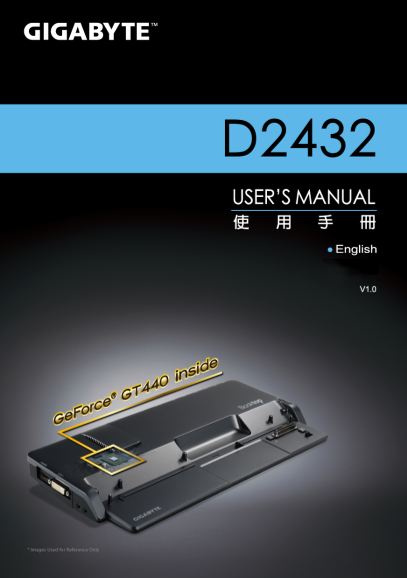
Page Summary Contents For GIGABYTE Notebook PC & Mobile Computer D2432D2432 Manual
Manual Details
| Brand | GIGABYTE |
|---|---|
| Pages | 8 |
| File Size | 1.62 MB |
| Published | June 02, 2026 |
Enter the captcha to get the download link:

Frequently Asked Questions
How do I power on the docking station?
Connect the AC Adapter to the DC-In Jack, and then plug the power cord into a power outlet.
What should I do if my battery is damaged or dropped?
Do not continue to use it. Even if it still works, it may cause circuit damage or fire. Dispose of it carefully.
How can I safely undock the notebook from the station?
You must first press the “Un-Docking” button and then pull the Ejector Level out and back until the notebook unclips.
What are the basic troubleshooting steps for radio interference?
Reorient or relocate the receiving antenna, increase separation distance, or use a different circuit outlet.