FUJIFILM DocuPrint P455 d Setup Guide
Summary
This comprehensive guide provides step-by-step instructions for installing and setting up your Fuji Xerox DocuPrint P455 d printer. Whether you are connecting via USB, wired network (TCP/IP), or setting up initial IP addresses and drivers, this manual covers everything needed to get printing immediately. It is designed for users who need complete guidance on setup, connectivity, driver installation, and advanced network configuration, ensuring a smooth start with your new device.
Page 1 Text Content
This guide provides the installation instructions for the printer. 本说明书提供了打印机的安装说明。 Docu Print P455 d
Fuji Xerox Co., Ltd. (Edition) 1 June 2012
Before installation, read the Safety Guide. 在安装前,请阅读《安全说明书》。
604E 66300 / DE5029Z2-1
Copyright© 2012 by Fuji Xerox Co., Ltd.
Printed in China
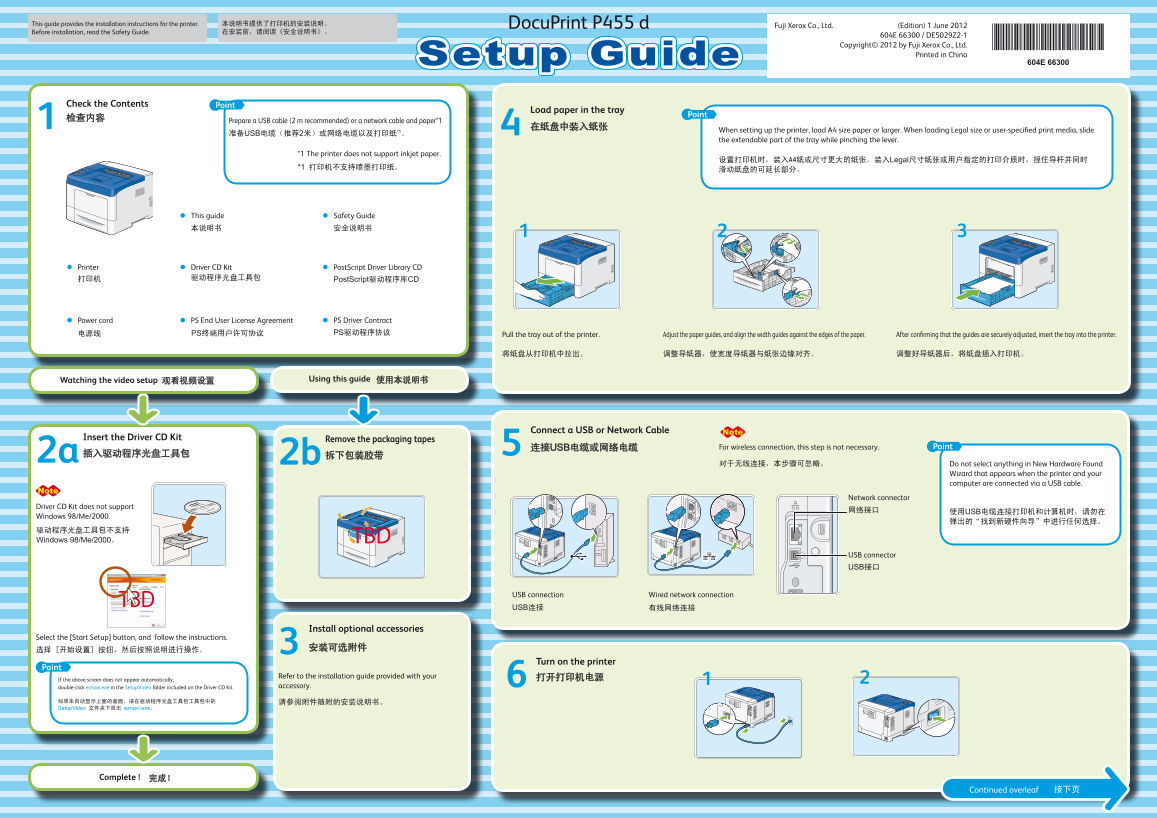
Check the Contents Point
Load paper in the tray
Point
Prepare a USB cable (2 m recommended) or a network cable and paper*1
When setting up the printer, load A4 size paper or larger. When loading Legal size or user-specified print media, slide
准备USB电缆(推荐2米)或网络电缆以及打印纸*1。
the extendable part of the tray while pinching the lever.
*1 The printer does not support inkjet paper.
设置打印机时,装入A4纸或尺寸更大的纸张。装入Legal尺寸纸张或用户指定的打印介质时,捏住导杆并同时
This guide Safety Guide 本说明书 安全说明书
Printer Driver CD Kit Post Script Driver Library CD
打印机 驱动程序光盘工具包 Post Script驱动程序库CD
Power cord PS End User License Agreement PS Driver Contract 电源线 PS终端用户许可协议 PS驱动程序协议
Pull the tray out of the printer. Adjust the paper guides, and align the width guides against the edges of the paper. After confirming that the guides are securely adjusted, insert the tray into the printer.
Watching the video setup 观看视频设置 Using this guide 使用本说明书
Connect a USB or Network Cable
Insert the Driver CD Kit Remove the packaging tapes
连接USB电缆或网络电缆 For wireless connection, this step is not necessary. Point
对于无线连接,本步骤可忽略。 Do not select anything in New Hardware Found
Wizard that appears when the printer and your computer are connected via a USB cable.
Network connector
Driver CD Kit does not support
网络接口 使用USB电缆连接打印机和计算机时,请勿在
Windows 98/Me/2000.
驱动程序光盘工具包不支持 Windows 98/Me/2000。
USB connector USB接口
USB connection Wired network connection USB连接 有线网络连接
Install optional accessories
Select the [Start Setup] button, and follow the instructions.
Turn on the printer
Point
Refer to the installation guide provided with your 打开打印机电源
If the above screen does not appear automatically,
double-click eznavi.exe in the Setup Video folder included on the Driver CD Kit. accessory.
如果未自动显示上面的画面,请在驱动程序光盘工具包工具包中的 请参阅附件随附的安装说明书。 Setup Video 文件夹下双击 eznavi.exe。
Complete ! 完成!
Continued overleaf 接 接下页
Page Summary Contents For FUJIFILM DocuPrint P455 d Setup Guide
Manual Details
| Brand | FujiFilm |
|---|---|
| Pages | 2 |
| File Size | 6.61 MB |
| Published | May 20, 2026 |
Enter the captcha to get the download link:

Frequently Asked Questions
What paper sizes does the printer support?
When setting up, load A4 size paper or larger. Legal size and user-specified print media are also supported.
How do I connect the printer via USB cable?
No, you must not select anything in the 'New Hardware Found' Wizard when connected via a USB cable.
What is required for wireless connection?
A separate wireless printer adapter (sold separately) is required.