Page 1
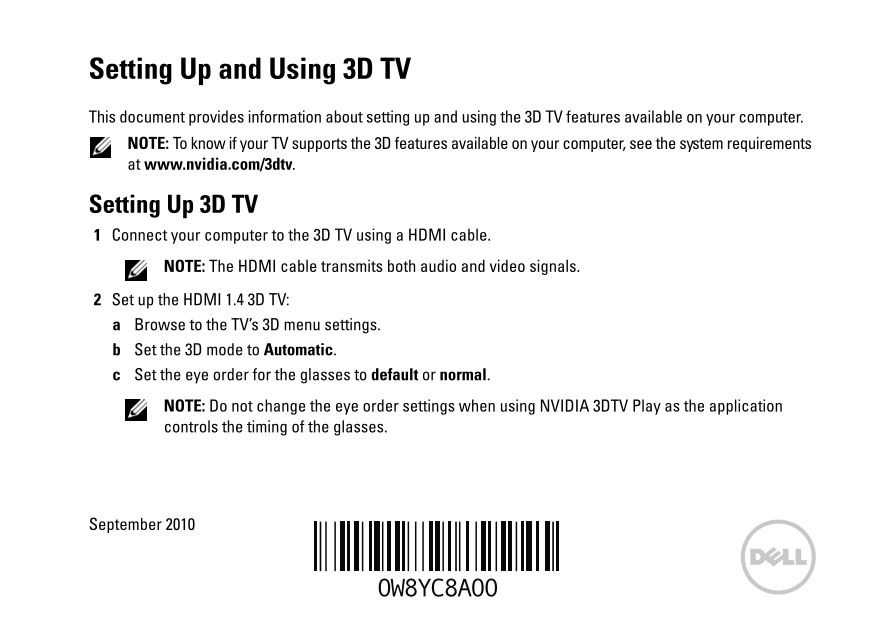
Setting Up and Using 3D TV This document provides information about setting up and using the 3D TV features available on your computer. NOTE: To know if your TV supports the 3D features available on y...
Page 2
NOTE: If you are unable to view the entire Windows desktop on your TV, use the 3D TV's built-in options to reduce the display resolution. NOTE: For more information about configuring the 3D settings, ...
Page 3
NOTE: For TVs using PAL system with refresh rates of 50 Hz or 100 Hz, set the resolution to 720p and refresh rate to 60/59 Hz. For TVs using NTSC system with refresh rates of 60 Hz or 120 Hz, set the ...
Page 4
Keyboard Shortcuts The following are some of the keyboard shortcuts available for 3D gaming: Keys Description Function <Ctrl><t> Show/hide Turns 3DTV Play on/off. stereoscopic 3D NOTE: The...
Page 5
Customizing Shortcut Keys To customize the keyboard shortcuts: Right-click the desktop and select NVIDIA Control Panel. In the NVIDIA Control Panel window, click Stereoscopic 3D to expand the selectio...
Page 6
Cyber Link Power DVD Configuration Options The Cyber Link Power DVD application detects your 3D TV automatically. The following are the 3D display configuration options available in Power DVD: Enable ...
Page 7
Swap left and right eye views — this option is available only if your 3D display is supported; this option is not supported by Anaglyph NOTE: For more information about using Blu-ray 3D, go to www.nvi...
Page 9
Configuration et utilisation de la TV 3D Ce document offre des informations sur comment configurer et utiliser les fonctions de TV 3D disponibles sur votre ordinateur. REMARQUE : pour savoir si votre ...
Page 10
REMARQUE : si vous ne pouvez pas voir le bureau Windows en entier sur votre TV, utilisez les options intégrées de la TV 3D pour réduire la résolution d'affichage. REMARQUE : pour de plus amples inform...
Page 11
REMARQUE : pour les télévisions utilisant le système PAL supportant des fréquences de rafraîchissement de 50 Hz ou 100 Hz, sélectionnez une résolution de 720p et une fréquence de rafraîchissement de 6...
Page 12
Raccourcis clavier Ci-dessous sont certains des raccourcis claviers disponibles pour le jeu 3D : Touches Description Fonction <Ctrl><t> Active ou désactive Active ou désactive 3DTV Play. l...
Page 13
<Ctrl><F6> Augmente la Rapproche les objets de vous ; la convergence maximum place tous les convergence objets du devant de la scène dans votre espace ; aussi utilisé pour placer la visée ...
Page 14
Blu-ray 3D L'application NVIDIA 3DTV Play vous permet de regarder des vidéos Blu-ray 3D dans une résolution de 1080p. Pour la lecture de Blu-ray 3D, sélectionnez une résolution de 1080p, 1920x1080 et ...
Page 15
Choisir l'affichage 3D — cochez cette option pour choisir l'un des types d'affichages pris en charge suivants : Anaglyphe Rouge/Cyan 120 Hz LCD 3D séquentielle (par exemple les LCD NVIDIA 3D Vision Re...
Page 16
Assistance Pour consulter les articles de la base de connaissance et les questions fréquemment posées, rendez-vous sur support.nvidia.com. Les informations contenues dans ce document sont sujettes à m...
Page 17
3B TV'nin Kurulumu ve Kullanımı Bu belgede, bilgisayarınızda bulunan 3B TV özelliklerinin kurulumu ve kullanılmasıyla ilgili bilgiler yer almaktadır. NOT: TV'nizin bilgisayarınızda bulunan 3B özellikl...
Page 18
NOT: TV'nizde tüm Windows masaüstünü görüntüleyemiyorsanız, ekran çözünürlüğünü azaltmak için 3B TV yerleşik seçeneklerini kullanın. NOT: 3B ayarlarının yapılandırılmasıyla ilgili daha fazla bilgi edi...
Page 19
NOT: 50 Hz veya 100 Hz yenileme oranlarına sahip PAL sistem kullanan TV'ler için, çözünürlüğü 720p ve yenileme oranını 60/59 Hz.olarak ayarlayın. 60 Hz veya 120 Hz yenileme oranlarına sahip NTSC siste...
Page 20
3B Oyunların Oynanması Oyunu tam ekran modunda başlatın. Geçerli modun HDMI 1.4 uyumlu olmadığını belirten bir mesaj görürseniz, oyun çözünürlüğünü HD 3B modunda 720p, 1280x720 olarak ayarlayın. Klavy...
Page 21
<Ctrl><Alt> Oyun-içi uyumluluk Geçerli oyun için NVIDIA tarafından önerilen ayarları görüntüler. <Insert> mesajını gösterir/ gizler <Ctrl><F6> Yakınsaklığı artırır Nesnel...
Page 22
3B Fotoğraflar tereoskopik 3B fotoğraflarını NVIDIA 3BTV Play uygulamasında bulunan NVIDIA Photo Viewer ile görüntüleyebilirsiniz. Fotoğraf görüntüleyici fotoğraf üzerindeki 3B efektleri düzenlemenize...
Page 23
Görüntü dosyaları ve DVD'ler için 3B'yi Etkinleştir (varsayılan olarak geçersiz kılınmıştır) — 3B modunu aşağıdakilere dayanarak uygulamak için bu seçeneği işaretleyin: Cyber Link True Theater 3B'yi K...
Page 24
Destek Bilgi tabanlı makaleleri ve sık sorulan soruları incelemek için, support.nvidia.com sayfasına gidin. Bu belgedeki bilgiler bildirimde bulunulmaksızın değiştirilebilir. Dell Inc. Tüm hakları sak...
Page 26
Anaglyph بواسطة .www.nvidia.com إلى اذهب ،Blu-ray 3D استخدام حول المعلومات من لمزيد: ملاحظة الدعم .support.nvidia.com إلى اذهب المتداولة، والأسئلة ومات،المعل قاعدة مقالات على للاطلاع .إشعار بدون للتغي...
Page 27
Cyber Link Power DVD تهيئة خيارات :Power DVD في المتوفرة الأبعاد ثلاثية الشاشة تهيئة خيارات يلي فيما. تلقائيًا الأبعاد ثلاثي التليفزيون Cyber Link Power DVD التطبيق يتتبع الوضع في الأبعاد ثلاثي Blu-ra...
Page 28
.NVIDIA تحكم لوحة وحدد المكتب سطح فوق للماوس الأيمن بالزر انقر 1 تعيين فوق انقر ثم ،)بالفعل موسعًا يكن لم إذا (التحديد لتوسيع Stereoscopic 3D فوق انقر NVIDIA تحكم لوحة النافذة في 2 الأبعاد ثلاثية الصو...
Page 29
. 3DTV Play إيقاف/بتشغيل يقوم <Ctrl><t> تأثيرات إخفاء/عرض stereoscopic 3D في حتى الوضوح فائق الأبعاد ثلاثي الوضع استخدام عند الألعاب أداء مستوى يقل قد: ملاحظة SD الوضع أو وح،الوض فائق الوض...
Page 30
الدقة بتعيين قم هرتز، 100 أو هرتز 50 تحديث بسرعات تتميز التي PAL بنظام ةالعامل التليفزيون لأجهزة بالنسبة: ملاحظة بسرعات تتميز التي NTSC بنظام العاملة التليفزيون لأجهزة بالنسبة. هرتز 60/59 إلى التحديث ...
Page 31
خيارات ستخدمفا لديك، التليفزيون شاشة على بالكامل Windows مكتب سطح مشاهدة على قادرًا تكن لم إذا: ملاحظة :رئيسية آشاشة لديك التليفزيون تعيين 3 a تحكم لوحة وحدد المكتب سطح فوق مزدوجًا نقرًا انقر NVIDIA. ...
Page 32
واستخدامه الأبعاد ثلاثي التليفزيون إعداد .لديك الكمبيوتر جهاز في المتوفر الأبعاء ثلاثي التليفزيون ميزات امواستخد إعداد حول معلومات المستند هذا يوفر على النظام متطلبات راجع لديك، الكمبيوتر في ةالمتوفر ...