# A B C D E F G H I J K L M N O P Q R S T U V W X Y Z

Dell U3419W Dell Display Manager User's Guide

Summary

User guide for the Dell Display Manager Windows application, which manages single or multiple Dell monitors via DDC/CI communication channel. Covers Quick Settings dialog for brightness, contrast, and resolution adjustment; Auto Mode for application-based preset switching with onscreen notifications; Basic Display Functions tab; display matrix control for multi-monitor environments; and Easy Arrange window organization for tiling applications across screen zones. Runs at system startup from the
📄 Preview 📖 Table of Contents Contents PAGE OF 12

Page 1 Text Content

Dell Display Manager User's Guide Overview Dell Display Manager is a Microsoft Windows application used to manage a monitor or a group of monitors. It allows manual adjustment of the displayed image, assignment of automatic settings, energy management, window organization, image rotation, and other features on select Dell monitors. Once installed, Dell Display Manager runs each time the system starts and places its icon in the notification tray. Information about monitors connected to the system is available when hovering over the notification-tray icon.

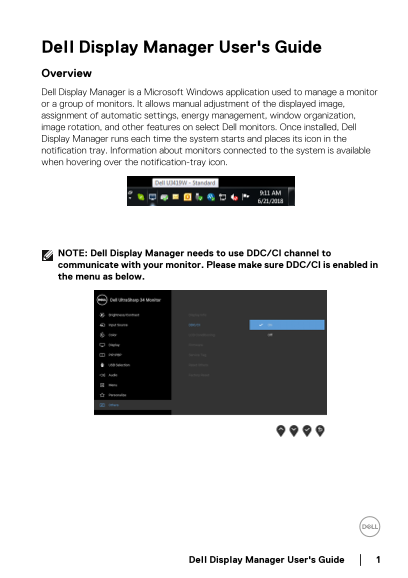
NOTE: Dell Display Manager needs to use DDC/CI channel to communicate with your monitor. Please make sure DDC/CI is enabled in the menu as below.

Dell Display Manager User's Guide

Page Summary Contents For Dell U3419W Dell Display Manager User's Guide

Page 1 Dell Display Manager User's Guide Overview Dell Display Manager is a Microsoft Windows application used to manage a monitor or a group of monitors. It allows manual adjustment of the displayed image, ...
Page 2 Using the Quick Settings Dialog Clicking Dell Display Manager's notification tray icon opens the Quick Settings dialog box. When more than one supported Dell monitors are connected to the computer, a ...
Page 3 Setting Basic Display Functions You can manually select a preset mode or you can select Auto Mode that applies a preset mode based on the active application. An onscreen message momentarily displays t...
Page 4 Assigning Preset Modes to Applications The Auto Mode tab allows you to associate a specific Preset Mode with a specific application, and apply it automatically. When Auto Mode is enabled, Dell Display...
Page 5 For Windows 10, you can apply different window layouts for each of the virtual desktops. If you often use Windows snap feature, you can select “Hold down the SHIFT key to enable zone positioning”. Thi...
Page 6 If you are using multiple monitors in an array or matrix, Easy Arrange layout can be applied across to all the monitors as one desktop. Select “Span multiple monitors” to enable this feature. You need...
Page 7 You can use the dropdown list to switch to any input source. NOTE: DDM communicates with your monitor even when the monitor is displaying video from another computer. You can install DDM on the PC you...
Page 8 You can select video inputs for your main window and sub window. Please save your change after your selection. You can define a shortcut key to quickly swap the video inputs between main window and su...
Page 9 NOTE: Make sure you have assigned a USB upstream port for each of the two computers. When PIP/PBP is on, if you share a device (e.g. a mouse) between the two computers, you can click USB switch button...
Page 10 If you choose “Auto-restore window layout”, your application windows' positions are tracked and remembered by DDM. DDM automatically puts the application windows into their original positions when you...
Page 11 Troubleshooting If DDM cannot work with your monitor, DDM will show below icon in your notification tray. Click on the icon, DDM shows a more detailed error message. Please note that DDM only works wi...
Page 12 You may also check for new version by right clicking on DDM icon while pressing and holding 'shift' key. Dell Display Manager User's Guide