# A B C D E F G H I J K L M N O P Q R S T U V W X Y Z

Dell Owner's Manual & User Guide, Removed Brand Names

Summary

ASUS Notebook PC Upgrade Guide for RAM and storage upgrades. Covers compartment cover removal, RAM module installation, HDD replacement, and M.2 SSD installation. Includes safety warnings and compatibility notes. Target users: laptop owners seeking performance upgrades.
📄 Preview PAGE OF 14

Page 1 Text Content

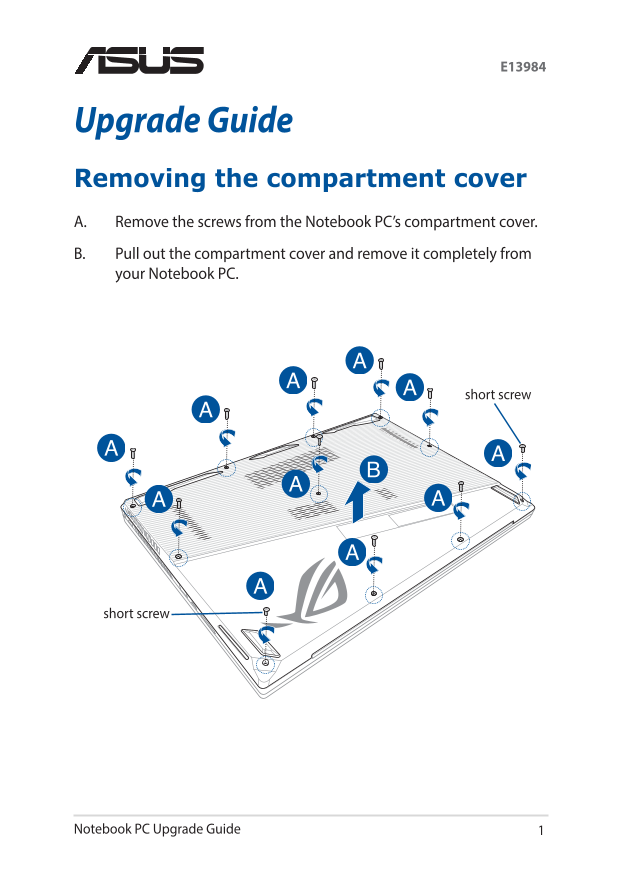
Upgrade Guide Removing the compartment cover A. Remove the screws from the Notebook PC’s compartment cover. B. Pull out the compartment cover and remove it completely from your Notebook PC.

short screw

short screw

1Notebook PC Upgrade Guide

Page Summary Contents For Dell Owner's Manual & User Guide, Removed Brand Names

Page 1 Upgrade Guide Removing the compartment cover A. Remove the screws from the Notebook PC’s compartment cover. B. Pull out the compartment cover and remove it completely from your Notebook PC. short scre...
Page 2 To reattach the compartment cover: A. Align and reattach the cover of the compartment. B. Secure the cover using the screws you removed earlier. short screw short screw Notebook PC Upgrade Guide
Page 3 Installing a RAM module Upgrade the memory capacity of your Notebook PC by installing a RAM (Random Access Memory) module in the memory module compartment. The following steps show you how to install ...
Page 4 A. Remove the compartment cover. NOTE: For more details, refer to the Removing the compartment cover section in this manual. B. Align and insert the RAM module into the RAM module slot. C. Push down t...
Page 5 Installing the Hard Disk Drive Refer to the following steps if you need to install a new HDD (Hard Disk Drive) of your Notebook PC: IMPORTANT! Purchase an HDD from authorized retailers of this Noteboo...
Page 6 A. Remove the compartment cover. NOTE: For more details, refer to the Removing the compartment cover section in this manual. B. Slightly lift the flap on the connector, then disconnect the cable from ...
Page 7 D. (Optional) If an HDD is currently installed in your Notebook PC, slightly lift the HDD bay out of the compartment. E. Disconnect the HDD bay from the HDD cable as shown in the illustration below. H...
Page 8 F. (Optional) If an HDD is currently attached to the HDD bay, refer to the following steps on how to remove the old HDD: 1. Remove all the screws on the sides of the HDD bay. 2. Remove the HDD bay fro...
Page 9 G. Place the new HDD within the HDD bay as shown below. Ensure that the port connectors of your HDD are not obstructed by any part of the HDD bay. H. Reattach and secure the HDD with the screws you re...
Page 10 I. Connect the HDD connector to the HDD. J. Replace the HDD bay back in the compartment, and push the HDD bay until seated. Notebook PC Upgrade Guide
Page 11 K. Secure the HDD bay with the screws you removed earlier. L. Connect the cable to the motherboard, then push down the flap on the connector to secure the cable. 11Notebook PC Upgrade Guide
Page 12 Installing an M.2 card Refer to the following steps when installing a compatible M.2 card in your Notebook PC: IMPORTANT! Purchase your M.2 card from authorized retailers of this Notebook PC to ensure...
Page 13 A. Remove the compartment cover. NOTE: For more details, refer to the Removing the compartment cover section in this manual. B. Align and insert the M.2 card into its card module slot. C. Secure the M...
Page 14 Notebook PC Upgrade Guide

Manual Details

Brand Dell
Pages 14
File Size 2.54 MB
Published June 26, 2026
4 views

Enter the captcha to get the download link:

captcha

Frequently Asked Questions

How do I remove the compartment cover?

Remove the screws from the cover and pull it out completely from the Notebook PC.

What safety precautions must I take before upgrading?

Disconnect all peripherals, telephone lines, and power connectors like the battery pack.

What type of memory does the M.2 slot support?

The M.2 2280 slot supports both PCIe (NVMe) SSD and SATA SSD.

Where should I buy RAM modules for my PC?

Purchase RAM modules from authorized retailers of this Notebook PC.