Dell Mobile Streak 7 Wi-Fi Quick Start Guide (Wi-Fi)
Summary
This is the Quick Start Guide for the Dell Streak 7 Tablet, providing initial setup instructions for Dell's 7-inch Android tablet device. The guide covers hardware components including touchscreen, buttons, ports, and connectors, as well as procedures for inserting SD/SIM cards, charging the battery, powering on the device, connecting headphones, and using the lock screen. It is intended for end users and consumers who are setting up their Dell Streak 7 tablet for the first time.
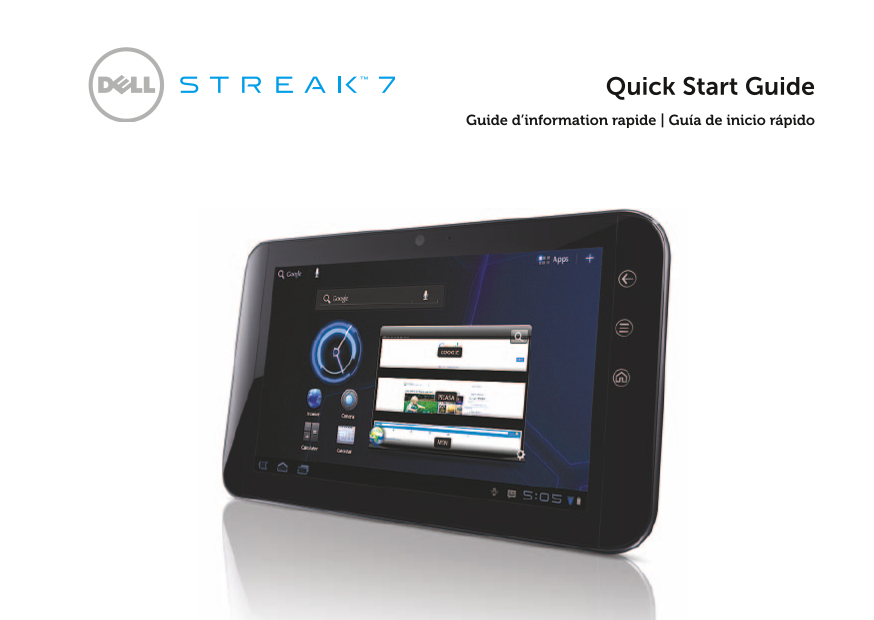
Page 1 Text Content
Quick Start Guide
Guide d’information rapide | Guía de inicio rápido
Page Summary Contents For Dell Mobile Streak 7 Wi-Fi Quick Start Guide (Wi-Fi)
Page 1
Quick Start Guide Guide d’information rapide | Guía de inicio rápido
Page 3
Quick Start Guide
Page 4
About Notes NOTE: A NOTE indicates important information that helps you make better use of your product. Information in this document is subject to change without notice. © 2011 Dell Inc. All rights r...
Page 5
About Your Dell Streak 7 Tablet Headphone connector Speaker Volume-up button Volume-down button Power and Sleep/Wake button Battery-status light Back button Menu button Home button
Page 6
30-pin connector Touch screen Force power-off button SD-card slot SIM-card slot (on 3G model only) Slot door Speaker Microphone Camera
Page 7
Camera Flash
Page 8
Set Up Your Dell Streak 7 Tablet 1. Insert the SD card (Optional) 3. Charge the battery Charge the battery of your tablet fully before using it for the first time. The battery-status light indicates t...
Page 9
Turn on Your Tablet Connect a Headphone Press and hold the power button to Connect the 3.5 mm headphone to the turn on your tablet. headphone connector.
Page 10
Lock Screen Your tablet enters sleep mode automatically after a preset duration of inactivity. To wake up your tablet from sleep mode, press the power button once. Touch and hold the lock icon to turn...
Page 11
Dell Stage Your tablet has five customizable Home screens. To navigate across the Home screens, flick your finger to the right or left on the screen. You can add the Dell Stage widgets to the Home scr...
Page 12
Launcher The Launcher displays all the available applications on your tablet, including any applications that you download and install from Android Market or other sources. To open the Launcher, touch...
Page 13
Status Bars Action Bar — The Action Bar resides at the top of the screen and gives access to contexual options, widgets, and more. The Action Bar is controlled by the active application. System Bar — ...
Page 14
Connect to a Wi-Fi Network To connect your tablet to a Wi-Fi network: 1. Touch Home → Launcher → Settings. 2. Touch Wireless & networks→ Wi-Fi to select the Wi-Fi check box. The device scans for a...
Page 15
Add Your Gmail Contacts To add your Gmail contacts to the Contact list on your tablet: 1. On the Home screen, touch the Launcher icon → Contacts. 2. Touch Menu → Accounts. 3. In the Accounts & syn...
Page 16
Connect and Synchronize With a Computer The Dell Mobile Sync software allows you to copy and synchronize music, photos, videos, and Outlook contacts between your tablet and a computer. To install the ...
Page 17
3. If the Dell Mobile Sync installer does not start automatically: a. Double-click the new Removable Disk that appears on your computer. b. Navigate to the Dell Mobile Sync folder on the removable dis...
Page 18
More Information To learn more about the features and settings available on your tablet, see the User’s Manual available on the SD card on your tablet or at support.dell.com/manuals. NOTE: Quick Offic...
Manual Details
| Brand | Dell |
|---|---|
| Pages | 18 |
| File Size | 402.55 KB |
| Published | June 29, 2026 |
9 views
Enter the captcha to get the download link:
