# A B C D E F G H I J K L M N O P Q R S T U V W X Y Z

Dell Latitude 3180 - Intel Re-Image Guide

Summary

This comprehensive guide provides detailed instructions for re-imaging and maintaining Dell Latitude Ultrabook and Mobile Precision notebooks. Designed for IT professionals and business clients, it covers best practices for flawless Operating System installations across Windows 7 through Windows 10. Whether using automated tools or manual installation methods, this resource ensures all necessary drivers—including connectivity essentials and firmware updates—are correctly applied for optimal performance.
📄 Preview PAGE OF 15

Page 1 Text Content

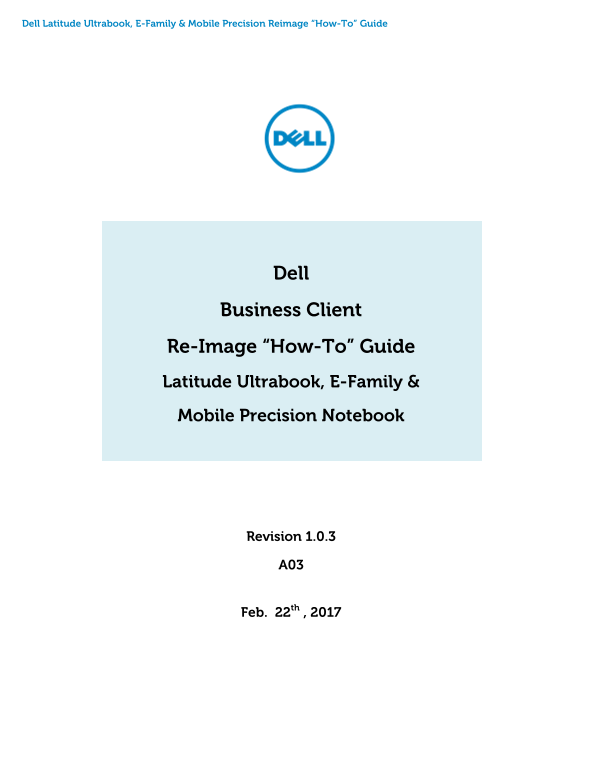
Dell Latitude Ultrabook, E-Family & Mobile Precision Reimage “How-To” Guide

Dell Business Client

Re-Image “How-To” Guide Latitude Ultrabook, E-Family & Mobile Precision Notebook

Revision 1.0.3

Feb. 22th , 2017

Page Summary Contents For Dell Latitude 3180 - Intel Re-Image Guide

Page 1 Dell Latitude Ultrabook, E-Family & Mobile Precision Reimage “How-To” Guide Dell Business Client Re-Image “How-To” Guide Latitude Ultrabook, E-Family & Mobile Precision Notebook Revision 1.0.3...
Page 2 Dell Latitude Ultrabook, E-Family & Mobile Precision Reimage “How-To” Guide Contents 1 Overview .......................................................................................................
Page 3 Dell Latitude Ultrabook, E-Family & Mobile Precision Reimage “How-To” Guide 1 Overview This document is a quick guidance for re-image OS on Dell Latitude & Mobile Precision notebooks. Failure ...
Page 4 Dell Latitude Ultrabook, E-Family & Mobile Precision Reimage “How-To” Guide 2 “How-To” 2.1 Auto Installation Application Dell highly recommends Dell Command | Update application (DCU) to automate ...
Page 5 Dell Latitude Ultrabook, E-Family & Mobile Precision Reimage “How-To” Guide NOTE: Dell recommends restarting your system between each driver, firmware installation.
Page 6 Dell Latitude Ultrabook, E-Family & Mobile Precision Reimage “How-To” Guide Support Products Latitude Mobile Mobile Latitude Note Precision Precision 3189/3180 Title Category E7280/7480 DELL Syste...
Page 7 Dell Latitude Ultrabook, E-Family & Mobile Precision Reimage “How-To” Guide Appendix
Page 8 Dell Latitude Ultrabook, E-Family & Mobile Precision Reimage “How-To” Guide Appendix A How to create and use the Dell Windows recovery image After you download the Windows recovery image file, fol...
Page 9 Dell Latitude Ultrabook, E-Family & Mobile Precision Reimage “How-To” Guide Create DVD installation media 1. Insert the DVD into the disc drive of the PC where you’ll be copying the recovery image...
Page 10 Dell Latitude Ultrabook, E-Family & Mobile Precision Reimage “How-To” Guide Appendix B Intel® Rapid Storage Technology Intel® Rapid Storage Technology offers greater levels of performance, respons...
Page 11 Dell Latitude Ultrabook, E-Family & Mobile Precision Reimage “How-To” Guide RAID level 0 (Striping) RAID level 1 (Mirroring) RAID level 5 (Striping with parity) RAID level 10 (Striping and mirrori...
Page 12 Dell Latitude Ultrabook, E-Family & Mobile Precision Reimage “How-To” Guide Appendix C Dell Client Command Suite The Dell Client Command Suite is the new name of our industry leading Client System...
Page 13 Dell Latitude Ultrabook, E-Family & Mobile Precision Reimage “How-To” Guide Appendix D Dell Dock (WD15) & Dell Thunderbolt Dock (TB16) information Dell Dock WD15 Display Ports VGA, m DP, HDMI ...
Page 14 Dell Latitude Ultrabook, E-Family & Mobile Precision Reimage “How-To” Guide Max Resolution 5120 x 2880 @ 60Hz USB Ports USB 2.0 - (2), USB 3.0 - (3) Thunderbolt 3 Port USB Type-C Audio/Headphone 3...
Page 15 Dell Latitude Ultrabook, E-Family & Mobile Precision Reimage “How-To” Guide 4 With Intel HD Integrated graphics. Some systems with Discrete Graphics (NVidia/AMD) may be able to display additional ...

Manual Details

Brand Image
Pages 15
File Size 615.88 KB
Published May 23, 2026
114 views

Enter the captcha to get the download link:

captcha

Frequently Asked Questions

What is the best method for re-imaging a Dell Latitude or Precision notebook?

Reinstalled images should be built from a Windows clean installation, followed by the steps in this guide.

How can I ensure all system drivers and firmware are up to date?

Use the Dell Command | Update application (DCU) to automate the installation of BIOS, firmware, driver, and critical updates.

Which operating systems are supported for various Latitude models like E5480/E7280?

The manual lists specific OS support per model, such as Windows 10 is supported across multiple Latitude models.

What service is required to enable internet access after re-imaging?

You must install the Ethernet controller driver first. You can find this by searching your system's service tag on the Dell Support Website.