Dell Inspiron 15 3552 (with optical drive) Quick User Guide - Windows 10
Summary
This technical documentation provides comprehensive documentation for the Product support and manuals Dell.com/support 1 Connect the power adapter. The document covers safety instructions and precautions, setup instructions, regulatory compliance information. Regulatory compliance and safety information are also provided. This documentation is intended for network engineers and administrators. The manual provides detailed guidance to ensure proper operation and maintenance of the Product support and manuals Dell.com/support 1 Connect the power adapter. Users will find step-by-step instructions and technical details necessary for effective utilization of the product.
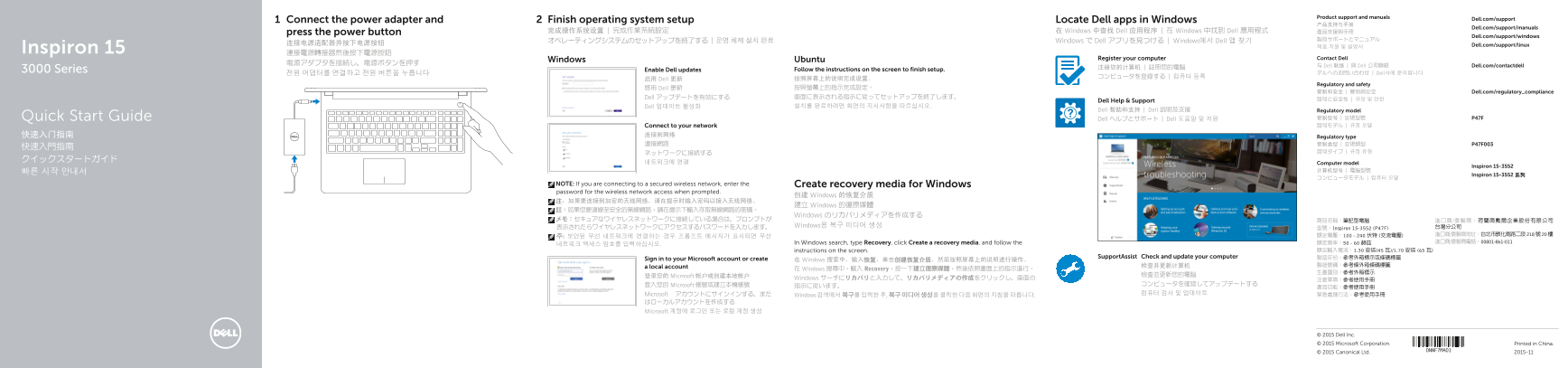
Page 1 Text Content
Product support and manuals
Connect the power adapter and Finish operating system setup Locate Dell apps in Windows Dell.com/support
Dell.com/support/manuals
press the power button 完成操作系统设置 | 完成作業系統設定 在 Windows 中查找 Dell 应用程序 | 在 Windows 中找到 Dell 應用程式 產品支援與手冊
Dell.com/support/windows
オペレーティングシステムのセットアップを終了する | 운영 체제 설치 완료 Windows で Dell アプリを見つける | Windows에서 Dell 앱 찾기
连接电源适配器并按下电源按钮 Dell.com/support/linux
Inspiron 15 連接電源轉接器然後按下電源按鈕
Register your computer Contact Dell
Windows Ubuntu
与 Dell 联络 | 與 Dell 公司聯絡 Dell.com/contactdell
3000 Series Enable Dell updates Follow the instructions on the screen to finish setup.
전원 어댑터를 연결하고 전원 버튼을 누릅니다 デルへのお問い合わせ | Dell사에 문의합니다
启用 Dell 更新 按照屏幕上的说明完成设置。
Regulatory and safety
啟用 Dell 更新 按照螢幕上的指示完成設定。
管制和安全 | 管制與安全 Dell.com/regulatory_compliance
Dell アップデートを有効にする 画面に表示される指示に従ってセットアップを終了します。
Dell Help & Support 認可と安全性 | 규정 및 안전
Dell 업데이트 활성화 설치를 완료하려면 화면의 지시사항을 따르십시오.
Dell 帮助和支持 | Dell 說明及支援 Regulatory model
Quick Start Guide Dell ヘルプとサポート | Dell 도움말 및 지원 管制型号 | 安規型號 P47F Connect to your network 認可モデル | 규정 모델
Regulatory type
네트워크에 연결 Computer model
Inspiron 15-3552
Inspiron 15-3552 系列
NOTE: If you are connecting to a secured wireless network, enter the Create recovery media for Windows password for the wireless network access when prompted.
创建 Windows 的恢复介质
建立 Windows 的復原媒體
Windows のリカバリメディアを作成する
表示されたらワイヤレスネットワークにアクセスするパスワードを入力します。 Windows용 복구 미디어 생성 台灣分公司
型號:Inspiron 15-3552 (P47F)
In Windows search, type Recovery, click Create a recovery media, and follow the 額定頻率:50 - 60 赫茲 進口商/委製商電話:00801-861-011
instructions on the screen. 額定輸入電流:1.30 安培(45 瓦)/1.70 安培 (65 瓦)
Support Assist Check and update your computer 製造年份:參考外箱標示或條碼標籤
Sign in to your Microsoft account or create 在 Windows 搜索中,输入恢复,单击创建恢复介质,然后按照屏幕上的说明进行操作。
a local account
在 Windows 搜尋中,輸入 Recovery,按一下建立復原媒體,然後依照畫面上的指示進行。
登录您的 Microsoft 帐户或创建本地帐户 檢查並更新您的電腦
Windows サーチにリカバリと入力して、リカバリメディアの作成をクリックし、画面の 注意事項:參考使用手冊
登入您的 Microsoft 帳號或建立本機帳號 コンピュータを確認してアップデートする
Microsoft アカウントにサインインする、また 컴퓨터 검사 및 업데이트 緊急處理方法:參考使用手冊
Windows 검색에서 복구를 입력한 후, 복구 미디어 생성을 클릭한 다음 화면의 지침을 따릅니다.
はローカルアカウントを作成する Microsoft 계정에 로그인 또는 로컬 계정 생성
© 2015 Dell Inc. © 2015 Microsoft Corporation. Printed in China.
© 2015 Canonical Ltd. 2015-11
Page Summary Contents For Dell Inspiron 15 3552 (with optical drive) Quick User Guide - Windows 10
Manual Details
| Brand | Dell |
|---|---|
| Pages | 2 |
| File Size | 879.14 KB |
| Published | June 16, 2026 |
Enter the captcha to get the download link:

Frequently Asked Questions
How do I finish the computer setup?
Follow the instructions on the screen to finish setup.
Where do I find Dell apps in Windows?
Locate Dell apps in Windows search.
How do I create recovery media for Windows?
In Windows search, type Recovery, click Create a recovery media, and follow the screen instructions.
What is the computer model number?
The computer model is Inspiron 15-3552 (P47F).
What ports are available on this laptop?
It includes USB 2.0 (2 ports), USB 3.0, HDMI, optical drive, media card reader, and headset port.