# A B C D E F G H I J K L M N O P Q R S T U V W X Y Z

ABB Pluto Gateway Rockwell PLC Integration Manual

Summary

Essential guide for integrating Pluto DeviceNet Gateway systems with Allen-Bradley PLCs using Rockwell's RSNetWorx for DeviceNet software. This manual is designed for industrial automation engineers and technicians responsible for system setup. It provides comprehensive, step-by-step instructions covering every aspect of bus configuration, including EDS file installation, online/offline gateway scanning, defining I/O parameters, verifying device nodes, and setting unique operational parameters within the PLC environment.
📄 Preview 📖 Table of Contents Contents PAGE OF 10

Page 1 Text Content

Pluto Gateway Rockwell PLC Integration Manual

(RSNet Worx for Device Net)

English v2B 2TLC172012M0202_B

Page Summary Contents For ABB Pluto Gateway Rockwell PLC Integration Manual

Page 1 Pluto Gateway Rockwell PLC Integration Manual (RSNet Worx for Device Net) English v2B 2TLC172012M0202_B
Page 2 Revision history: Version Date Change 1A 2008-10-08 First release. 2A 2010-11-29 Changed to ABB style 2B 2011-12-20 Changed title Reference: REF Document A Pluto Gateway User Manual (Pluto Gateway Man...
Page 3 1 Introduction This document will give information how to integrate Pluto Device Net Gateway GATE-D1 with an Allen-Bradley PLC using RSNet Worx for Device Net. Need for integration is a correct instal...
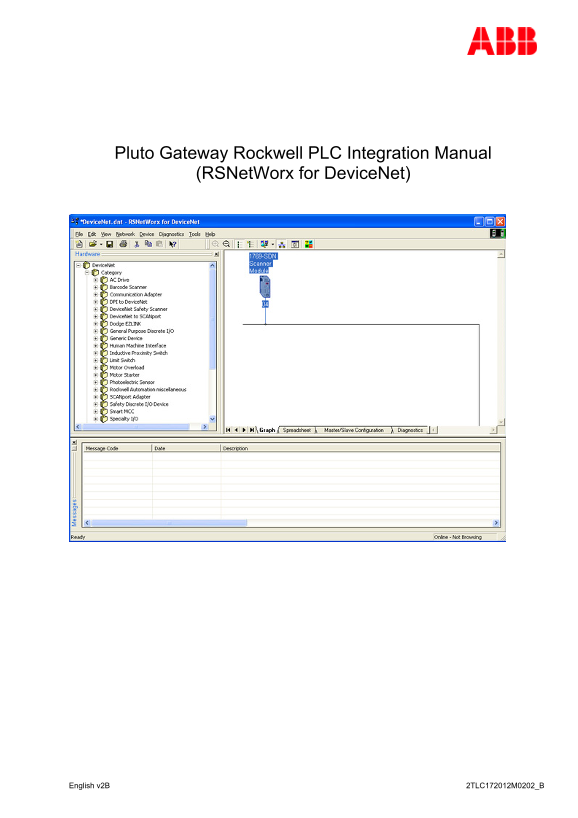
Page 4 2 RSNet Worx for Device Net 2.1 Open RSNet Worx for Device Net Inside the Rockwell RSLogix 5000 under the Device Net scanner you can open the RSNet Worx for Device Net which is used to configure the D...
Page 5 2.2 Install EDS file Before doing anything we need to install the EDS file for the Pluto Device Net gateway. This is done by selecting “Tools” and “EDS Wizard…”. Figure 2 Select “Register an EDS file(...
Page 6 2.3 Install a gateway Installing a gateway in the Device Net bus can be done online or offline. Normally it is easy to use the online mode there the system scans the system for all connected devices. ...
Page 7 Figure 5 Add wanted devices to the scanlist as shown above. 2.4.1 I/O Parameter Configuration For each unit it’s now time to configure the I/O size. This is done by highlight the wanted device and pre...
Page 8 Input size is depending on input assembly instance (ID 3 in Figure 8) and the number of Pluto which is set by the expected nods (ID 1 in Figure 8) for the unit. Table below give a number for this sett...
Page 9 2.4.2 I/O Verification After the I/O confirmation of each device it is good to verify the input and output mapping by selecting the input and output tab of the “1769-SDN Scanner Module” window. Figure...
Page 10 Figure 8 10 2TLC172012M0202_B

Manual Details

Brand Integration
Pages 10
File Size 709.06 KB
Published June 03, 2026
36 views

Enter the captcha to get the download link:

captcha

Frequently Asked Questions

What indicator confirms correct connection of the Pluto Gateway to DeviceNet?

If all connections are correct, the MNS LED must flash green initially, and then be fixed green after bus configuration.

How must I begin configuring the DeviceNet bus using RSNetWorx?

First, you must install the EDS file for the Pluto DeviceNet gateway by selecting “Tools” and “EDS Wizard...”.

What is the safest way to add a new device if I cannot get online with the system?

You can use offline mode by selecting the new gateway unit in the hardware tree rather than going fully online.

Which key operational parameters must be checked for the Pluto DeviceNet gateway?

Ensure you check “expected nodes,” “input assembly instance,” and “output assembly instance” within the device’s parameter settings.